
Best Rust Graphics Settings for FPS
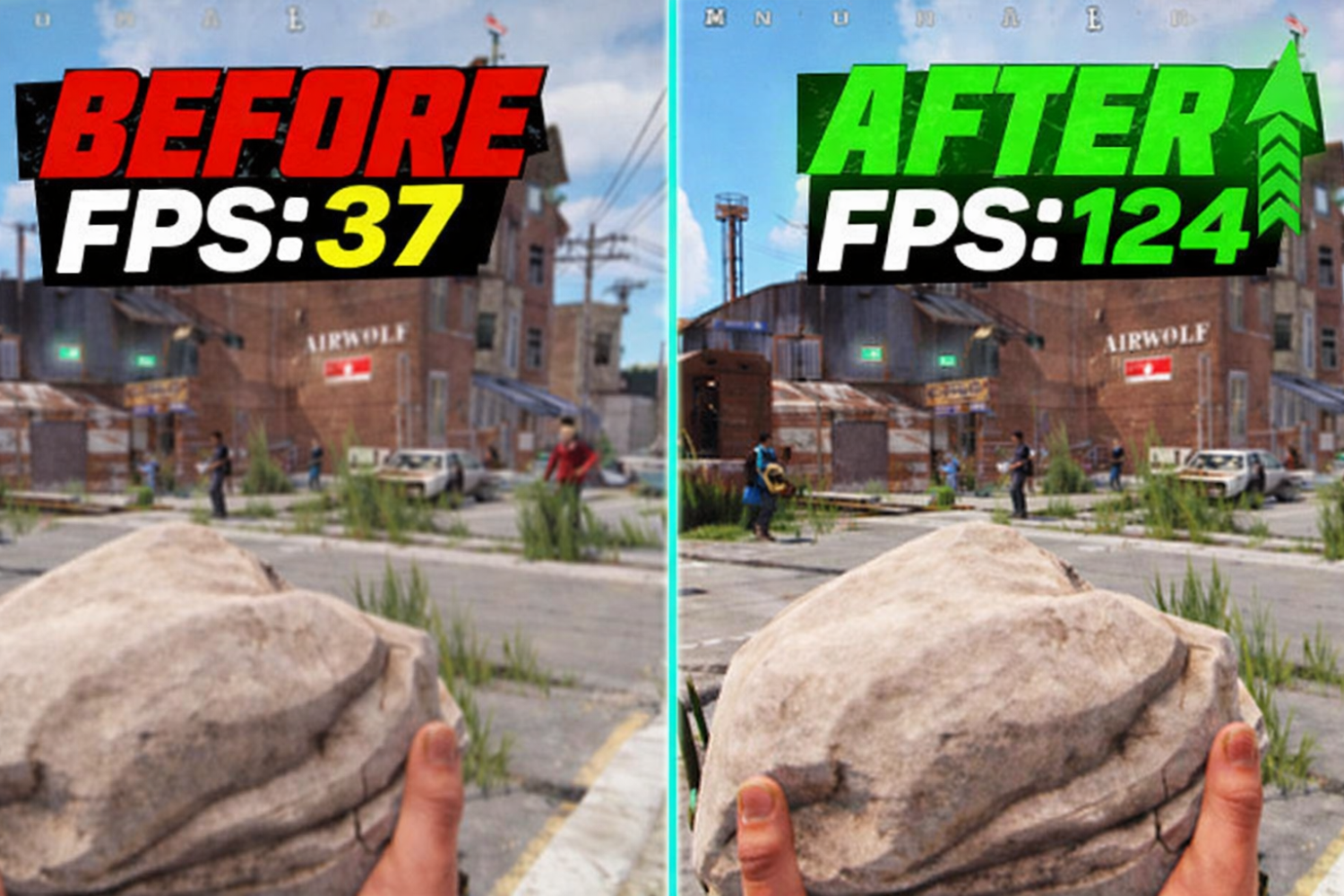
Before touching any of these sliders, it is important to understand one thing: Rust graphics settings impact performance very differently from what we're used to seeing in other shooters. Rust is a CPU-dependent game. It means that even with an RTX 4090 graphics card, without a good CPU, stuttering is unavoidable. At the same time, proper graphics settings provide a notable FPS boost. To do this properly, it is essential to understand what settings impact performance and what settings have almost no impact on it at all.
"Graphics Quality" is the main setting that controls FPS. If its value is set to 0-1, it means that FPS is at its maximum. If it is set to 2 or 3, it is best for mid-range hardware with acceptable graphics quality. It is best to start with "Graphics Quality" set to 1 and increase it gradually to observe the results using the internal counter (F1 → perf 1).
Below is a list of the best Rust graphics settings for gamers who prioritize performance:
Parameter | Recommended Value | FPS Impact |
Graphics Quality | 0-1 | High |
Shadows | 0 (off) | High |
Water Quality | 1 | Medium |
Water Reflections | 0 | Medium (+8% FPS) |
Draw Distance | 2000 | Medium |
Shader Level | 350-450 | Medium |
Anti-Aliasing | Off or SMAA | Medium |
Motion Blur | Off | Low, but distracting |
Depth of Field | Off | Low |
Ambient Occlusion | Off | Low |
Max Gibs | 0 | Medium |
High Quality Bloom | Off | Low |
SSR | Off | Medium |
Grass Shadows | Off | Low-Medium |
FOV | 90 | - |
A few things require special attention. Draw Distance 2000 results in 95% visibility of the maximum value with a loss of only 5% performance. Max Gibs is used to control the level of garbage after destroying structures. If set to 0, it means the server is not wasting resources on rendering trash, especially during raids. Anti-aliasing has to be turned off or set to SMAA only. It smoothes out graphics without affecting FPS significantly. Other effects like Motion Blur or Depth of Field only interfere with vision during PvP battles – the eye is not made to perceive movement like this.
Resolution: For optimal performance, most active players prefer 1440 x 1080 resolution. It is a stretched resolution – it makes the image slightly wider on the horizontal axis, increases FPS, and makes enemy models appear slightly larger. For those who prefer image quality over FPS, 1920 x 1080 is a good option. Display mode is best set to Exclusive Fullscreen – it has the lowest input lag compared to Borderless.
How to Boost FPS in Rust
One of the most asked questions in the community is how to boost FPS in Rust without changing the hardware. The good news: the system can be optimized to gain more FPS than lowering the in-game settings. The bad news: most players don’t know how to do this, and their Windows isn’t optimized either.
To start with, let’s analyze the system. For example, if the CPU usage is at 100%, and the GPU usage is at 50-60%, then the bottleneck is the CPU, which is the most common case for Rust. But if the GPU usage is at 100%, then lowering the graphics settings will be the way to boost FPS. You can check the usage with the Task Manager (Ctrl+Shift+Esc → Performance) or MSI Afterburner, which shows the real-time usage.
Here’s what really helps if you want to know how to boost FPS in Rust without changing the hardware:
The first thing to do, if you want to know how to boost FPS in Rust, is to enable the Ultimate Performance mode in Windows. This will free up more system resources, which are usually saved when the Windows settings are on normal mode. To enable the Ultimate Performance mode, open the command prompt with administrator rights and type the following: powercfg -duplicatescheme e9a42b02-d5df-448d-aa00-03f14749eb61. This will enable the Ultimate Performance mode, which will be available in the Windows settings. This is one of the simplest and most effective ways to boost FPS in Rust on any PC.
Next, Game Mode (Settings > Gaming > Game Mode) and Hardware-Accelerated GPU Scheduling (HAGS). These two settings reduce overhead and lag in input responses. At the same time, disable Discord overlay, close Chrome, and eliminate unnecessary programs that start up – Rust consumes a lot of RAM, and 16 GB is already becoming a minimum on large servers.
A final point that is often overlooked is GPU drivers. Outdated drivers are a common source of lag and disconnections. Updating drivers takes a few minutes and can significantly impact gameplay. NVIDIA users should also ensure that in their control panel, Threaded Optimization is set to AUTO and that "Prefer Maximum Performance" is enabled.
Lastly, how to increase FPS in Rust using console commands. If you press F1 in Rust, you can enable "pool.clear_memory," which clears the memory pool and removes all garbage that is collected over long gameplay sessions. Make sure that Rust is installed on an SSD – read speeds directly correlate to loading speeds and smoothness of rendering the in-game world.
Rust Launch Options for FPS and Performance
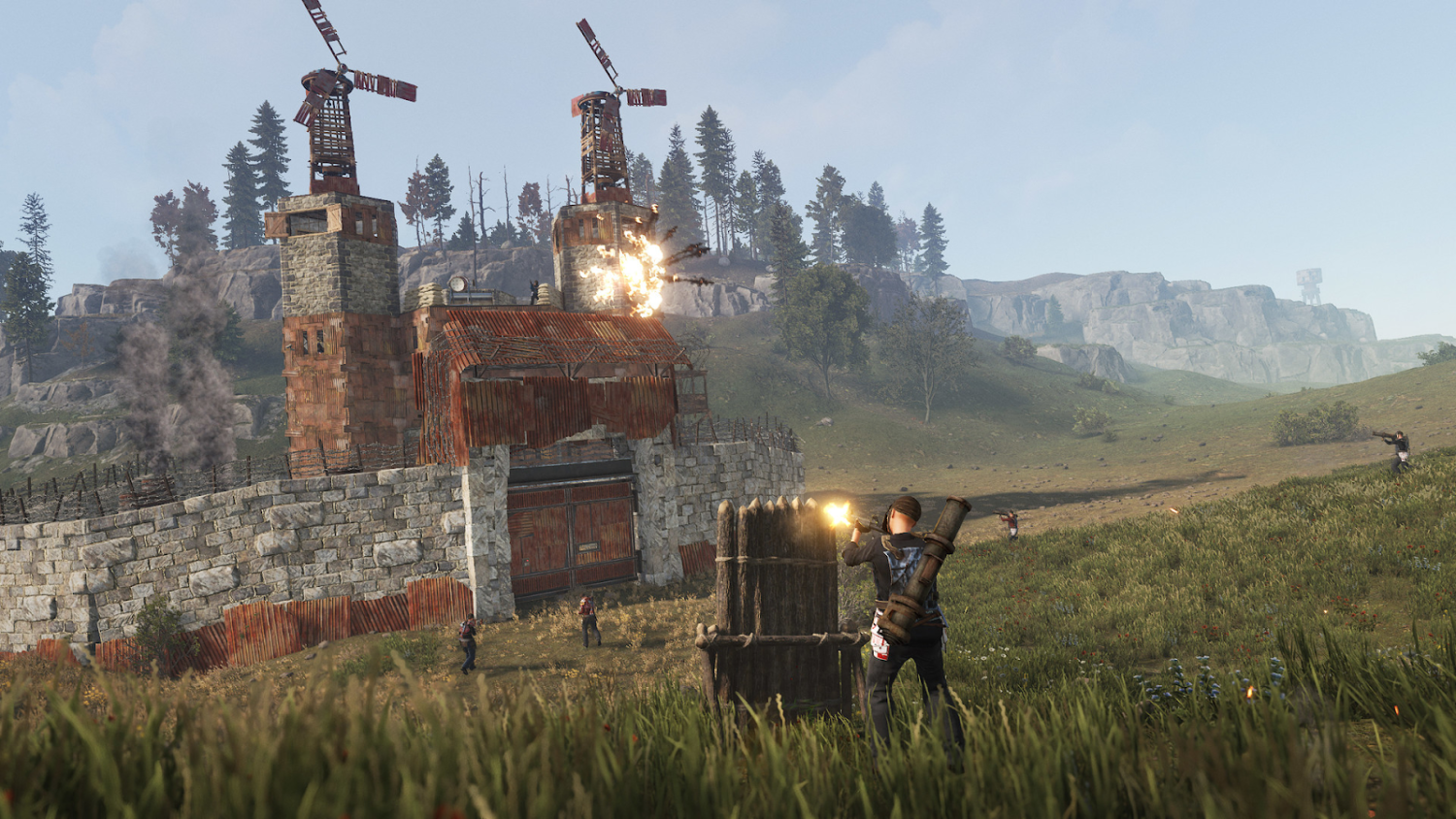
Rust launch options for FPS are parameters passed to the game engine at startup and can noticeably affect performance before the player even hits a server. Set them through Steam: right-click Rust in library → Properties → Launch Options. Some players underestimate this tool, and that's a mistake – the right set of options can remove part of the load and make framerate more stable.
Here's a proven set of parameters used by experienced players and streamers like in blooprint Rust settings guides:
-high – raises Rust process priority in the system.
-headlerp 100 – affects head animation interpolation, reduces load.
-graphics.waves 0 – disables wave animation on water.
-effects.maxgibs -1 – limits debris amount (additional control besides menu setting).
-maxMem=X – sets RAM limit for the game; replace X with value in MB (e.g., -maxMem=8192 for 8 GB RAM).
Important to specify correct value for -maxMem: it should match actual installed RAM and not exceed it. If you have 16 GB in the system, it is reasonable to allocate 12-14 GB. Mistakes here can lead to crashes or reverse effect. After adding parameters, launch the game and compare FPS readings before and after – effect isn't equally noticeable on all configurations, so Rust optimize always requires individual testing.
Additionally through the F1 console you can enter commands after joining a server. graphics.quality X (where X is 0 to 5) changes overall graphics quality without restart. grass.on false disables grass – controversial solution for visibility, but gives gains on weak hardware. These tools provide flexibility for fine-tuning to specific servers and situations.
Best Rust Settings for Low-End PCs
Playing Rust on a weak PC is a separate sport. The game isn't optimized for old hardware, but that doesn't mean getting acceptable best Rust settings for low end PC is impossible. With the right approach, you can achieve a stable 60 FPS even on GTX 1060 or RX 580 paired with a processor like Ryzen 5 2600. The key is prioritizing: enemy visibility matters more than pretty water.
A few principles that work especially well for weak hardware. First, the best stretched res for Rust is 1440×1080 or even 1280×1080 resolution. Both variants reduce GPU load and cut pixels for calculation, while on widescreen monitors the picture remains quite readable. To remove black bars with stretch, set the same resolution in NVIDIA settings (control panel → Change Resolution) or AMD Adrenalin before launching the game.
Below is the minimum settings set for Rust settings for performance on weak hardware:
Graphics Quality: 0
Shadows: 0 (completely disable)
Water Quality: 0-1
Water Reflections: 0
Draw Distance: 1000-1500
Shader Level: 200-300
Mesh Quality: 50%
Anti-Aliasing: Off
All Image Effects (Motion Blur, Depth of Field, Bloom, SSR, Ambient Occlusion): Off
Max Gibs: 0
Grass Shadows: Off
Soft Particles: Off
Three-four additional steps many forget: install Rust on SSD instead of HDD (difference in loading speed and world render is noticeable even on SATA drives), enable High Performance or Ultimate Performance mode in Windows, and check component temperatures through HWiNFO – CPU or GPU overheating above 80°C leads to throttling and sharp FPS drops regardless of settings. If temperatures are critical, repasting thermal compound or improving case ventilation helps.
Rust Settings for PvP
PvP in Rust is a different story. You don't need pretty graphics here – you need maximum silhouette readability, minimal input lag, and confident framerate without drops at the hottest moment. Rust settings for PvP are a compromise between performance and visibility: too low graphics make enemies hard to distinguish against the landscape, too high kills FPS in fights.
Experienced players and popular streamers whose settings are actively discussed in the community (like hjune Rust settings and blooprint Rust settings) have long reached similar conclusions: key parameters for PvP are visibility, mouse, and interface, not texture quality.
Recommended best Rust PVP settings:
Hit Cross: On – hit marker is critically important for understanding where bullets land.
Compass: On – allows quick spatial orientation and coordination with teammates.
FOV: 90 – standard for most players; higher FOV gives more view but lowers FPS.
Anti-Aliasing: SMAA or Off – SMAA smooths edges without blur, Off gives maximum FPS.
VSync: Off – vertical sync adds input lag, unacceptable in PvP.
Crosshair (built-in): Off – most players use custom crosshair or hit cross.
Motion Blur: Off – motion blur interferes with reading enemy movement.
Resolution: 1440×1080 – popular choice among PvP players for FPS and readability balance.
For mouse settings, values in the 400-800 DPI range are popular – exactly what best DPI for Rust top streamers use. Legendary hJune, known for his AK-47 recoil control, plays on 400 DPI with 0.475 sensitivity – very low sens requiring a large mousepad, but giving accuracy at long distances. Rust pvp settings for sensitivity are strictly individual, but the 400-800 DPI range with low in-game sensitivity is considered standard for serious play.
Another point: sound in PvP is as underrated as in CS2. Player footsteps, lock picking sounds, silenced shots – all this reads through audio. Quality headphones with proper sound settings give competitive advantage regardless of how optimized Rust settings for PVP are on screen.
Playing with proper settings is just the beginning
When framerate stopped jumping and the crosshair finally listens – it's time to think about another way to improve the game experience. Skins in Rust change how gear looks and make each wipe a bit more personal. On Skin.Land you can find skins for weapons, armor, and gear – from minimalist to downright insane. Proper settings give advantage in combat, and the right skin gives the right mood before a raid.

Write comment