
Jak zmienić ustawienia gamma w CS2
Ustalenie, jak zmienić ustawienia gamma w CS2 nie jest trudne – istnieją trzy poziomy kontroli: suwak jasności w grze, konsola i ustawienia GPU. Pierwsze dwa wystarczą do podstawowej konfiguracji. Suwak menu działa w dowolnym trybie okna; polecenie konsoli działa tylko w trybie pełnoekranowym.
Poprzez ustawienia gry
Jest to najprostsza metoda, która nie wymaga konsoli. Z technicznego punktu widzenia nie zmienia to prawdziwej wartości gamma, ale działa dobrze w przypadku początkowej konfiguracji. Przed dotknięciem suwaka upewnij się, że monitor ma domyślną kalibrację.
Otwórz Ustawienia → Wideo.
Znajdź ustawienie Jasność.
Ustaw wartość z zakresu 80–100 %.
Kliknij Zastosuj i przetestuj na mapie ćwiczeń.
Suwak działa w czasie rzeczywistym, dzięki czemu rezultaty widoczne są natychmiast. Jeśli obraz po zastosowaniu – wygląda na zbyt jasny, zmniejsz go do 70–80 %. Pamiętaj: jasność w grze i prawdziwa wartość gamma to dwie różne rzeczy. Aby uzyskać dokładniejszą kalibrację, będziesz potrzebować konsoli lub Panelu sterowania NVIDIA.
Przez konsolę
Ta metoda jest bardziej precyzyjna, ale działa tylko w trybie wyłączności pełnoekranowej. W trybie okienkowym lub bez obramowania polecenie CS2 ustawień gamma nie ma zastosowania. Jest jeszcze jedno ograniczenie: polecenie nie działa, gdy aktywna jest opcja uruchamiania -vulkan. Jeśli jest to ustawione we właściwościach gry Steam, najpierw je usuń.
Włącz konsolę: Ustawienia → Gra → Włącz konsolę programisty → Tak.
Otwórz konsolę za pomocą ~.
Wpisz: r_fullscreen_gamma 2.2 i naciśnij Enter.
Zmiana zostanie zastosowana natychmiast – nie ma potrzeby ponownego uruchamiania. Aby przetestować wiele wartości, po prostu wprowadź ponownie polecenie z innym numerem. Aby ustawienie pozostało niezmienione po ponownym uruchomieniu, dodaj polecenie do pliku autoexec.cfg (ścieżka: Steam/userdata/[ID]/730/local/cfg/).
Najlepsze ustawienia gamma dla CS2
Najlepsze ustawienie gamma w CS2 zależy od monitora, oświetlenia pomieszczenia i osobistych preferencji. To powiedziawszy, istnieją zakresy, które zostały przetestowane i zatwierdzone przez społeczność i profesjonalnych graczy. Kluczowa logika do zrozumienia: w CS2 niższa wartość r_fullscreen_gamma oznacza jaśniejszy obraz, a wyższa wartość oznacza ciemniejszy i bardziej kontrastowy. Jest to przeciwieństwo standardowej skali gamma, do której przywykła większość użytkowników monitorów.
Testuj wartości na ciemnych mapach – Ancient, Nuke, Inferno. Zacznij od domyślnej wartości 2,2 i przesuwaj ją w krokach co 0,2 w dowolnym kierunku. Gdy znajdziesz swoją wartość, natychmiast dodaj ją do autoexec, aby nie została zresetowana po zastosowaniu łatki.
Scenariusz | r_fullscreen_gamma | Opis |
Domyślny / monitor LCD | 2.2 | Standard dla większości monitorów |
Rywalizacja | 2.0–2.2 | Nieco jaśniejszy, lepsza czytelność cieni |
Długie sesje | 2.4–2.6 | Mniej oczutrain |
Jak większość profesjonalistów | 2.2–2.4 | Równowaga widoczności i kontrastu |
CS:GO styl | 2.6–3.0 | Ciemniejszy, bardziej nasycony |
Wartości poniżej 1,8 powodują nadmierną jasność – szczegóły w jasnych obszarach są tracone. Powyżej 3,5 jest zbyt ciemno, aby grać w trybie rywalizacji. Praktyczny zakres dla większości graczy: 2.0–2.8.
CS2 wyjaśnienie poleceń gamma
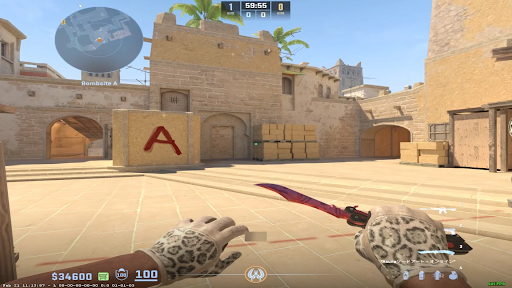
W CS:GO głównym poleceniem były mat_monitorgamma – wartości w zakresie od 1,6 (maksymalna jasność) do 2,2 (zrównoważona). W CS2 to polecenie nie działa: silnik Source 2 go nie obsługuje. Jego zamiennikiem jest r_fullscreen_gamma, a wiedza o tym ma znaczenie, dzięki czemu nie marnujesz czasu na polecenia, które nic nie dają. Częsty błąd: gracz wprowadza polecenie, nic się nie dzieje i dochodzi do wniosku, że gamma nie może być regulowana w CS2. Problemem jest prawie zawsze tryb okna.
Rozkaz | CS2 Stan | Notatka |
r_fullscreen_gamma [wartość] | Fabryka | Tylko tryb pełnoekranowy. Zakres: 1.6–3.5 |
mat_monitorgamma [wartość] | Nie działa | Pozostało z CS:GO |
mat_monitorgamma_tv_enabled 0 | Nie działa | Pozostało z CS:GO |
Polecenie r_fullscreen_gamma również nie działa w przypadku uruchamiania z parametrem -vulkan. Jeśli jest to ustawione w Steam (kliknij grę prawym przyciskiem myszy → Właściwości → Opcje uruchamiania), usuń ją przed wypróbowaniem metody konsoli.
Jak sprawić, by CS2 wyglądał bardziej jak CS:GO
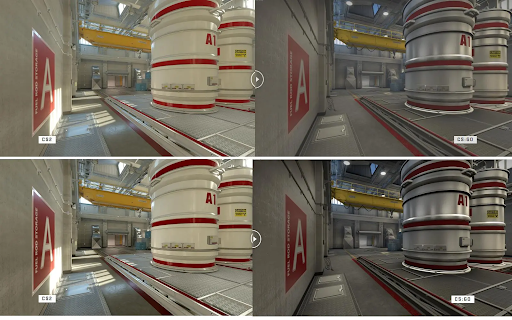
CS2 przy ustawieniach domyślnych jest jaśniejszy i bardziej nasycony niż CS:GO – Źródło 2 tworzy inny profil kolorów. Nie możesz w pełni odtworzyć wyglądu CS:GO, ale możesz się zbliżyć. Połączenie poleceń konsoli i ustawień NVIDIA daje wynik, który większość graczy opisuje jako wrażenie CS:GO. Użytkownicy forów Steam najczęściej podają 2.4–2.8 jako najbliższy oryginałowi.
Krok 1 – Konsola (CS2 ustawienia gamma, takie jak CS:GO):
r_fullscreen_gamma 2.8
Krok 2 – CS2 ustawienia wideo:
Te ustawienia wpływają na ogólne wrażenia wizualne – albo nie istniały w CS:GO, albo działały inaczej. Zmieniaj je ostrożnie; pewien wpływ na FPS. Po każdej zmianie warto wczytać mapę ćwiczeń i porównać ją z tym, co pamiętasz z CS:GO.
Zwiększ kontrast odtwarzacza: wyłączone – ta funkcja nie istniała w CS:GO.
Wygładzanie: MSAA 2x lub wyłączone – bliżej CS:GO.
Tryb filtrowania tekstur: Dwuliniowy – bardziej miękki, jak CS:GO.
Tryb koloru: Monitor komputerowy (pełne RGB).
Te cztery ustawienia powodują zauważalną zmianę wizualną w stronę starej gry. Zwiększ kontrast gracza jest szczególnie ważny –, gdy jest włączony, sprawia, że modele graczy wyglądają nienaturalnie na tle tła, co nie miało miejsca w CS:GO. Połącz je z ustawieniami gamma konsoli, aby uzyskać najlepszy wynik.
Krok 3 – NVIDIA:
Cyfrowa jaskrawość 60–70 % (CS2 jest bardziej agresywna przy nasyceniu), jasność 40–45 %, gamma 0,90–1,00.
Najlepsze ustawienia gamma i kolorów NVIDIA dla CS2
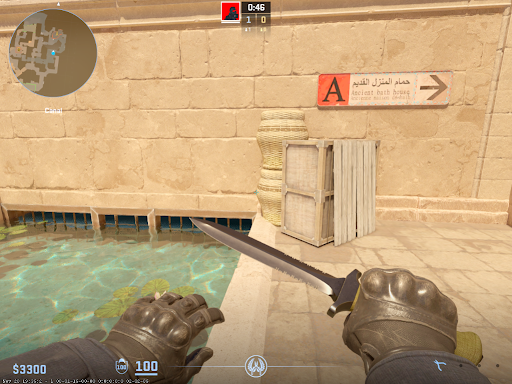
Najlepsze ustawienia gamma CS2 dla NVIDIA można uzyskać za pośrednictwem Panelu sterowania NVIDIA. Ustawienia – są stosowane na poziomie sterownika, działają w dowolnym trybie okna i nie kolidują z VAC. W przypadku CS2 lepiej jest utworzyć oddzielny profil za pomocą opcji Zarządzaj ustawieniami 3D → Ustawienia programu → cs2.exe, aby nie zmieniać kolorów dla innych aplikacji. Zajmuje to dwie minuty i zapewnia, że ustawienia nie zostaną zresetowane po przełączeniu na pulpit.
Dostosuj ustawienia kolorów pulpitu (CS2 ustawienia kolorów gamma)
Ustawienie | Wartość | Opis |
Jasność | 50–55 % | Podstawowy poziom jasności |
Kontrast | 50 % | Bilans standardowy |
Gamma | 1.00–1.10 | Nieznaczne zwiększenie widoczności w cieniu |
Cyfrowa wibracja | 65–80 % | Nasycenie – pomaga rozróżnić modele graczy |
Odcień | 0 | Pozostaw nietknięty |
Najbardziej popularnym ustawieniem jest Digital Vibrance. Zasięg 65–80 % poprawia widoczność wroga w ciemnych obszarach bez ostrego, przesyconego efektu, który w 100 % wytwarza większość monitorów. Aby zapoznać się z pełnym zestawieniem ustawień wydajności NVIDIA, zobacz nasz NVIDIA settings guide dla CS2.
Pro CS2 ustawienia gamma
Większość profesjonalnych graczy utrzymuje gamma w konserwatywnym zakresie i skupia się na kalibracji monitora –, zwłaszcza na funkcji Black eQualizer, która rozjaśnia cienie bez zwiększania ogólnej jasności.
Donk (Duch zespołu)
Donk CS2 ustawienia gamma to jeden z najczęściej wyszukiwanych tematów w społeczności CS2. Danil "donk" Kryshkovets używa BenQ ZOWIE XL2586X+ (600 Hz) z profilem Gamer 2. Jego monitor i ustawienia NVIDIA są skonfigurowane w następujący sposób:
Monitor | Wartość | NVIDIA (RTX 4080 Super) | Wartość |
Gamma | 2 | Jasność | 50 % |
Jasność | 70 | Kontrast | 50 % |
Kontrast | 70 | Gamma | 1 |
Czarny eQualizer | 10 | Cyfrowa wibracja | 50 % |
Żywotność koloru | 10 | – | – |
Donk utrzymuje cyfrową intensywność na neutralnym poziomie 50 %, kompensując ją za pomocą Black eQualizer 10 na monitorze –, co zapewnia czytelność cieni bez przesycenia kolorów. Pełne ustawienia Donk są dostępne na stronie donk CS2 pro settings strona.
s1mple i m0NESY
Oleksiy "s1mple" Kostylev i Ilya "m0NESY" Obaj Osipow używają BenQ ZOWIE XL2566K z konserwatywnymi ustawieniami jasności i gamma – bez ekstremalnych wartości. Zasada jest ta sama: umiarkowane nasycenie, czytelność cieni poprzez Black eQualizer, a nie podwyższona jasność. Ustawienia dla obu odtwarzaczy: s1mple i m0NESY.
Co z tego wyciągnąć
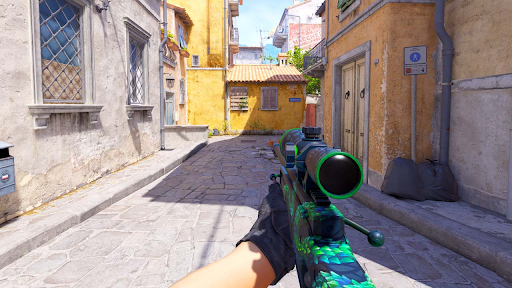
Ustawienia profesjonalne to punkt wyjścia, a nie przepis. Donk ma profesjonalny monitor ze sprzętowym Black eQualizer, którego nie ma większość domowych konfiguracji. Rozsądniejszym posunięciem jest przyjęcie zasady: Cyfrowa wibracja 50–70 %, monitor skalibrowany osobno, bez wartości ekstremalnych. I jeszcze jedno – przy odpowiedniej gamie, skiny na Skin.Land market będą wyglądać dokładnie tak, jak zamierzyli to artyści Valve.



Z komentarzem