
Gamma is one of those settings most players never touch – and that's a mistake. CS2 gamma settings affect how well you can spot enemies in dark corners and how comfortable the game is to play without eye strain. Gamma controls the balance between dark and bright tones: lower values make the image lighter, higher values make it darker and more contrasty. Get it dialed in once and those dark corridors on Nuke or Ancient become noticeably more readable.

How to Change Gamma Settings in CS2

Figuring out how to change gamma settings in CS2 isn't difficult – there are three levels of control: the in-game brightness slider, the console, and GPU settings. The first two are enough for a basic setup. The menu slider works in any window mode; the console command only works in Fullscreen Exclusive.

Via game settings

This is the simplest method and doesn't require the console. It doesn't technically change true gamma, but it works well for an initial setup. Before touching the slider, make sure your monitor is at its default calibration.

  1. Open Settings → Video.

  2. Find the Brightness setting.

  3. Set it to a value in the 80–100% range.

  4. Click Apply and test on a practice map.

The slider works in real time, so results are visible immediately. If the image looks too bright after applying – drop it to 70–80%. Keep in mind: in-game brightness and true gamma are different things. For finer calibration, you'll need the console or NVIDIA Control Panel.

Via console

This method is more precise but only works in Fullscreen Exclusive mode. In windowed or borderless mode, the CS2 gamma settings command doesn't apply. There's one more limitation: the command doesn't work with the -vulkan launch option active. If it's set in Steam's game properties, remove it first.

  1. Enable the console: Settings → Game → Enable Developer Console → Yes.

  2. Open the console with ~.

  3. Type: r_fullscreen_gamma 2.2 and press Enter.

The change applies instantly – no restart needed. To test multiple values, just re-enter the command with a different number. To make the setting persist after restarts, add the command to your autoexec.cfg (path: Steam/userdata/[ID]/730/local/cfg/).

Best Gamma Settings for CS2

The best gamma setting in CS2 depends on your monitor, room lighting, and personal preference. That said, there are ranges that have been tested and validated by the community and pro players. The key logic to understand: in CS2, a lower r_fullscreen_gamma value means a brighter image, and a higher value means a darker, more contrasty one. This is the opposite of the standard gamma scale most monitor users are used to.

Test values on dark maps – Ancient, Nuke, Inferno. Start at the default 2.2 and move in steps of 0.2 in either direction. Once you find your value, add it to autoexec immediately so it doesn't reset after a patch.

Scenario

r_fullscreen_gamma

Description

Default / LCD monitor

2.2

Standard for most monitors

Competitive play

2.0–2.2

Slightly brighter, better shadow readability

Long sessions

2.4–2.6

Less eye strain

Like most pros

2.2–2.4

Balance of visibility and contrast

CS:GO style

2.6–3.0

Darker, more saturated

Values below 1.8 cause excessive brightness – details in bright areas are lost. Above 3.5 is too dark for competitive play. The practical range for most players: 2.0–2.8.

CS2 Gamma Commands Explained

In CS:GO, the primary command was mat_monitorgamma – values ranging from 1.6 (maximum brightness) to 2.2 (balanced). In CS2, this command doesn't work: the Source 2 engine doesn't support it. Its replacement is r_fullscreen_gamma, and knowing this matters so you don't waste time on commands that do nothing. A common mistake: a player enters the command, nothing happens, and concludes that gamma can't be adjusted in CS2. The problem is almost always the window mode.

Command

CS2 Status

Note

r_fullscreen_gamma [value]

Works

Fullscreen only. Range: 1.6–3.5

mat_monitorgamma [value]

Doesn't work

Left over from CS:GO

mat_monitorgamma_tv_enabled 0

Doesn't work

Left over from CS:GO

The r_fullscreen_gamma command also doesn't work when launching with the -vulkan parameter. If it's set in Steam (right-click the game → Properties → Launch Options), remove it before trying the console method.

How to Make CS2 Look More Like CS:GO

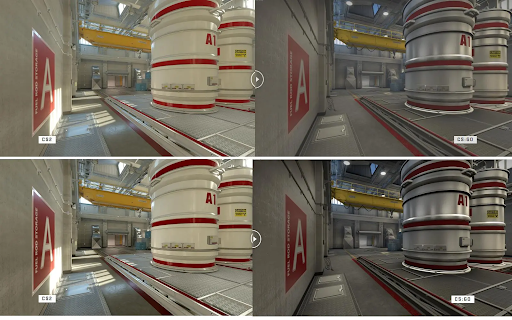
CS2 at default settings is brighter and more saturated than CS:GO – Source 2 produces a different color profile. You can't fully recreate the CS:GO look, but you can get close. The combination of the console command and NVIDIA settings produces a result most players describe as the CS:GO feel. Steam forum users most commonly cite 2.4–2.8 as the closest to the original.

Step 1 – Console (CS2 gamma settings like CS:GO):

r_fullscreen_gamma 2.8

Step 2 – CS2 video settings:

These settings affect the overall visual feel – they either didn't exist in CS:GO or worked differently. Change them carefully; some impact FPS. After each change, it's worth loading a practice map and comparing it to what you remember from CS:GO.

  • Boost Player Contrast: Off – this feature didn't exist in CS:GO.

  • Anti-Aliasing: MSAA 2x or Off – closer to CS:GO.

  • Texture Filtering Mode: Bilinear – softer, like CS:GO.

  • Color Mode: Computer Monitor (Full RGB).

These four settings produce a noticeable visual shift toward the old game. Boost Player Contrast is particularly important – when enabled, it makes player models look unnaturally popped against the background, which wasn't the case in CS:GO. Combine them with your console gamma setting for the best result.

Step 3 – NVIDIA: 

Digital Vibrance 60–70% (CS2 is more aggressive on saturation), Brightness 40–45%, Gamma 0.90–1.00.

Best NVIDIA Gamma and Color Settings for CS2

The best CS2 gamma settings for NVIDIA are reached through the NVIDIA Control Panel – settings are applied at the driver level, work in any window mode, and don't conflict with VAC. For CS2, it's better to create a separate profile through Manage 3D Settings → Program Settings → cs2.exe, so you're not changing colors for other applications. It takes two minutes and ensures the settings don't reset when switching to the desktop.

Adjust Desktop Color Settings (CS2 gamma color settings)

Setting

Value

Description

Brightness

50–55%

Base brightness level

Contrast

50%

Standard balance

Gamma

1.00–1.10

Slight boost for visibility in shadows

Digital Vibrance

65–80%

Saturation – helps distinguish player models

Hue

0

Leave untouched

Digital Vibrance is the most talked-about setting. The 65–80% range improves enemy visibility in dark areas without the harsh, oversaturated effect that 100% produces on most monitors. For a full breakdown of NVIDIA performance settings, see our NVIDIA settings guide for CS2.

Pro CS2 Gamma Settings

Most pro players keep gamma in a conservative range and focus on monitor calibration – especially the Black eQualizer feature, which brightens shadows without raising overall brightness.

donk (Team Spirit)

Donk CS2 gamma settings is one of the most searched topics in the CS2 community. Danil "donk" Kryshkovets uses a BenQ ZOWIE XL2586X+ (600 Hz) with the Gamer 2 profile. His monitor and NVIDIA settings are configured as follows:

Monitor

Value

NVIDIA (RTX 4080 Super)

Value

Gamma

2

Brightness

50%

Brightness

70

Contrast

50%

Contrast

70

Gamma

1

Black eQualizer

10

Digital Vibrance

50%

Color Vibrance

10

Donk keeps Digital Vibrance at a neutral 50%, compensating with Black eQualizer 10 on the monitor – that's what delivers shadow readability without oversaturating colors. Full donk settings are available on the donk CS2 pro settings page.

s1mple and m0NESY

Oleksiy "s1mple" Kostylev and Ilya "m0NESY" Osipov both use the BenQ ZOWIE XL2566K with conservative brightness and gamma settings – no extreme values. The principle is the same: moderate saturation, shadow readability through Black eQualizer rather than raised brightness. Settings for both players: s1mple and m0NESY.

What to Take from This

Pro settings are a starting point, not a recipe. Donk has a professional monitor with hardware Black eQualizer that most home setups don't have. The smarter move is to take the principle: Digital Vibrance 50–70%, monitor calibrated separately, no extreme values. And one more thing – with the right gamma, skins on the Skin.Land market will look exactly the way Valve's artists intended.

0 评论

写评论

我们的其他精彩文章