
How to Equip a Skin in Rust

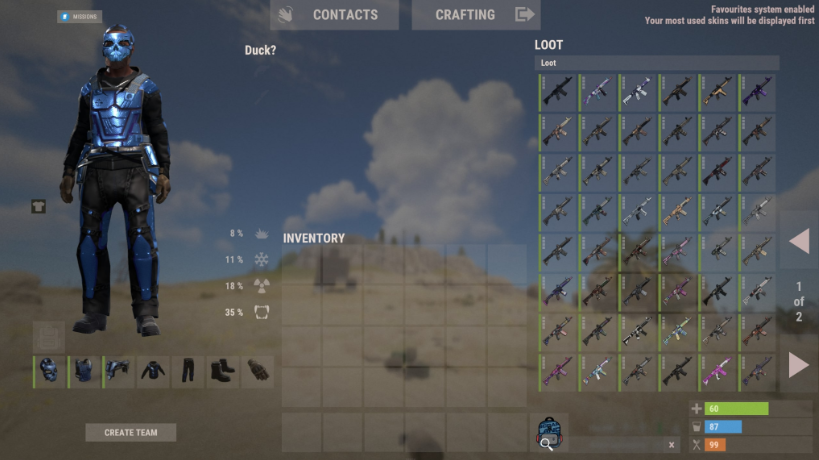
The quickest way to figure out how to equip a skin in Rust is to open the crafting menu with Q and find the item you want. If you have a skin for that item in your Steam inventory, it'll show up as an icon just below the item name. Select it and hit Craft – the item comes out already wearing the new look. This is how most players put on a bought skin for the first time, within the first minute of joining a server.
The second option is the Repair Bench. It's essential when an item has already been crafted, found in a crate, or looted from a raid. One thing that often trips up newer players: you don't need to know the item's blueprint to change its skin – it's a completely separate operation from repairing. Changing a skin at the bench is free and doesn't reduce the item's condition. Here's how it works:
The Repair Bench blueprint is known by default. Crafting one requires 125 metal fragments, 2 metal pipes, and 25 wood. Pre-built benches can also be found at several monuments – Airfield, Launch Site, and a few others. The process of swapping skins at the bench looks like this:
Walk up to the Repair Bench and interact with it using E.
Place the item in the bench slot.
A list of available skins will appear on the right side of the interface – select the one you want.
Take the item back into your inventory.
You can press N at any point to inspect the item in your hands – handy for checking how a skin looks up close. You can swap skins as many times as you want, for free. The Repair Bench also lets you apply skins to items that can't be crafted at all – the LR-300, for example: for those, how to equip a skin in Rust without the bench simply isn't an option. That's why experienced players keep a Repair Bench at base as a permanent fixture, not just a repair tool.
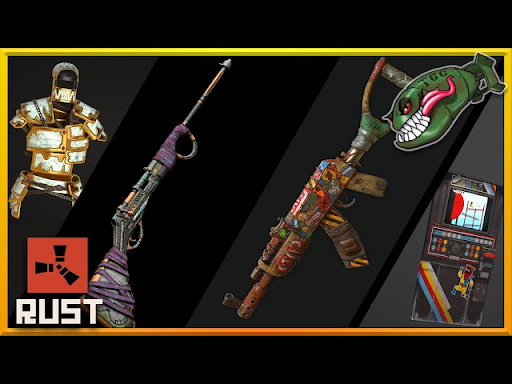
How to change skin on a gun in Rust works exactly the same way: select a skin at the crafting stage, or drop the weapon into a Repair Bench. How to change furnace skin in Rust follows the same logic – either craft the furnace with the desired skin from the start, or bring an existing one to the bench. The full range of weapon skins and the complete catalog for all items are available on Skin.Land.
How to Equip Rock Skins in Rust
The rock is a special case, and it's the most commonly asked-about item. It's handed out automatically on every spawn, and you can't just drop it into a Repair Bench to change the skin the normal way. So how to equip rock skin in Rust is handled differently from weapons or clothing.
How to equip a rock skin in Rust isn't complicated once you know where to look. Open the crafting menu (Q), find Rock in the item list, click on it – the available skin icons will appear below the name, provided the skin is in your Steam inventory. Select the one you want. That choice is saved at the account level: next time you join any server, the rock will spawn with the new look already applied. The rock has to be changed through the crafting menu – not through the bench.
The same mechanic applies to other starter tools. How to equip torch skin in Rust works the same way – in the crafting menu, under the Tools section. The torch is craftable, so just select the skin before crafting and it'll come out with the right look. The same goes for the Stone Hatchet, Stone Pickaxe, and other early-game tools. Skins for the rock and starter items can be found on Skin.Land – new options get added regularly.
How to Change Default Skins in Rust

A lot of players want to know how to change default skin in Rust – the goal being to have a specific skin apply automatically every time without extra clicks. Rust doesn't have a dedicated favorites system, but a simple rule does the job: the game remembers the last skin you selected when crafting a specific item and uses it on the next quick craft. This is saved at the Steam account level, meaning it carries over across different servers.
To change the default skin, open the crafting menu, manually select the new skin, and craft the item at least once. After that, the new look becomes the default. It's intuitive once you know it, but not obvious for anyone expecting an explicit Save button.
How to equip Rust building skin is a different process entirely. Adobe, Brick, Shipping Container, and other DLC packs aren't applied through the bench – they're changed directly on the structure using the Hammer. Hold the Hammer, aim at a wall or foundation, hold right-click, and use Q/E to cycle through available skins. Left-click to apply the skin to that specific block. How to equip stone skin in Rust works the same way: select the building skin through the Hammer on a stone block of an existing structure. For doors, how to change skin on door Rust follows the same mechanic – aim the Hammer at the door and cycle through skins using the wheel.
Clothing skins, including how to equip underwear skin Rust, are handled through the standard crafting menu or swapped at a Repair Bench. Underwear is just an inventory item like a shirt or pants. The full clothing and armor catalog is available on Skin.Land.
Common Skin Problems and Fixes
The most common issue: a skin has been purchased but doesn't show up in-game. There are a few reasons for this, and most are fixed in a couple of clicks. First: purchased skins usually don't appear without a restart – after buying on the Steam Market, fully close Rust and relaunch. Second: open your inventory from the Rust main menu and hit Refresh inventory – this updates the item list without a full restart.
If the skin is in your inventory but isn't showing up during crafting or at the Repair Bench, run through these. Each one comes up regularly, and knowing them saves time on forums and in support tickets:
The skin is for a different item. Skins are tied to specific items – an AK-47 skin won't go on a Thompson, even if the weapons look similar.
Trade hold on the purchase. Steam holds new purchases for up to 7 days. While the hold is active, the skin sits in your inventory but can't be applied.
The server has custom skins disabled. Rare on official servers, but it happens on modded ones – check the server settings or try a different server.
The skin hasn't arrived in your inventory yet. If the item was just purchased or received through Twitch Drops, it sometimes takes a few minutes – hit Refresh.
In most cases, signing out of your Steam account and back in, then relaunching the game, does the trick. If that doesn't fix it, verifying the game files through Steam (right-click the game → Properties → Local Files → Verify integrity) clears up the majority of technical bugs. UI bugs after major updates are fairly common and usually disappear with the next patch.
Console deserves a separate mention. It works differently from PC: skins can only be selected at the crafting stage. D-pad up → select Crafting → use the right stick to choose a skin → craft the item. Reskinning an already-crafted item isn't possible on console – the Repair Bench doesn't support that function there. How to change wall skin Rust console only works by selecting the building skin before placing the block; once the structure is built, it can't be changed. How to change skins Rust console requires purchasing skins with Rust Coins through the in-game store. Skins cannot be transferred between PC and console – they're separate versions of the game with entirely separate catalogs.
All available skins at market prices can be found on Skin.Land.


写评论