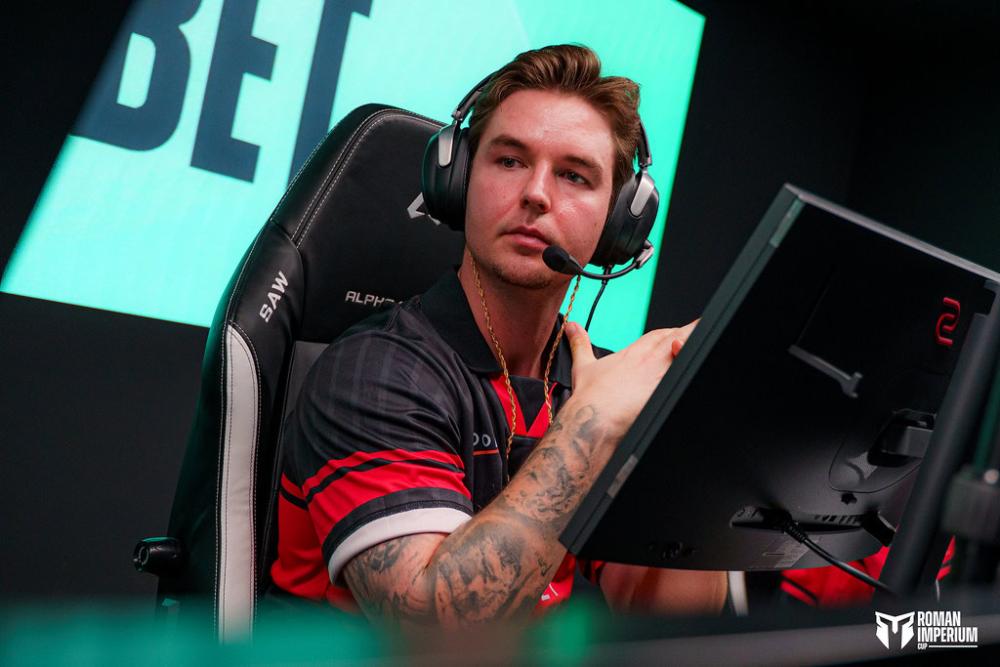

Laite CS2 hiiren asetukset - herkkyys ja DPI
Hiiren asetuksissa dev1ce luottaa asetuksiin, jotka on suunniteltu vakautta ja tarkkoja AWP-mikrosäätöjä varten. Hän pelaa tällä hetkellä800 DPI pelin sisäinen herkkyys leijuu välillä1.15 ja 1.20, mikä asettaa hänen tehokkaan DPI:n (eDPI)920-960 alue. Tämä eDPI tarjoaa täydellisen keskitien: se on riittävän nopea mahdollistamaan nopeat slip-kuvat ja välttelevät liikkeet, mutta riittävän matala takaamaan pikselin täydellisen hiusristikon sijoittelun tiukoissa kulmissa. Tarkkailua varten hän pitää zoomausherkkyytensä vakiona1.00 varmistaa johdonmukaisen, 1:1 tähtäystuntuman riippumatta siitä, onko hän ampumassa tai lukittuna AWP:hen. Hän yhdistää nämä pelin sisäiset arvot standardiin1000 Hz hiiren kyselytaajuus ja oletusarvo6/11 Windowsin osoittimen nopeus.
Hiiri: Logitech G Pro X2 SUPERSTRIKE
DPI: 800
Herkkyys: 1.15
eDPI: 920
Zoomausherkkyys: 1
Hz: 1000
Windowsin herkkyys: 6
Etkö tiedä kuinka hiiren asetukset toimivat? Tutustu oppaaseemme here.
Laitteen hiusristikkoasetukset CS2
Voit helposti kopioida ja liittää hänen ristikkokoodinsa suoraan CS2 asetusvalikkoon: CSGO-yUBv6-y5b38-fj2sY-ZvyEc-NCmDA.
Tyyli: Classic Static
Seuraa rekyyliä: Ei
Piste: Ei.
Pituus: 1
Paksuus: 1
Väli: -4
Outline: Ei
Väri (RGB): Mukautettu
Punainen: 0
Vihreä: 255
Sininen: 150
Alfa: Kyllä
Alfa-arvo: 255
T-tyyli: Ei
Käytetty aseväli: Ei
Sniper-leveys: 0
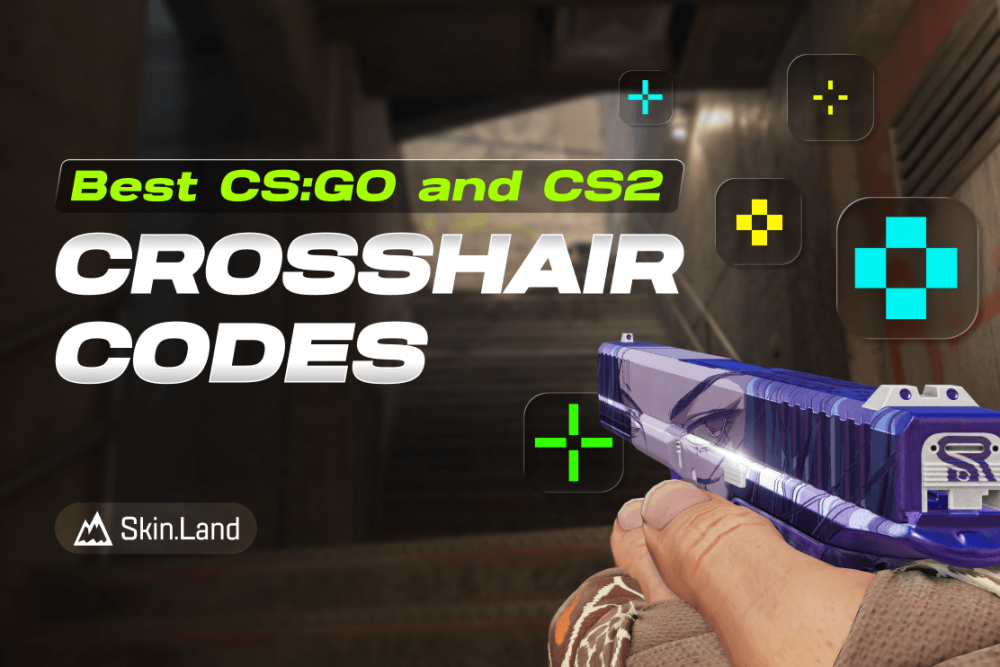
Etkö pidä hänen hiusristikkostaan? Ei hätää, jos haluat tutustua muihin vaihtoehtoihin, katso oppaastamme parhaat CS2 hiusristikkokoodit here.
Laitteen videoasetukset CS2
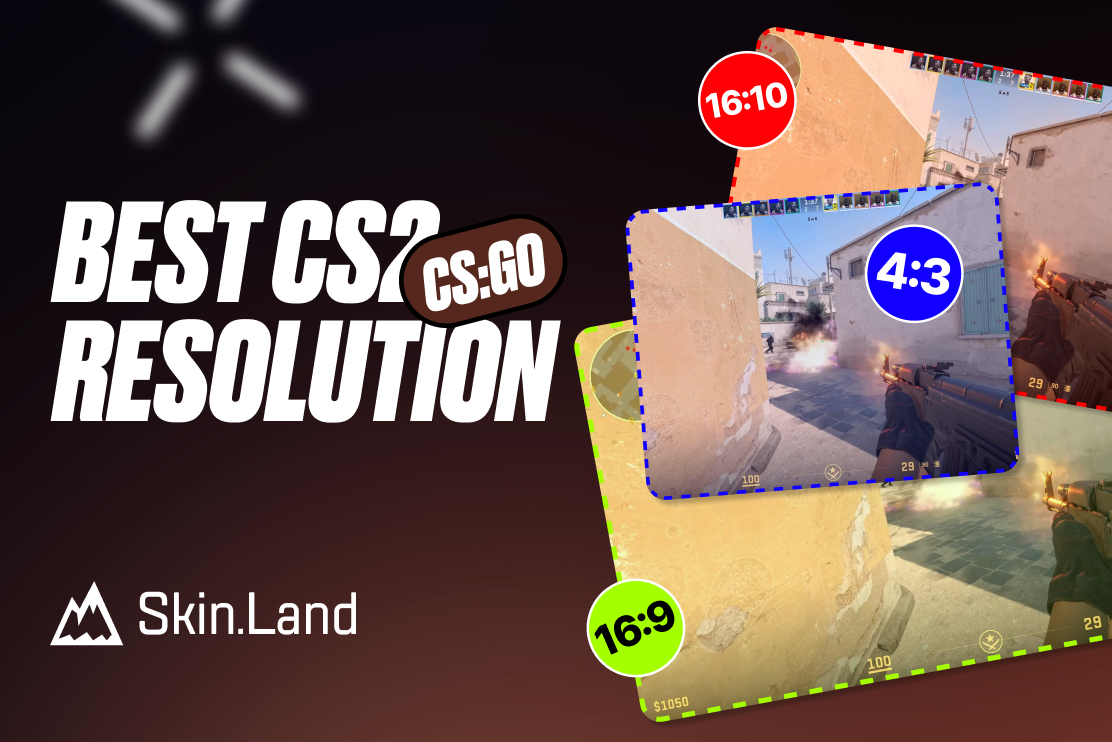
Maksimoidakseen kuvanopeuden ja näkyvyyden dev1ce toistaa a1280x960 resoluutio a:lla4:3 kuvasuhde, hyödyntäen Venytetty skaalaus mustien palkkien sijaan. Tämä venytetty muoto on ammattimaisten AWPer-laitteiden keskuudessa, koska se venyttää kuvaa vaakasuunnassa, jolloin pelaajamallit näyttävät huomattavasti leveämmiltä ja visuaalisesti helpommin osuvilta. Hän pelaa sisään Koko näyttö tila klo100 % kirkkaus varmistaaksesi, että kaikki on kirkasta ja reagoivaa.
Hän pitää videon lisäasetuksissaan Boost Player Contrast käytössä saada viholliset poksahtamaan karttataustaa vasten, ja hän luottaa siihen2x MSAA anti-aliasing tasoittaa rosoiset reunat juuri tarpeeksi ilman, että hänen kehyksiään tankataan. Suorituskyvyn ja selkeyden priorisoimiseksi hän asettaa omansa Mallin/tekstuurin, varjostimen ja hiukkasten tiedot matalaan.
Hän kuitenkin pitää tärkeänä omansa Global Shadow Quality asetettu arvoon High, jonka avulla hän havaitsee kulmien ympärillä venyvät vihollisen varjot ennen kuin pelaajamalli todella kurkistaa.
Tehosta pelaajien kontrastia: käytössä
Mallin/tekstuurin yksityiskohdat: Matala
Varjostimen yksityiskohta: Matala
Hiukkasten yksityiskohdat: alhainen
Tekstuurisuodatus: Anisotrooppinen 16x
Anti-aliasing: 2x MSAA
Varjon laatu: Korkea
Dynaamiset varjot: Kaikki
Ambient Okkluusio: Keskinkertainen
FidelityFX Super Resolution: Ei käytössä (korkein laatu)
V-Sync: Pois käytöstä
NVIDIA Reflex Low Latency: Pois käytöstä
NVIDIA G-Sync: Pois käytöstä
Suuri dynaaminen alue: Laatu
Resoluutio: 1280x960
Kuvasuhde: 4:3
Tila: Koko näyttö
Skaalaustila: Venytetty
Kirkkaus: 100 %
Laitteen näytön asetukset CS2
dev1ce käyttää alan standardinmukaisia ZOWIE esports -näyttöjä, jotka käyttävät tällä hetkellä huippuluokan ZOWIE XL2566X+:aa, jonka virkistystaajuus on 400 Hz.
Täältä löydät laite monitorin asetukset:
DyAc: Premium
Musta eQualizer: 10
Värin eloisuus: 15
Matala sininen valo: 0
Kuvatila: FPS 1
Kirkkaus: 100
Kontrasti: 59
Terävyys: 10
Gamma: Gamma 3
Värilämpötila: Sinertävä
AMA: Korkea
Laitteen katselumallin asetukset CS2
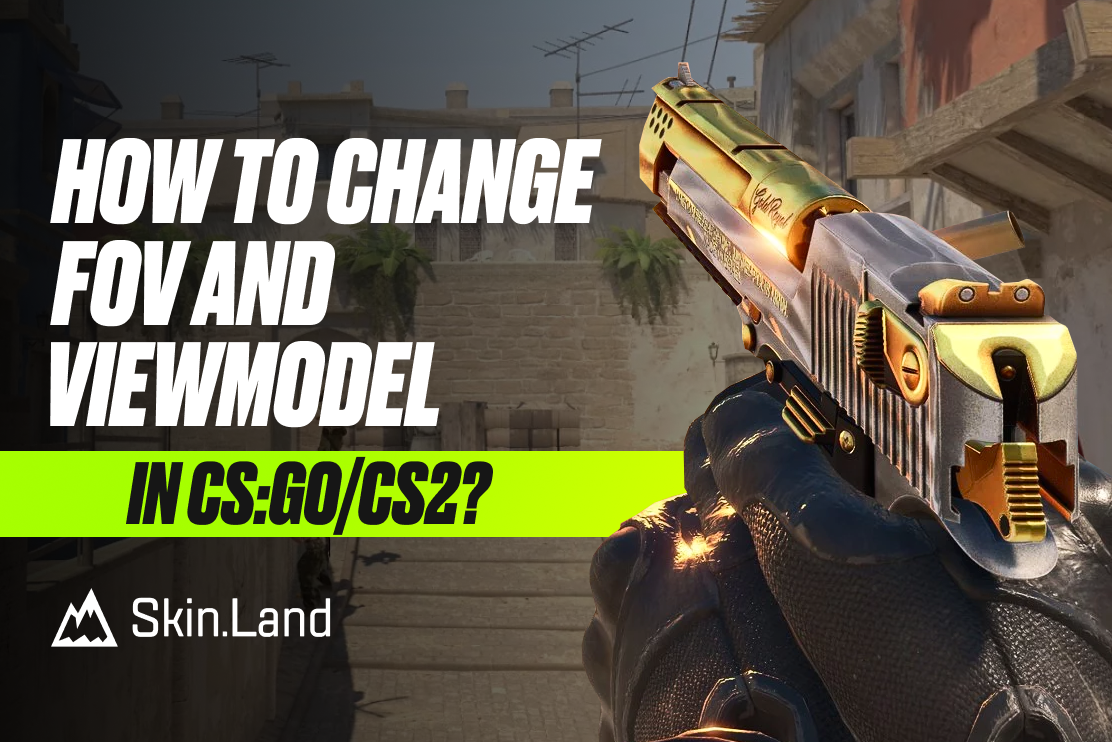
Vaikka monet satunnaiset pelaajat jättävät näkymämallinsa oletusasetuksiin, dev1ce määrittää aseensa sijoittelun maksimoimaan näytön kiinteistön ja näkyvyyden. Hän työntää näkökenttänsä maksimirajaan viewmodel_fov 68:lla, mikä saa aseen näyttämään pienemmältä ja kauempana kamerasta. Varmistaakseen, että asemalli ei estä hänen näkökenttäään pitäessään tiukkoja kulmia AWP:n kanssa, hän siirtää aseen kauas oikealle ja hieman alas käyttämällä parametreja viewmodel_offset_x 2.5, viewmodel_offset_y 0 ja viewmodel_offset_z -1.5. Tämä viewmodel_presetpos 2:n ankkuroima erityinen asennus on huippuluokan ammattilaisten keskuudessa, koska se minimoi visuaalisen sotkun ja estää asetta vahingossa peittämästä kurkistavaa vihollista.
viewmodel_offset_x 2.5
viewmodel_offset_y 0
viewmodel_offset_z -1.5
viewmodel_presetpos 2
'On myös hyödyllistä oppia, miten viewmodel settings muokataan niitä mieltymystesi mukaan.
Laitteen käynnistysasetukset CS2
laite käyttää erittäin yksinkertaisia ja hyödyllisiä käynnistysvaihtoehtoja:
-konsoli -novid +exec myconfig.cfg
Jos etsit parhaita CS2 käynnistysvaihtoehtoja, tutustu guide.
Laitteen tutkaasetukset CS2
Hänen tutkansa keskittää soittimen ja pyörii samanaikaisesti. Käytä seuraavia asetuksia kokeillaksesi itse, miltä laitteella radar settings pelaaminen tuntuu.
Tutkakeskukset pelaaja: Kyllä
Tutka pyörii: Kyllä
Vaihda muoto tulostaululla: Ei
Tutka Hudin koko: 1.1
Kartan zoomaus: 0.5
Laitteen ääniasetukset CS2
Counter-Strike 2:ssa vihollisen askeleiden ja apuvälineiden käytön paikantaminen on yhtä tärkeää kuin täydellinen tavoite. Vaikka tarkat päääänenvoimakkuusprosentit vaihtelevat kuulokkeiden kokoonpanojen mukaan, dev1ce ja muut huippuluokan veteraanit käyttävät CS2:n päivitettyjä ääniparametreja maksimoidakseen suunnan selkeyden.
varten EQ-profiili, ammattimaiset AWPerit nojaavat tyypillisesti kohti Rapeaa, joka tehostaa aggressiivisesti keskitaajuuksia, jotta askeleet ja uudelleenlataukset erottuvat paremmin, tai Luonnollinen estämään kiikarikiväärin korviakuumentavaa räjähdystä aiheuttamasta korvan väsymistä pitkien otteluiden aikana.
Hän pitää L/R eristys noin 50 %: Normaali kilpailukykyinen keskikenttä, joka tarjoaa tarkan vasemmalle ja oikealle suunnatun panoroinnin ilman, että ääni kuulostaa liian keinotekoiselta. Lisäksi,Perspektiivikorjaus jätetään käyttöön varmistaen, että äänet käsitellään tarkasti hänen suoran näkökentän perusteella. Lopuksi kaikki pelin sisäinen musiikki (kuten Round Start, Round End ja MVP-hymnit) on täysin mykistetty, jotta vältetään tarpeettomat häiriötekijät korkeapaineisissa kytkintilanteissa.
Ainoa poikkeus on Kymmenen sekunnin varoitusääni, joka pidetään selvästi kuultavissa, joten hän tietää aina tarkasti, onko hänellä tarpeeksi aikaa pommin purkamiseen.
Laite skinit
Vaikka ammattipelaajat pyöräilevät usein eri esineiden läpi, hänen latauksensa ankkuroituvat joihinkin Counter-Strike 2 -talouden halutuimmista ase skineistä.


Kirjoita kommentti