

Enabling the Console In-Game
The easiest way to get the console up and running is directly through the Dota 2 client.
Launch Dota 2 and navigate to the main menu.
Click the Gear icon in the top-left corner to open the Settings menu.
Click on the Options tab, then look for the Advanced Options link at the bottom center of the screen.
In the middle column under "Miscellaneous," check the box labeled Enable console.
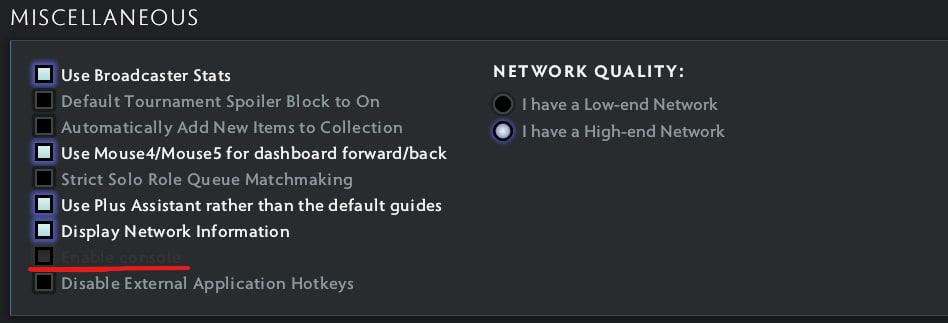
Now that the console is enabled, you need to assign a key to open it.
Navigate back to the Hotkeys tab in the Settings menu.
Click on Advanced Hotkeys at the bottom center.
Look at the right side under the "Interface" section. Find the Console option.
Click it and press the key you want to use. The tilde key (~) or the backslash key (\) are the most popular choices so you don't accidentally press them during a chaotic teamfight.
Enabling the Console via Steam Launch Options
If you want the console to open automatically every time you start the game, or if the in-game method isn't working for you, you can force it through Steam.
Open your Steam Client and go to your Library.
Right-click on Dota 2 and select Properties.
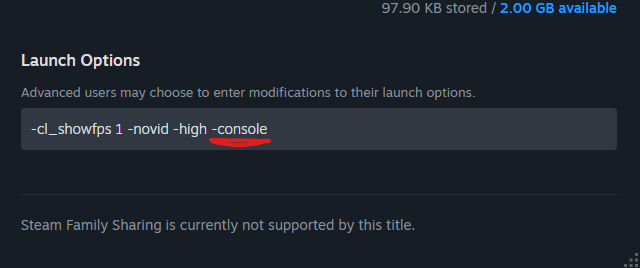
In the General tab, scroll down to the Launch Options field at the very bottom.
Type -console in the text box.
Close the window and launch Dota 2. The console will now appear immediately on the main menu upon startup.
Top Dota 2 Console Commands to Try First
Once you have the console open, you will see a massive wall of text detailing game logs. Simply type into the bar at the bottom to execute commands. Here are a few essential commands to get you started:
cl_showfps 1: Displays a simple, unobtrusive FPS counter in the corner of your screen.
dota_force_right_click_attack 1: Allows you to right-click allied creeps to deny them without having to press your attack key first.
ping: Instantly prints the ping of all players currently in the lobby to the console.
disconnect: Instantly drops you out of your current match and returns you to the main menu—much faster than navigating the UI.
quit: Closes Dota 2 immediately.
Unlocking the console is just the first step in customizing your Dota 2 client to fit your playstyle. Once your settings are dialed in and your game is running flawlessly, make sure your heroes look as good as they play. Check out the massive marketplace on Skin.Land to upgrade your loadout with the best cosmetics, immortals, and arcanas safely and securely.




เขียนความคิดเห็น