
Why Does the "Download Incomplete" Error Happen?
Valve’s servers are responsible for processing, parsing, and storing millions of matches every day. When a match ends, the server needs a moment to compile the .dem (demo) file. If you click download before the server finishes this process, or if the connection is interrupted mid-download, CS2 will create a corrupted, incomplete file on your hard drive.
Because the game client now recognizes a file for that match already exists locally, clicking the download button again won't do anything, leaving you stuck with the error.
How To Fix CS2 Download Incomplete demo erro
The "Delete and Retry" Method (Highest Success Rate)
The most common fix is to manually delete the corrupted local file so the game is forced to fetch a fresh, complete version from the servers.
Close Counter-Strike 2.
Open your Steam Library, right-click on Counter-Strike 2, hover over Manage, and select Browse local files.
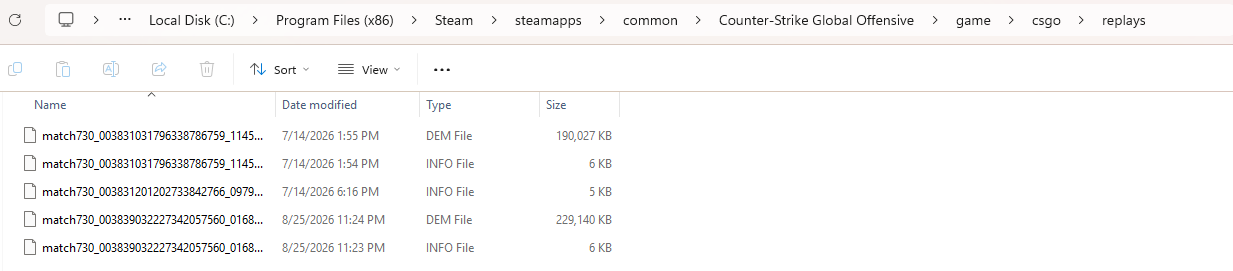
In the file explorer that opens, navigate through the following folders: game > csgo > replays.
Inside the replays folder, look for files ending in .dem and .info. (They will likely have a long string of numbers for a title, which corresponds to the Match ID).
Highlight all the .dem and .info files associated with the corrupted match, and delete them. (If you aren't sure which one is the broken match, it is safe to delete all the files in this folder—you can always redownload your old demos later).
Relaunch CS2, navigate back to your match history, and click download again.
The Waiting Game
If you just finished the match and immediately tried to download the demo, the file might not exist on Valve’s end yet.
Do not mash the download button.
Wait at least 10 to 15 minutes after a match concludes before attempting to download the replay.
If you already tried and got the error, perform Method 1 above to clear the corrupted attempt, wait a few minutes, and try again.
Verify Integrity of Game Files
Sometimes, the issue isn't with the demo itself, but a deeper glitch within your game client's file system preventing downloads from initializing properly.
Right-click Counter-Strike 2 in your Steam Library.
Select Properties.
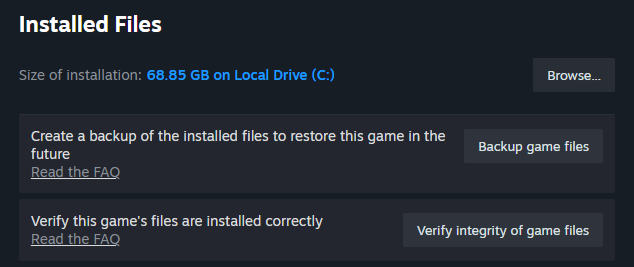
Navigate to the Installed Files tab on the left sidebar.
Click Verify integrity of game files.
Allow Steam to scan and replace any missing or corrupted core game files. Once finished, relaunch the game and attempt your download.
If Valve's servers are experiencing massive outages and the official in-game downloader is completely non-functional, you can often bypass the game client entirely using third-party analytic sites.
Platforms like Leetify or CSStats automatically track your matchmaking history via your Steam token. You can log into these sites, locate your recent match, and manually download the .dem file directly to your computer. Once downloaded, simply drag and drop the .dem file into your replays folder and use the CS2 console command playdemo [filename] to watch it.
FAQ
How long are CS2 match demos available to download?
Valve typically stores Premier and Competitive matchmaking demos on their servers for up to 30 days. After that window, they are permanently deleted from the servers, so it is highly recommended to download your best matches immediately.
Where exactly are CS2 demo files saved on my computer?
If you haven't changed your default Steam installation path, your downloaded demos will be located here: C:\Program Files (x86)\Steam\steamapps\common\Counter-Strike 2\game\csgo\replays
How do I play a manually downloaded demo file?
If you downloaded a demo from a third-party site, place the .dem file into your replays folder. Then, open your developer console (~) in-game and type playdemo [filename]. To open the playback control menu while watching, press Shift + F2.
Does this fix work for FACEIT or ESEA matches?
No. Third-party platforms like FACEIT and ESEA host their own servers and do not use Valve's in-game download system. If you are trying to watch a FACEIT demo, you need to download it directly from your match room page on their website, extract the .dem file, and manually place it in your CS2 replays folder.
Looking to make your next match highlight look even better? Head over to Skin.Land to safely and instantly buy, sell, or trade the best CS2 skins on the market.



Escriba un comentario