
하드웨어 & 2026년 인터넷 요구사항
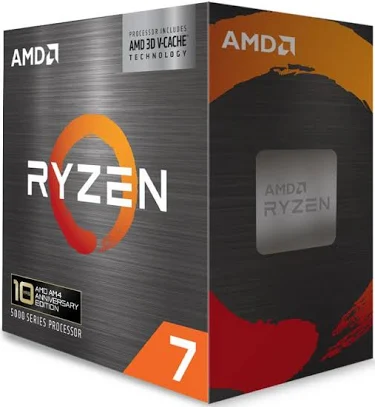
프레임 속도를 저하시키지 않고 플레이하는 동일한 PC에서 Counter-Strike 2를 원활하게 스트리밍하려면 하드웨어가 게임 엔진과 비디오 인코딩을 동시에 처리해야 합니다. 2026의 최신 단일 PC 설정의 경우 AMD Ryzen 7 5800X3D 또는 Intel Core i7-13700K와 같이 코어가 8개 이상 있고 32GB 듀얼 채널 RAM이 결합된 CPU가 필요합니다.
더 중요한 것은 그래픽 카드가 스트리밍 품질을 결정한다는 것입니다. 전용 듀얼 NVENC 인코더와 이전 H.264 인코더와 동일한 비트 전송률로 약 40% 향상된 시각적 품질을 제공하는 AV1 코덱에 대한 하드웨어 지원으로 인해 NVIDIA RTX 40 시리즈(또는 최신 50 시리즈) GPU를 적극 권장합니다.
PC 타워 외에도 인터넷 업로드 속도가 가장 어려운 병목 현상입니다. Twitch 또는 Kick에서 60FPS로 선명하고 빠른 속도의 1080p 스트림을 푸시하려면 6,000~8,000kbps 비트 전송률을 편안하게 유지하기 위해 최소 업로드 속도 10Mbps가 필요합니다.
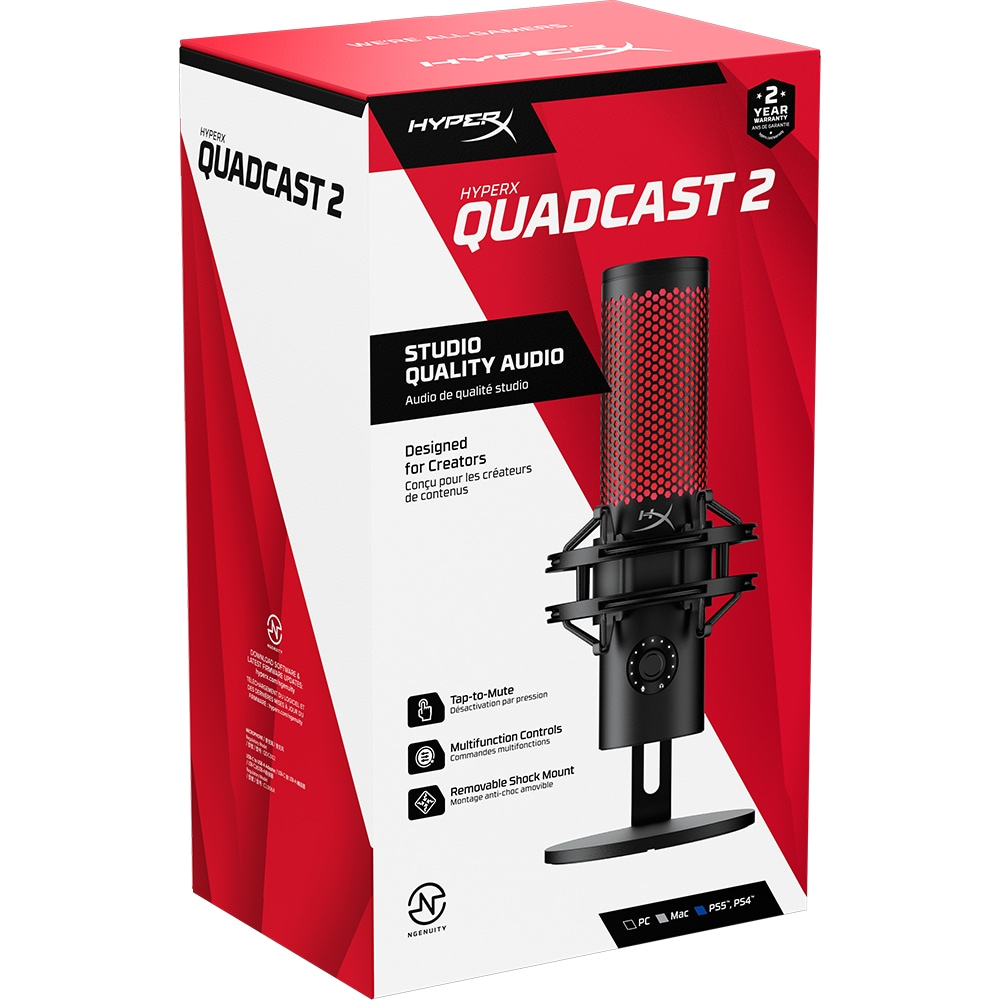
YouTube의 대용량 18,000kbps 제한이나 Twitch의 1440p(2K) 스트림용 향상된 방송을 활용하려는 경우 치열한 총격전 중에 네트워크 정체 및 프레임 손실을 방지하기 위해 25Mbps 이상의 안정적인 업로드 속도를 목표로 해야 합니다. 마지막으로 물리적 설정을 간과하지 마십시오. 전용 USB 마이크와 보조 60Hz 모니터는 premier 경기에서 나가지 않고도 OBS 경고를 모니터링하고 채팅을 읽는 데 사실상 필수입니다.
스트리밍 플랫폼 선택
방송하기로 결정한 장소에 따라 스트림의 기술적 한계가 결정됩니다. Twitch는 Counter-Strike 커뮤니티의 부인할 수 없는 본거지로 남아 있지만, 그 인프라는 전통적으로 엄격한 6,000kbps 비트 전송률 제한을 통해 비파트너 스트리머를 1080p/60fps로 제한했습니다. 하지만 2026부터 Twitch의 향상된 방송 기능이 널리 출시되면서 OBS에서 여러 화질(1080p, 720p, 480p 등)을 동시에 전송할 수 있게 되었습니다. 즉, 열악한 connect이온 시청자는 Twitch 파트너가 아니더라도 버퍼링을 할 수 없습니다.

반면 YouTube Live는 기술 강국입니다. 차세대 AV1 코덱을 완벽하게 지원하고 대규모 비트 전송률(9,000~18,000kbps를 쉽게 삼킬 수 있음)을 허용하므로 빠르게 진행되는 CS2 재촬영 중에 깨끗하고 아티팩트 없는 1440p 스트림을 푸시하려는 경우 최고의 플랫폼이 됩니다.
마지막으로 Kick이 중앙에 앉았습니다. Twitch와 같은 구형 H.264 인코딩을 시행하지만 즉시 8,000kbps의 더 넉넉한 비트 전송률 허용량을 제공하므로 매우 유리한 스트리머 수익 분배와 함께 선명한 1080p 이미지를 더 쉽게 얻을 수 있습니다.

품질과 성능을 위한 최고의 OBS 설정
하드웨어를 최대한 활용하려면 움직임이 많은 게임 플레이 중에 픽셀화를 방지하도록 OBS Studio 출력 설정을 올바르게 구성해야 합니다.
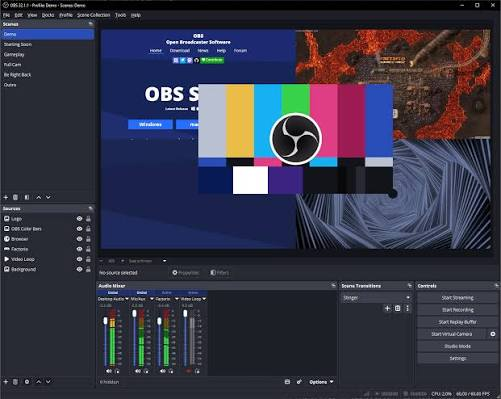
먼저 출력 모드가 고급으로 설정되어 있고 속도 제어가 CBR(Constant Bitrate)로 잠겨 있는지 확인하고 라이브 스트리밍에 VBR을 사용하지 마십시오. 인코더 선택은 플랫폼에 따라 다릅니다. Twitch 및 Kick용 NVIDIA NVENC H.264를 선택하거나 RTX 40 시리즈 GPU 이상이 있는 경우 YouTube용 NVIDIA NVENC AV1을 선택하세요.
60FPS에서 1080p의 경우 Twitch 스트리머는 비트 전송률을 6,000kbps로 제한해야 하고, Kick 사용자는 이를 8,000kbps로 늘릴 수 있으며, YouTube 스트리머는 비교할 수 없는 선명도를 위해 9,000kbps에서 18,000kbps까지 편안하게 설정할 수 있습니다. 키프레임 간격을 정확히 2초로 설정하세요. 이는 모든 주요 스트리밍 플랫폼에서 요구되는 사항입니다.
마지막으로 인코더 사전 설정을 "Max Quality," 대신 품질(P5 또는 P6)로 설정하세요. 후자는 CS2 높은 프레임 속도를 유지하는 데 절실히 필요한 GPU 리소스를 불필요하게 소모하기 때문입니다.
CS2 스트리머를 위한 고급 팁
비디오 설정을 조정한 후 몇 가지 고급 조정을 통해 방송과 아마추어 방송을 분리할 수 있습니다. 첫째, 높은 ELO FACEIT 또는 Premier 경기를 진행하는 경우 스트림 지연을 추가하여 게임의 경쟁 무결성을 보호해야 합니다.
OBS에서 설정 > 고급으로 이동하여 60~120초 지연을 활성화하면 스트림 저격수가 팀의 경제와 실행을 망칠 위험을 완전히 제거할 수 있습니다. 둘째, 오디오 파이프라인을 결코 무시하지 마십시오. OBS(오디오 설정 아래)의 샘플 속도가 48kHz로 잠겨 있고 Windows 사운드 제어판에 설정된 샘플 속도와 완벽하게 일치하는지 확인하세요. 일치하지 않는 속도는 긴 방송에서 오디오 비동기화 및 로봇 음성 결함의 주요 원인입니다.
오디오 비트 전송률을 깨끗한 160kbps로 유지하세요. 마지막으로, 첫 번째 공식 방송 전에 항상 비공개 테스트 스트림을 실행하세요. 스트림 키를 비공개 테스트 서버(예: Twitch Inspect 또는 비공개 YouTube 라이브 이벤트)에 설정하고 빠른 deathmatch를 재생하여 음성과 게임 오디오의 균형이 완벽하게 맞는지 확인하고 화면이 화염병과 연막탄으로 어수선할 때 인코더에서 프레임이 삭제되지 않는지 확인하세요.
2026에서 Counter-Strike 2를 스트리밍하는 것은 프레임 손실과 입력 지연에 대한 좌절스러운 전투가 될 필요가 없습니다. 올바른 하드웨어를 확보하고 YouTube AV1 기능이나 Twitch의 향상된 방송 등 기술 한계에 맞는 플랫폼을 선택하고 OBS 설정을 잠그면 게임 내 FPS를 줄이지 않고도 전문가 수준의 방송을 제공할 수 있습니다.
간단하게 시작하고 먼저 게임플레이와 오디오 품질에 집중하고 시청자가 늘어남에 따라 스트림 레이아웃을 점차적으로 업그레이드하세요.
skins가 CS2를 즐기고 더 많이 스트리밍하는 데 도움이 될 수 있다는 것을 알고 있습니다. 그러니 주저하지 말고 세계 최고의 마켓플레이스 Skin.Land를 확인해보세요. 우리는 skins에 대해 가장 좋은 가격을 제공하고 다양한 결제 옵션을 갖추고 있으며 우수한 연중무휴 지원 팀을 보유하고 있습니다.



댓글 작성