
CS2 스킨 3D 뷰어란 무엇인가요?
카탈로그 사진은 스킨을 평면적인 한 각도에서만 보여줍니다. 3D 뷰어는 이를 해결합니다: 일반적인 렌더가 아니라 여러분이 보고 있는 실제 아이템의 회전 가능한 완전한 3D 모델을 불러오므로, 무엇을 사는지 정확히 판단할 수 있습니다. 제품 페이지에서 바로 열리고, 무기, 나이프, 글러브에 모두 작동하며, 게임도 Steam 인스펙트 링크도 필요 없습니다.
매 세션마다 상단 탭으로 전환할 수 있는 세 가지 방식으로 스킨을 볼 수 있습니다:
Item — 허공에 떠 있는 스킨을 어느 각도에서든 돌리고 확대할 수 있습니다.
First person — 게임 속에서 손에 든 스킨을 애니메이션과 함께 봅니다.
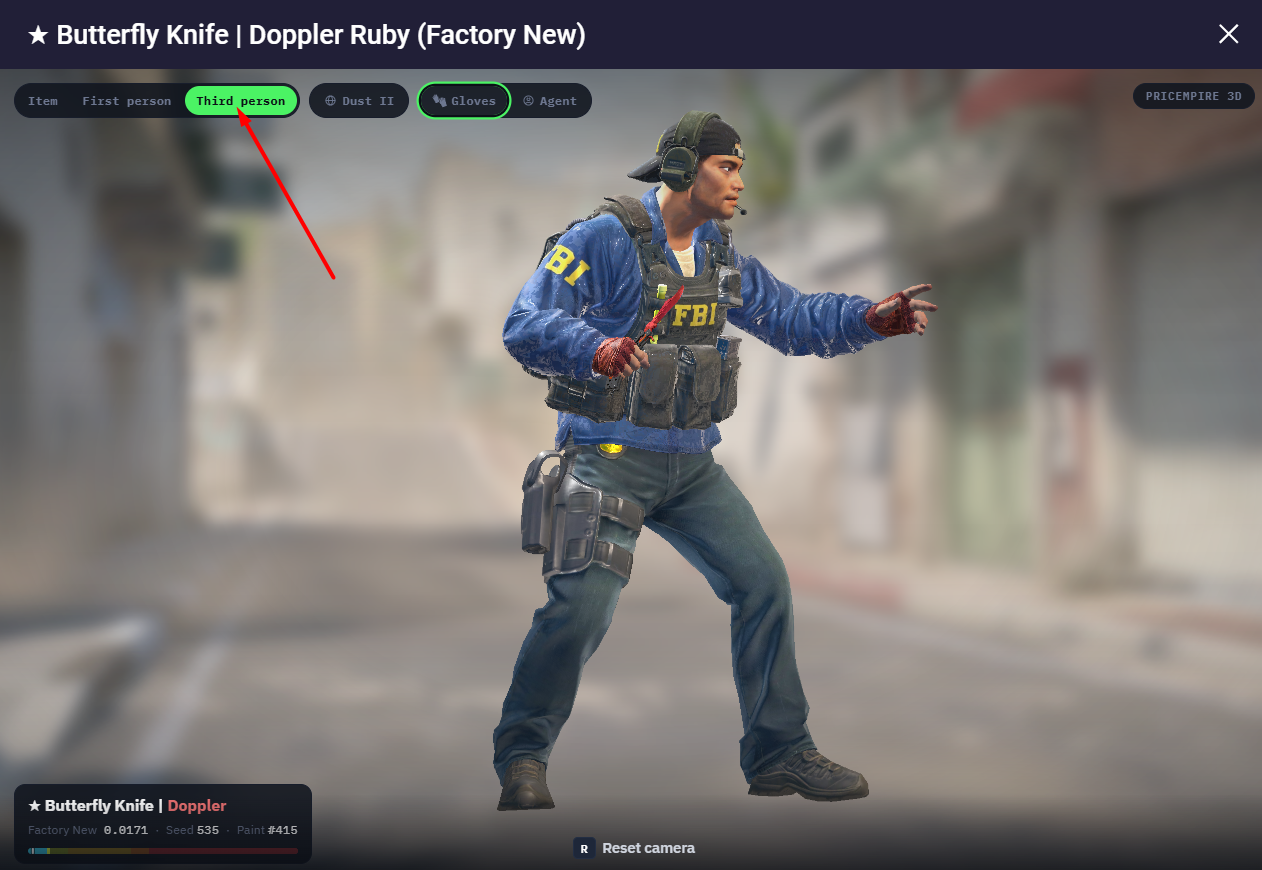
Third person — 맵 위에서 스킨을 든 완전한 요원 모델을 봅니다.
3D 뷰어에서 CS2 스킨을 여는 방법
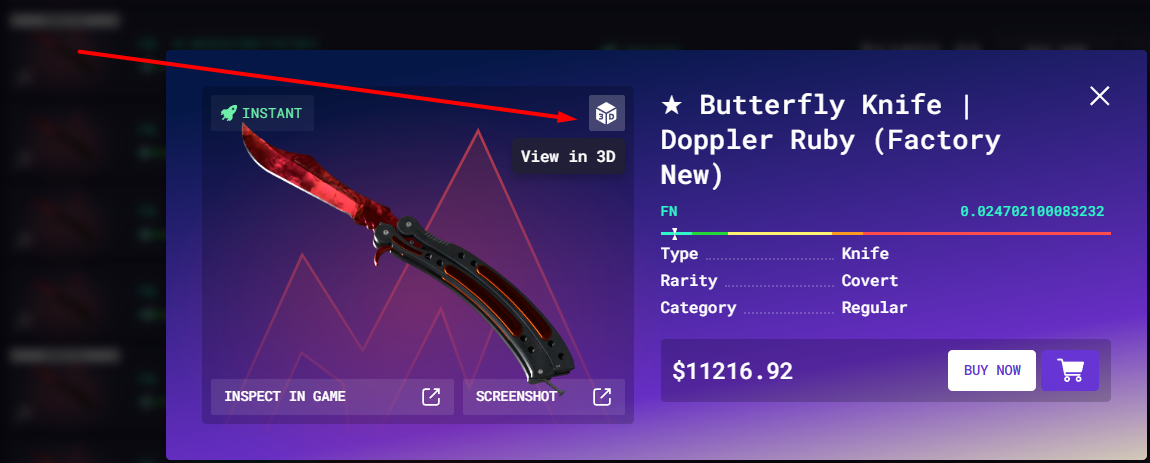
무기, 나이프, 글러브 페이지 어디서든 아이템 이미지의 오른쪽 위 모서리(즐겨찾기 별 옆)에서 "View in 3D"라고 적힌 큐브 아이콘을 찾으세요. 클릭하면 뷰어가 전체 화면 창으로 열리며, 해당 아이템의 정확한 플로트, 시드, 페인트가 이미 불러와져 있습니다.
알아두면 좋은 두 가지:
메인 이미지에도 그리고 모든 매물에도 있습니다. 3D 버튼은 페이지의 메인 제품 이미지에 있지만, 매물 목록의 개별 매물 각각에도 있습니다 — 그래서 대체 이미지가 아니라, 자신만의 플로트, 시드, 스티커, 참이 담긴, 여러분이 사려는 바로 그 개체를 살펴볼 수 있습니다.
브라우저에서 즉시 열립니다 — 게임도, Steam 클라이언트도, 인스펙트 링크도 필요 없습니다.
세 가지 뷰
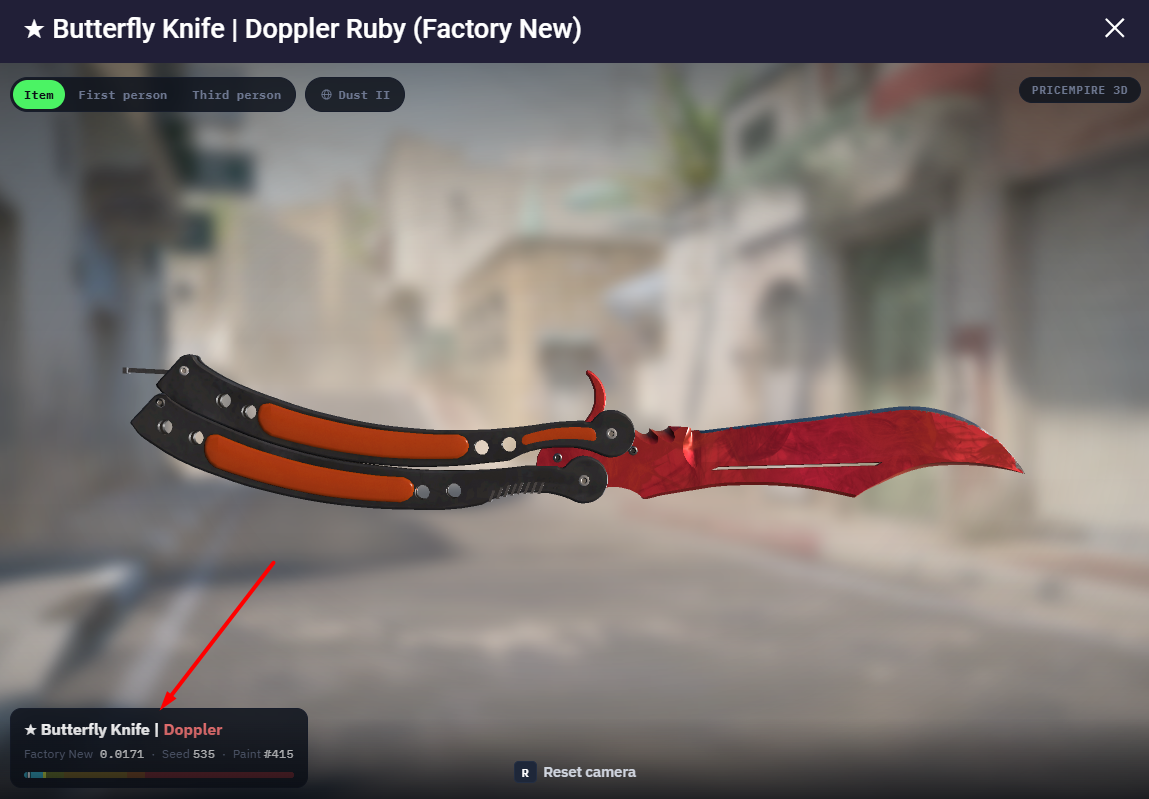
Item 뷰 — 모든 각도에서 살펴보기
기본 뷰는 스킨을 허공에 띄워 가까이서 살펴볼 수 있게 합니다. 조작은 아주 간단합니다: 마우스로 드래그해 어느 방향으로든 회전하고, 스크롤로 확대·축소하며, 방향을 잃었다면 R을 눌러 카메라를 초기화하면 됩니다. 다른 배경이 좋으신가요? 맵 선택기(기본값 Dust II)로 배경을 바꿔 다양한 조명 아래에서 마감을 볼 수 있습니다.
왼쪽 아래 패널에는 아이템의 실제 수치가 표시됩니다 — 사진 속 Doppler Ruby의 경우 Factory New 0.0171, Seed 535, Paint #415 — 여기에 해당 플로트가 Factory New부터 Battle-Scarred까지의 척도에서 어디에 위치하는지 표시하는 컬러 마모도 바가 더해집니다. 이것은 자리 표시용이 아니라, 여러분이 살펴보고 있는 개체의 실제 데이터입니다.
First-Person 뷰 — 손에 든 모습 보기
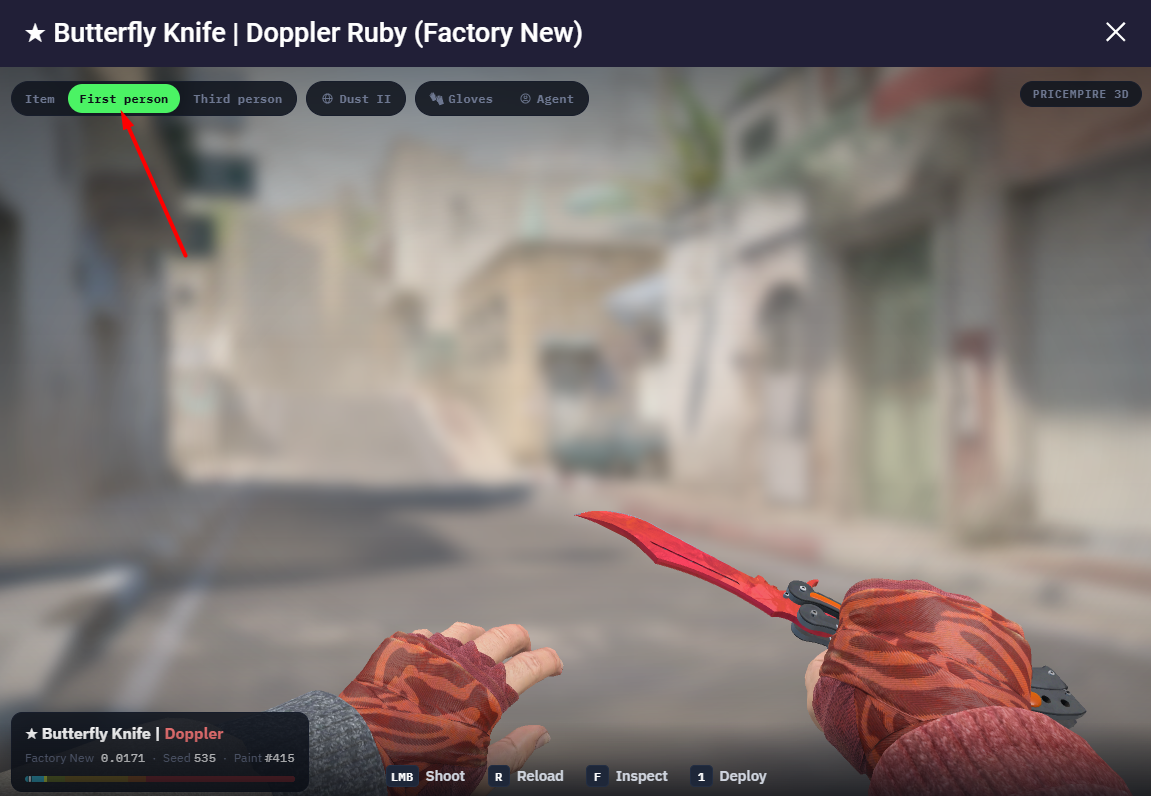
First person으로 전환하면 스킨이 실제 경기에서와 똑같이 나타납니다 — 맵 위에서 글러브를 낀 채 눈앞에 들려 있죠. 뷰어가 진가를 발휘하는 지점입니다: 게임에서 보게 될 것과 같은 애니메이션을 각각의 키로 실행할 수 있어, 정적인 모델을 바라보는 대신 마감이 어떻게 움직이고 빛을 받는지 판단할 수 있습니다:
1 — 꺼내기(Deploy): 스킨을 꺼내 장착하는 드로우 애니메이션.
F — 살펴보기(Inspect): 전체 인스펙트 애니메이션 — 나이프에서 가장 중요한 과시용 회전 동작.
좌클릭 — 발사(Shoot): 총기의 사격 애니메이션과 총구 화염.
R — 재장전(Reload): 총기의 재장전 애니메이션.
여기서 스킨과 짝지어진 글러브와 요원을 바로 교체할 수도 있어, 실제 게임에서 사용할 바로 그 손으로 스킨을 판단할 수 있습니다.
Third-Person 뷰 — 완전한 로드아웃
Third person은 스킨을 선택한 맵 위 완전한 요원 모델의 손에 쥐여 줍니다 — 팀원과 관전자가 여러분을 보는 방식 그대로죠. 요원, 글러브, 배경 맵(Dust II 등)을 바꿔 전체를 맞춰 보세요. 뷰어가 조합에서 진짜 빛나는 지점입니다: 나이프, 글러브, 요원을 섞어 어느 것도 사기 전에 전체 룩이 어우러지는 모습을 확인하세요. 색을 맞춘 세트를 찾고 계신가요? 최고의 참·스킨 조합 가이드에 여기서 시험해 볼 아이디어가 있습니다.
3D로 보는 CS2 무기의 스티커와 참
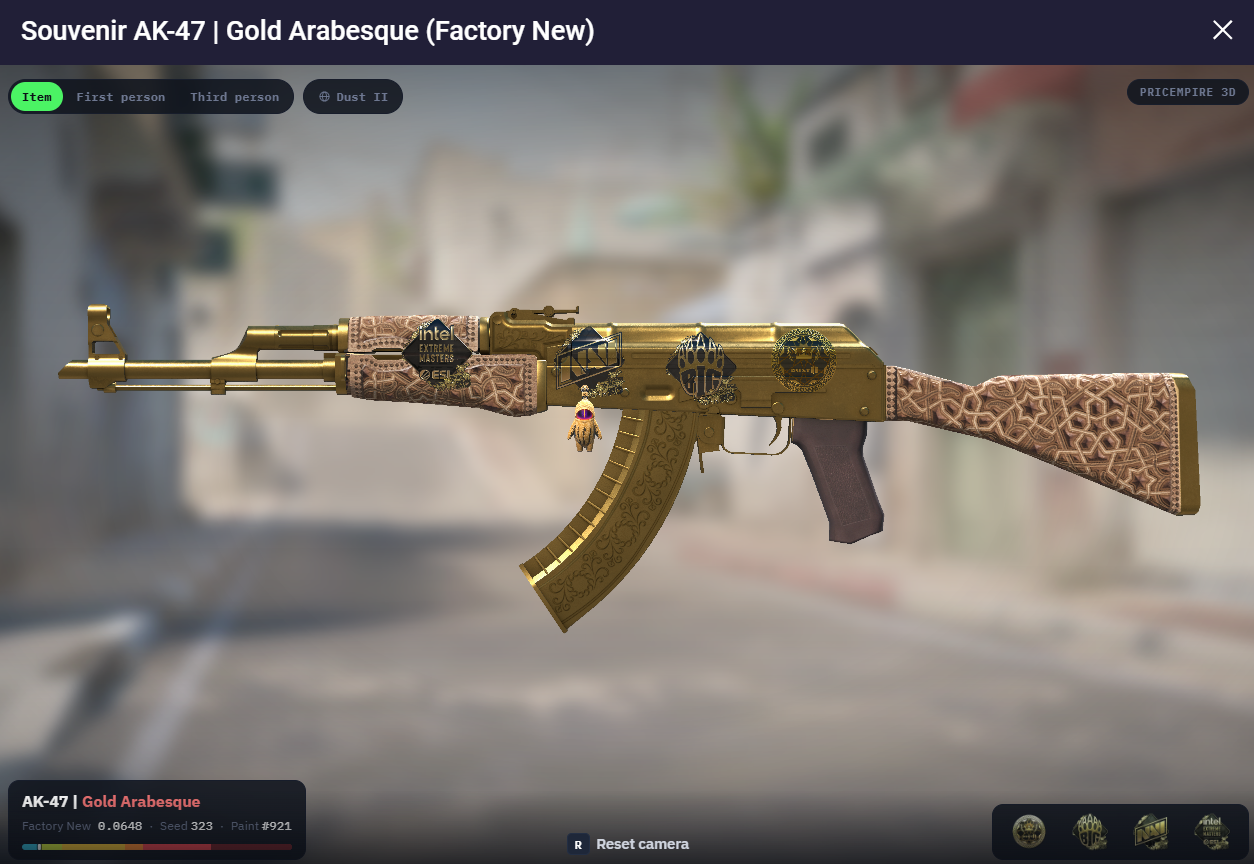
무기에서 3D 뷰어는 기본 마감 이상을 렌더링합니다 — 바로 그 개체에 적용된 스티커와 참을 보여주죠. 오른쪽 아래 모서리의 썸네일에는 적용된 모든 스티커와 키체인이 나열되고, 모델은 각각이 정확히 어디에 붙어 있는지 보여줍니다: 리시버 위쪽의 Crown 스티커, 방아쇠울에 매달려 흔들리는 미니 AK 참 등등.
그 덕분에 뷰어는 제대로 된 크래프트·조합 검사기가 됩니다. 스티커 크래프트에 큰돈을 쓰기 전에, 총을 돌려 배치가 깔끔한지, 스티커가 긁히거나 벗겨지지 않았는지 확인할 수 있습니다. 그리고 참도 제자리에 렌더링되므로, 결정을 내리기 전에 스킨에 어떻게 매달리는지 정확히 볼 수 있습니다 — 더 이상 평면 썸네일로 추측할 필요가 없습니다.
3D 뷰어에서 확인할 수 있는 것
같은 스킨의 개체를 서로 다르게 만드는 모든 요소가 화면에 그대로 나타납니다:
플로트와 마모도 — 정확한 플로트 값과 마모도 척도상 위치를 보여주는 컬러 바.
패턴과 시드 — 시드와 페인트 인덱스가 표시되어, 패턴 프리미엄을 지불하기 전에 Case Hardened 블루 젬을 눈으로 가늠하거나 Fade가 어디에 자리하는지 확인할 수 있습니다.
스티커와 참(무기) — 적용된 모든 스티커와 키체인의 실제 배치와 상태.
로드아웃 조합 — 선택한 글러브, 요원, 맵과 나란히 있는 스킨.
특히 나이프의 경우, 이는 매물만 보고 추측하는 것과 확실히 아는 것의 차이입니다 — 다음에 무엇을 살펴볼지 정하려면 CS2 나이프 티어 리스트와 함께 활용하세요.
구매 전에 스킨을 3D로 살펴봐야 하는 이유는?
같은 스킨의 두 개체가 완전히 똑같은 경우는 드뭅니다 — 플로트, 패턴 시드, 스티커 모두가 특정 개체의 실제 모습을 바꿉니다. 평면 썸네일은 그것을 감추지만, 3D 모델은 보여줍니다. 구매 전에 뷰어로 할 수 있는 것:
사진이 고른 "대표" 면뿐 아니라 모든 각도에서 실제 마모도를 확인합니다.
패턴을 판단합니다 — Fade, Case Hardened 블루 젬, Marble Fade, Doppler에서 좋은 부분이 어디에 자리하는지.
스티커가 무기에 실제로 어떻게 붙어 있는지 확인합니다(그 정중앙 Katowice가 정말로 정중앙인지도).
게임에서 놀랄 일이 없도록 손에 든 모습과 요원이 든 모습으로 스킨을 미리 봅니다.
이는 CS2 스킨 구매 시 살펴볼 점 가이드가 강조하는 것과 같은 꼼꼼한 확인 과정입니다 — 다만 플로트 숫자를 읽는 대신 눈으로 볼 수 있으니 더 빠를 뿐이죠. 말이 나온 김에, 플로트가 낯설다면 CS2 스킨 플로트 가이드와 마모도가 스킨의 모습에 미치는 영향에서 그 숫자들이 무슨 의미인지 설명합니다.

FAQ
뷰어의 플로트, 시드, 페인트 숫자는 무슨 의미인가요?
세 가지 서로 다른 것입니다. Float(예: 0.0171)은 0에서 1까지의 마모도 값으로 — 숫자가 낮을수록 스킨이 깨끗하며, 바는 그것이 Factory New부터 Battle-Scarred까지의 척도에서 어디에 위치하는지 보여줍니다. Seed는 Fade나 Case Hardened 같은 무작위 마감이 어떻게 배치되는지 결정하는 패턴 인덱스(1–1000)입니다. Paint는 마감의 페인트 인덱스로 — Doppler와 Gamma Doppler에서는 페이즈(Ruby나 Emerald 같은)를 결정하는 값입니다.
바로 이 지점에서 대부분의 사람들이 실제로 검색하는 단어 — 패턴 — 이 등장합니다. 누군가 스킨의 "패턴"(Case Hardened 블루 젬, 민-Fade, 특정 Marble Fade 배치)을 이야기할 때, 그들이 뜻하는 것은 바로 그 시드입니다: 색과 형태가 스킨에 어떻게 떨어지는지를 정하는 숫자죠. 3D 뷰어는 이를 판단하는 가장 쉬운 방법입니다 — 패널에서 Seed를 확인한 뒤 모델을 돌려 패턴이 정확히 어떻게 자리하는지 보고, 패턴 프리미엄을 지불하기 전에 해당 스킨 전용 패턴 가이드와 비교해 보세요.
3D 모델은 제가 받을 정확한 스킨인가요, 아니면 그냥 예시인가요?
특정 매물에서 뷰어를 열면 바로 그 개체를 보게 됩니다 — 실제 플로트, 시드, 스티커, 참까지요. 페이지의 메인 이미지에서 열면 스킨의 대표 예시입니다. 그러니 구매 전에 정확한 아이템을 검증하고 싶다면 헤더 이미지가 아니라 매물 자체에서 3D 뷰를 실행하세요.
뷰어에서 Case Hardened 블루 젬이나 깨끗한 Fade를 알아볼 수 있나요?
어느 정도는 가능합니다 — 그리고 그게 매력이죠. 모델을 돌려 Case Hardened가 실제로 파란색을 얼마나 보여주는지, Fade의 색이 얼마나 퍼지는지 확인할 수 있고, 시드는 패널에 바로 나와 있습니다. 다만 정말 희귀한 패턴 시드의 경우, 몇 단계 차이가 눈만으로는 놓칠 수 있는 큰 가격 차이를 의미할 수 있으니 여전히 전용 패턴 가이드와 교차 확인하세요.
어떤 CS2 아이템은 3D로 볼 수 없나요?
뷰어는 가까이서 살펴보는 대상 — 무기, 나이프, 글러브 — 를 위해 만들어졌습니다. 스티커와 참은 단독으로 살펴볼 수 없으며, 대신 무기 위에 렌더링되어 나타납니다. 케이스와 요원도 아이템 인스펙션 대상은 아니지만, 3인칭 뷰에서 요원을 여러분의 무기를 든 모델로 미리 볼 수는 있습니다.
그리고 특정 스티커나 참 — 혹은 둘 다 — 이 이미 달린 무기를 콕 집어 찾고 있다면, 매물을 하나씩 열어볼 필요가 없습니다: 마켓 카탈로그와 각 스킨의 페이지 모두 필터가 있어 원하는 정확한 스티커 및/또는 참으로 결과를 좁힌 뒤, 일치하는 것들을 3D로 살펴볼 수 있습니다.
사용하려면 CS2나 Steam 인스펙트 링크가 필요한가요?
아니요. 모든 것이 브라우저에서 실행됩니다 — 게임 실행도, Steam 클라이언트도, 인스펙트 링크 복사·붙여넣기도 필요 없습니다. 그게 핵심입니다: 스토어 페이지를 떠나지 않고도, 심지어 스킨을 소유하지 않고도 게임 내 인스펙트보다 더 나은 모습을 볼 수 있으니까요.

댓글 작성