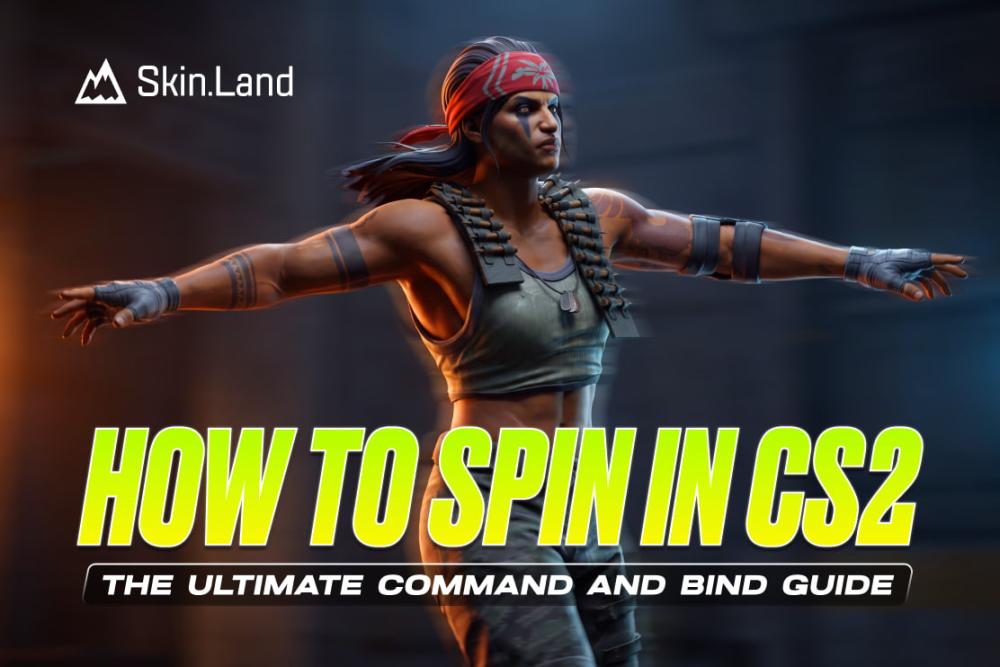

Whether you're looking to style on an opponent during a tense bomb defuse, dodge an AFK kick, or just entertain yourself during freeze time, spinning is a time-honored Counter-Strike tradition. But pulling off a flawlessly smooth, endless rotation doesn't mean violently swiping your mouse across the desk. By tapping into a few basic developer commands, you can automate the movement and tie the perfect spin to a single keystroke. Here is your quick, no-nonsense guide to setting up and mastering spin binds in CS2. 

Why Do Players Spin in CS2?

In a highly competitive tactical shooter, spinning around in circles might seem counterproductive. However, players have found plenty of entertaining and practical reasons to use spin commands:

  • Preventing AFK Kicks: If you need to step away from your keyboard for a sudden emergency during a casual match, setting your character to spin will prevent the server from automatically kicking you for inactivity.

  • The "Spin Defuse": One of the oldest flexes in Counter-Strike is spinning rapidly while defusing the bomb. It looks hilarious to spectators and can occasionally confuse an enemy trying to line up a headshot.

  • Killing Time: Waiting out the pre-round freeze time or waiting for teammates to finish a round can get boring. Spinning is a harmless way to pass the time in spawn.

Enable and Open the Developer Console

Before you can perform any advanced binds, you need to access the developer console. This is the control center for all of Counter-Strike's backend commands.

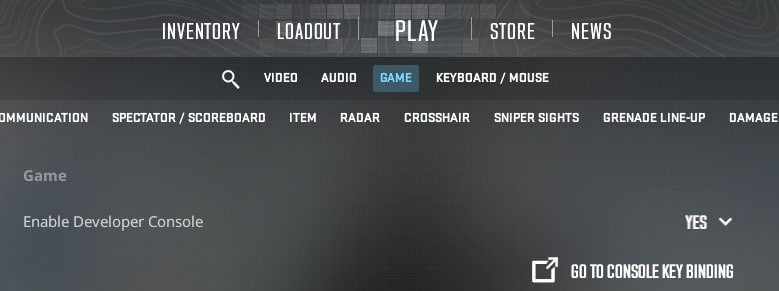
  1. Launch CS2 and open your Settings menu.

  2. Navigate to the Game tab.

  3. Look for the setting labeled Enable Developer Console (~) and switch it to Yes.

  4. Press the tilde key (~) on your keyboard (usually located under the Escape key) to open the console window.

The Core Spin Commands

You don't need a macro or a high-DPI mouse to spin perfectly. The game engine has built-in commands for continuous rotation. Open your console and type one of the following commands, then press Enter:

  • +left (Spins your character continuously to the left)

  • +right (Spins your character continuously to the right)

  • +spin (A general rotation command utilized by some players)

Want to go faster? If the default spin speed isn't satisfying enough, you can alter your rotational speed (yaw). Type cl_yawspeed 1000 (or another high number) into the console to significantly increase how fast your character spins.

Binding the Spin to a Key

Typing commands into the console in the middle of a firefight is a guaranteed way to get eliminated. To make spinning practical, you should bind the action to a specific key so you can activate it on demand.

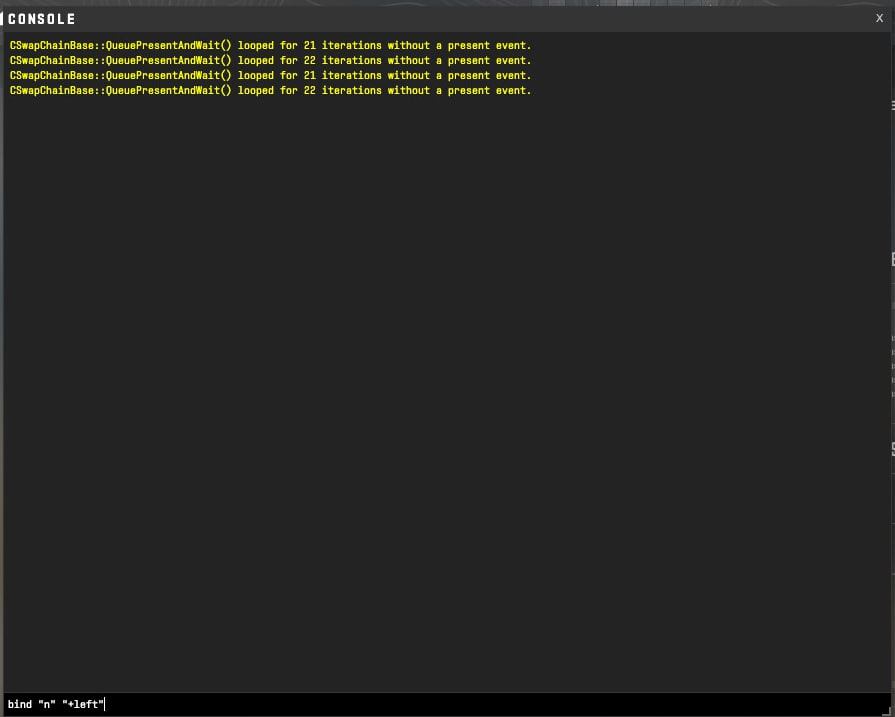
Open your console and type the following command:

  • bind "n" "+left"

Now, whenever you press your chosen key, your character will initiate the spin.

How to Stop Spinning

Once you start spinning, you might find that you can't easily stop just by moving your mouse. To halt the rotation, you have two options depending on how you initiated it:

  • If you used a bind: Depending on how your autoexec or binds are set up, simply releasing the key or pressing it a second time will usually stop the motion.

  • If you typed it into the console: Open the console (~) again and type the negative version of your original command. For example, if you typed +left, you need to type -left and press Enter to stop.

The Spin Defuse

The Spin Defuse is a classic community meme. To pull it off, you need to approach the planted C4, trigger your spin command (using the key bind you set up earlier), and then immediately press and hold your defuse key (usually E).

Your character will rapidly spin in circles while the defuse progress bar ticks down. Be warned: doing this means you cannot keep your crosshair aimed at potential entry points, leaving you completely vulnerable to enemy fire.

Spinning is a fun trick and a great way to confuse panicked opponents, but it isn’t a viable strategy for winning games. Bind your keys, use it wisely, and enjoy the dizzying heights of Counter-Strike movement! 

0 댓글

댓글 작성

다른 유용한 기사