
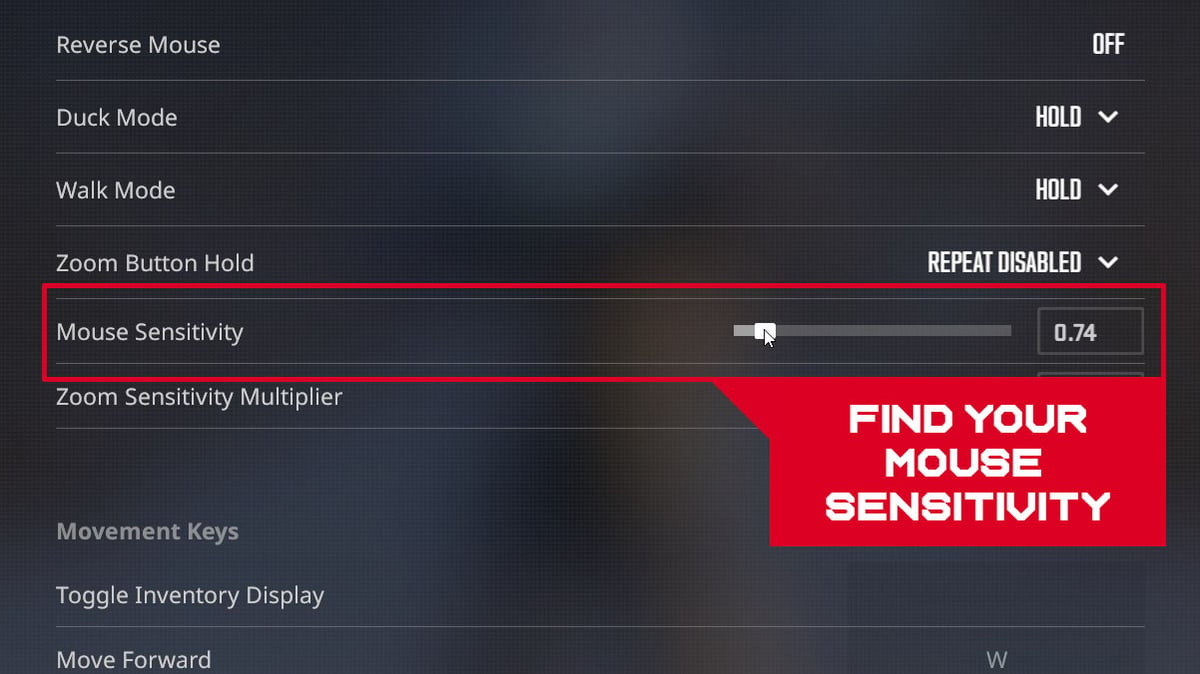
CS2 감도가 저장되지 않는 주요 원인
아래에서 다룰 원인들은 감도 문제뿐 아니라 설정, 같은 다른 게임 크로스헤어 과 사운드 등 다른 문제로도 이어질 수 있습니다.
업데이트
Valve 개발자들이 게임 설정을 임의로 바꾸는 업데이트를 하면서 플레이어에게 제때 알리지 않는 경우가 종종 있습니다.
업데이트가 게임 코드를 바꾸는 경우는 더 나쁩니다. 보통 이런 경우 저장된 설정이 기본값으로 초기화됩니다.
설정 파일 손상
설정 파일의 목적은 게임 설정을 저장해서 게임을 켤 때마다 일일이 다시 입력하며 시간을 낭비하지 않도록 하는 것입니다.
하지만 다른 파일과 마찬가지로 설정 파일도 게임 중에 발생할 수 있는 버그나 충돌로부터 100% 안전하지는 않습니다.
집에 갑자기 정전이 생겨 컴퓨터가 비정상적으로 꺼지면 설정 파일이 손상될 수도 있습니다. 문제는 게임을 잘못 종료하면 설정이 잘못 저장되어 오작동을 일으킬 수 있다는 점입니다.
게임 파일 손상
이것은 CS2 감도 문제의 주된 원인은 아니지만 가끔 발생합니다. 예를 들어 게임 디렉터리에서 Mirage 맵 텍스처 같은 파일이 누락되었는데, 개발자만 아는 어떤 방식으로 그것이 감도 설정에 영향을 미치는 경우가 있습니다.
다른 프로그램과의 충돌
플레이어들의 사례 중에는 Fraps 같은 화면 녹화 소프트웨어가 마우스 감도와 다른 설정을 망가뜨린 경우가 있었습니다. 반면 다른 소프트웨어는 CS2와 완벽하게 작동했죠.
또한 Discord를 켠 채로 플레이하면 설정 오류로 이어질 수 있다는 점도 언급할 필요가 있습니다.
실행 옵션 및 저장 파일 간 충돌
게임 플레이를 편하게 하거나 더 나은 경험을 주는 여러 명령어를 실행 옵션 칸에 적어 넣는 걸 좋아한다면 주의해야 합니다. 자기도 모르게 감도 설정을 망가뜨리는 명령어를 입력했을 수도 있습니다.
또 다른 가능한 원인은 컴퓨터에 저장된 파일과 Steam 클라우드에 저장된 파일 사이의 충돌입니다. 두 저장본이 서로 다른 설정 파일을 담고 있을 수 있어 충돌이 발생하죠. Steam은 클라우드 기반 저장본을 우선합니다.
게임 버그
위의 원인 중 어느 것도 여러분의 상황에 해당하지 않는다면, 개발자로 인해 생긴 게임 버그나 오류를 겪고 있는 것일 수 있습니다.
CS2 설정이 계속 초기화되는 문제를 해결하는 방법
개발자와 커뮤니티는 이 문제를 방치하지 않았습니다. 아래에서 감도 초기화를 해결하기 위해 취할 수 있는 단계를 다루겠습니다.
업데이트 롤백
새 업데이트를 설치해서 감도 설정을 잃었다면 이전 버전으로 되돌려 보세요. 이 경우 Valve가 패치나 수정된 업데이트 버전을 내놓을 때까지 기다리는 것이 좋습니다.
설정 파일 문제 해결
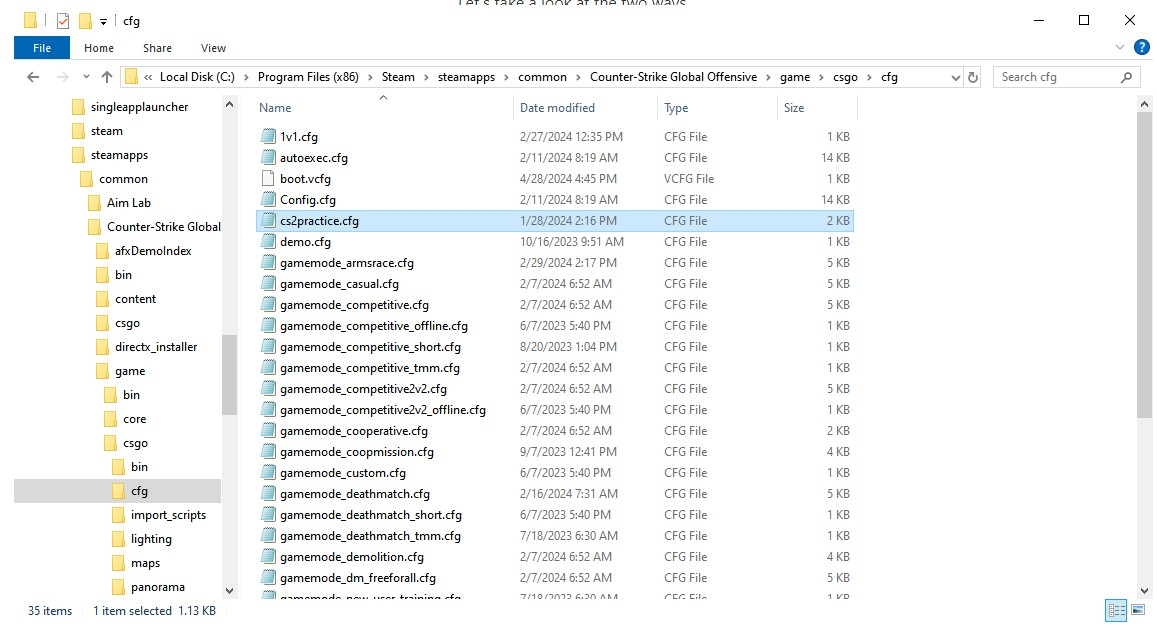
이 문제를 해결하는 방법은 두 가지입니다.
첫 번째 방법. 컴퓨터의 게임 폴더로 가서 설정 파일이 들어 있는 cfg 하위 폴더를 찾으세요. 그런 다음 원하는 설정을 자동으로 적용해 주는 새 autoexec.cfg 파일을 만듭니다. 이 파일은 메모장(Notepad) 프로그램으로 만들 수 있습니다. 파일 안에 sensitivity 1.5처럼 원하는 감도 설정을 입력하세요. 원한다면 다른 설정도 추가할 수 있습니다. 마지막으로 설정이 자동으로 저장되도록 파일 끝에 host_wtiteconfig 명령어를 추가하세요. 파일을 저장하고 cfg 하위 폴더에 넣으세요.
두 번째 방법. 설정 파일에 “읽기 전용” 속성을 지정하세요. 이렇게 하면 설정해 둔 값이 덮어써지지 않도록 보호할 수 있습니다. 게임을 다시 켤 때마다 컴퓨터가 여러분이 지정한 그대로 파일에서 설정을 불러옵니다.
방법은 이렇습니다. cfg 하위 폴더에 완전히 새로운 config 파일을 만드세요. 유용하거나 필요하다고 생각하는, 그리고 게임에 접속할 때마다 다시 설정하고 싶지 않은 모든 설정을 입력하세요. 파일을 저장합니다. 이제 "읽기 전용" 옵션을 켜세요. 파일을 우클릭해 속성으로 가서 "읽기 전용" 체크박스를 선택합니다.
게임 파일 복구
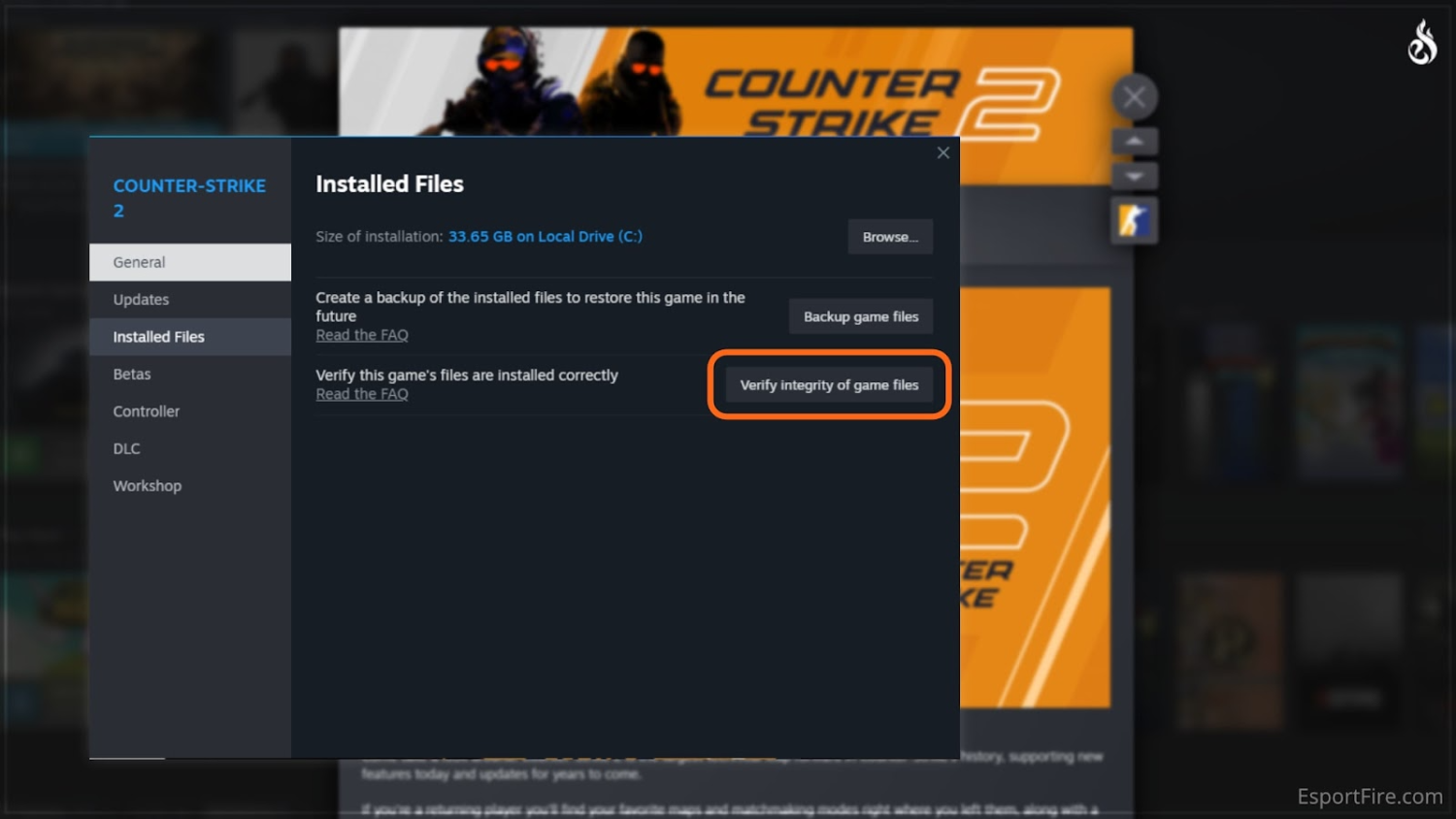
게임 파일을 확인하려면 Steam으로 가서 게임 목록에서 CS2를 찾으세요. 그런 다음 게임 아이콘을 우클릭해 메뉴를 열고 속성을 선택합니다. 새 창이 열리면 설치된 파일이라는 탭을 찾아 클릭하세요. 그다음 게임 파일 무결성 확인 버튼을 클릭합니다.
이제 인내심이 필요합니다. 검사는 최대 30분까지 오래 걸릴 수 있습니다. 검사가 끝나면 Steam이 손상된 파일을 자동으로 교체해 줍니다.
그런 다음 원하는 감도 설정을 다시 지정해 보세요.
다른 프로그램과의 충돌 해결
원칙적으로 여기엔 복잡할 게 없습니다. 간단한 선택만 하면 됩니다: 지금 CS2를 할 것인지, 아니면 제3자 프로그램을 쓸 것인지. 둘 중 하나만 실행하세요.
화면 영상을 녹화 중인데 그 프로그램이 CS2의 감도 설정을 망가뜨리고 있다면, 그 프로그램을 다른 것으로 교체하세요.
실행 옵션 및 저장 파일 간 충돌 해결
설정에서 명령어를 입력하는 실행 옵션 칸을 찾으세요. 거기서 모든 명령어를 지우고 게임을 재시작해 보세요. 중요: 다시 모으느라 시간을 낭비하지 않도록 이 명령어들을 다른 곳에 저장해 두세요.
명령어가 없는 상태에서도 감도가 바뀌지 않는다면, 실행 옵션 칸에 명령어를 하나만 추가하고 게임을 다시 재시작해 보세요. 감도 설정을 다시 확인합니다. 괜찮으면 명령어를 하나 더 추가하고 다시 확인하세요. 그다음 또 하나를 추가합니다. 게임을 망가뜨리는 명령어를 찾을 때까지 이렇게 반복하세요.
로컬 저장본과 클라우드 저장본 사이의 충돌에 관해서는, 클라우드 저장을 끄시길 권합니다. 모든 과정은 여느 때처럼 Steam을 통해 이루어집니다. CS2 아이콘을 찾아 메뉴를 우클릭하세요. 그런 다음 속성을 클릭합니다. 창이 열리면 일반 탭으로 가세요. 거기서 동기화를 비활성화합니다.
이제부터 모든 설정 저장본과 설정은 여러분의 컴퓨터에만 남습니다.
버그는 어떻게 해야 하나요?
버그는 보통 빠른 해결책이 없는 유일한 문제입니다. 이 경우 Steam 지원 서비스를 통해 문제를 신고하고 개발자들이 코드를 충분히 빨리 고쳐 주기를 바라야 합니다. 때로는 다른 플레이어들이 버그로 인한 문제를 없애는 데 도움이 되는 흥미로운 해결책을 찾아내기도 합니다. 새로운 정보를 놓치지 않도록 공식 게임 포럼을 주기적으로 확인하시길 권합니다.
CS2가 화면 설정을 저장하지 않는 이유와 해결 방법
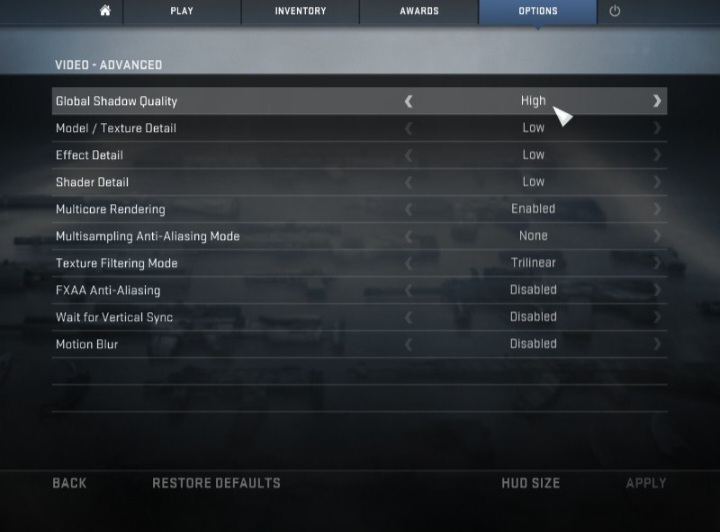
이 글을 읽고 있다면 화면 설정 저장 문제가 낯설지 않을 것입니다. 게임을 켤 때마다 그림자, 텍스처 품질, 셰이더 디테일을 몇 번이고 다시 설정해야 하죠. 당연히 무척 성가신 일입니다. 같은 일을 반복하는 데 지쳤다면, 문제를 해결할 방법을 알려 드리겠습니다:
Steam으로 가서 게임을 실행하세요.
설정으로 가서 화면(이미지)으로 이동하세요. 그런 다음 고급 설정을 클릭합니다.
필요한 화면 설정을 입력하세요.
Counter Strike 2를 종료하세요. 컴퓨터의 CS2 게임 폴더 안에서 cfg 폴더를 찾으세요.
cfg 폴더에 들어가면 video.txt 파일을 찾으세요. 이 파일을 읽기 전용으로 만들어야 합니다. 이를 위해 파일을 우클릭해 속성을 선택하세요. 속성 창에서 읽기 전용 옵션을 클릭하고 그 옆의 체크박스를 선택합니다.
이제 설정이 고정되어 초기화되지 않을 것입니다.
원하는 화면 설정을 마쳤으니 이제 고른 그래픽 품질을 즐길 수 있습니다. 하지만 무기나 나이프에 멋지고 세련된 스킨이 없다면 게임 경험이 완전하지 않겠죠. 저희에게는 그런 스킨이 가득한 상점이 있습니다. 어떤 스타일과 색상이든, 물론 어떤 예산이든 맞는 스킨을 찾을 수 있습니다. 거래는 Steam을 통해 이루어지므로 구매가 안전하게 보호된다고 안심하셔도 됩니다. 신뢰할 수 있는 상점이라는 저희 평판은 수많은 후기가 뒷받침합니다. 새 스킨은 그저 클릭 한 번.
CS2 설정 저장 안 됨 FAQ
제 CS2 감도가 왜 계속 초기화되나요?
흔한 원인은 여러 가지입니다: 설정을 조용히 바꾸는 Valve 업데이트, 충돌이나 정전 후 손상되거나 잘못 저장된 설정 파일, 화면 녹화 프로그램이나 Discord 같은 프로그램과의 충돌, 실행 옵션에 잘못 들어간 명령어, 또는 Steam이 우선시하는 클라우드 저장본과 로컬 저장본 사이의 충돌 등입니다.
CS2 설정이 초기화되지 않게 하려면 어떻게 하나요?
가장 확실한 해결책은 config를 잠그는 것입니다. cfg 폴더에 원하는 설정을 담은 config 파일을 만든 뒤, 파일을 우클릭해 속성을 열고 읽기 전용을 체크해서 게임이 덮어쓰지 못하게 하세요. 또한 host_writeconfig로 끝나는 autoexec.cfg를 만들어 실행할 때마다 설정이 자동으로 다시 적용되게 할 수도 있습니다.
게임 파일 무결성 확인을 하면 스킨이나 설정이 지워지나요?
무결성 확인은 누락되거나 손상된 게임 파일만 교체하므로 인벤토리는 절대 건드리지 않습니다. 스킨은 로컬 파일이 아니라 Steam 서버에 저장되어 있기 때문이죠. 다만 일부 설정을 기본값으로 되돌릴 수는 있으니, 이후 무언가 이상해 보이면 감도와 화면 옵션을 다시 적용해 두는 것이 좋습니다.



댓글 작성