
jL CS2 การตั้งค่าเมาส์ - ความไวและ DPI
เมื่อพูดถึงการตั้งค่าเมาส์ jL ใช้การตั้งค่าที่สร้างสมดุลระหว่างการสะบัดอย่างรวดเร็วด้วยการติดตามที่เสถียรและแม่นยำ เช่นเดียวกับมือโปรยุคใหม่หลายๆ คน เขาชอบ DPI พื้นฐานที่ 800 มากกว่ามาตรฐานเก่าที่ 400 เขาจับคู่สิ่งนี้กับความไวในเกมที่ 1.0 ส่งผลให้ได้ DPI ที่มีประสิทธิภาพ (eDPI) ที่ 800 สิ่งนี้ทำให้เขาอยู่ตรงกลางกลุ่มสำหรับช่วงความไวระดับมืออาชีพ—เร็วพอที่จะเคลียร์มุมและเลี้ยวจากแฟลชได้อย่างง่ายดาย แต่ต่ำพอที่จะรักษาตำแหน่งเล็งเล็งให้สมบูรณ์แบบด้วยพิกเซลสำหรับระยะไกล การดวล เพื่อให้มั่นใจถึงการตอบสนองสูงสุด jL ใช้อัตราการโพล 4000 Hz บนเมาส์ ควบคู่ไปกับความไวในการซูมมาตรฐาน 1.0 และความเร็วตัวชี้ Windows พื้นฐานที่ 6/11
เมาส์: Razer Deathadder V4 Pro สีขาว
จุดต่อนิ้ว: 800
ความไว: 1
อีดีพีไอ: 800
ความไวในการซูม: 1
เฮิร์ตซ์: 4000
ความไวของ Windows: 6
Donไม่รู้ว่าการตั้งค่าเมาส์ทำงานอย่างไร? ลองอ่านคำแนะนำของเรา here
การตั้งค่า jL Crosshair สำหรับ CS2
เป้าเล็งของผู้เล่นชาวบราซิลเป็นแบบคงที่และเป็นสีเขียวแบบคลาสสิก คุณสามารถเปิดใช้งานได้โดยป้อนรหัส crosshair CSGO-XBJXx-FbQRU-5tCvV-j83HR-4JDhP หรือโดยการคัดลอกพารามิเตอร์ต่อไปนี้ด้วยตนเอง:
สไตล์: คลาสสิกแบบคงที่
ติดตามการหดตัว: ไม่
จุด: ใช่
ความยาว: 1
ความหนา: 0
ช่องว่าง: -3
โครงร่าง: ไม่ใช่
สี (RGB): กำหนดเอง
สีแดง: 0
สีเขียว: 255
สีฟ้า: 160
อัลฟ่า: ใช่
ค่าอัลฟ่า: 255
สไตล์ T: ไม่
ช่องว่างอาวุธที่ปรับใช้: ใช่
ความกว้างของสไนเปอร์: 0
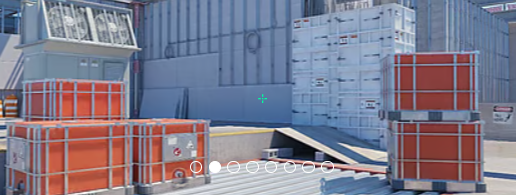
ไม่ชอบเป้าเล็งของเขาเหรอ? ไม่ต้องกังวล หากคุณต้องการสำรวจตัวเลือกอื่นๆ โปรดดูคำแนะนำของเราสำหรับรหัสเล็งเล็ง CS2 ที่ดีที่สุด here
การตั้งค่าวิดีโอ jL สำหรับ CS2
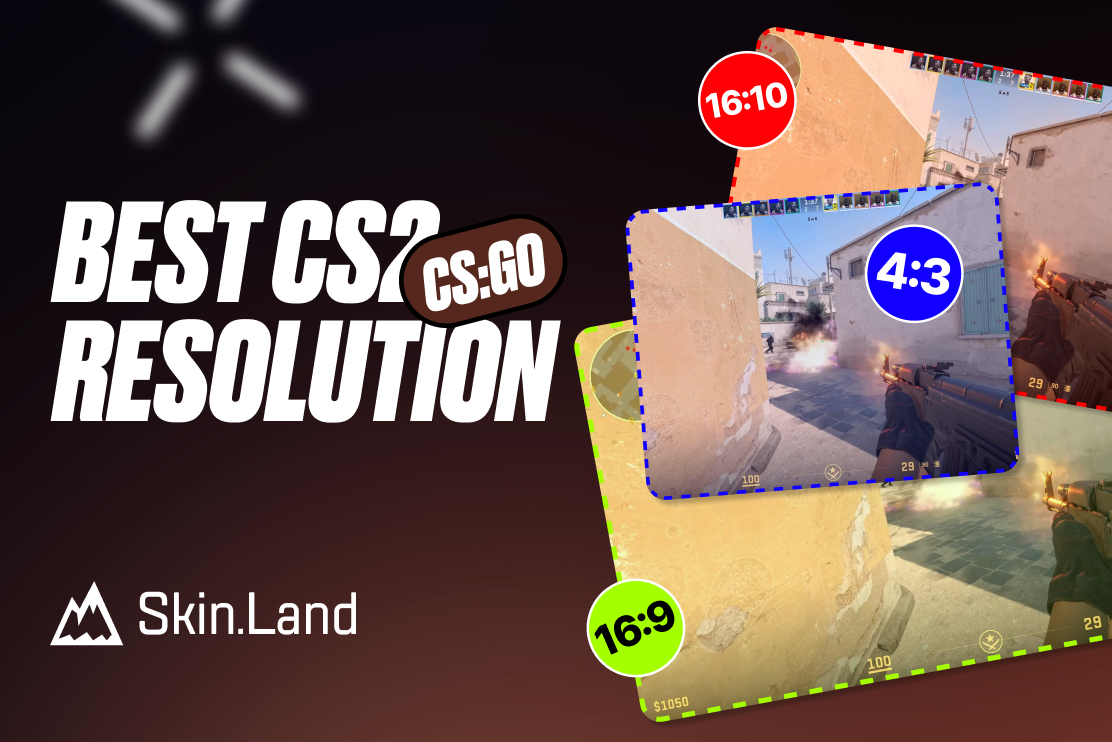
สำหรับการตั้งค่าวิดีโอ jL ให้ความสำคัญกับความได้เปรียบทางการแข่งขันและอัตราเฟรมสูงสุดมากกว่าความคมชัดของภาพ เช่นเดียวกับมืออาชีพผู้ช่ำชองหลายๆ คน เขาเลือกใช้ความละเอียดที่ขยายออก: โดยทั่วไปคือ 1280x1024 (5:4) หรือ 1280x960 (4:3) ซึ่งทำให้โมเดลของผู้เล่นศัตรูดูกว้างขึ้นและตีได้ง่ายขึ้น แม้ว่าเขาจะเก็บการตั้งค่ากราฟิกส่วนใหญ่ เช่น รายละเอียดเชเดอร์และรายละเอียดอนุภาคไว้ที่ระดับต่ำ เพื่อลดความยุ่งเหยิงของภาพและเพิ่มประสิทธิภาพ เขาก็ทิ้งคุณภาพเงาทั่วโลกไว้ที่ระดับสูงอย่างยิ่ง นี่เป็นกลยุทธ์ทั่วไปในหมู่ผู้เล่นระดับสูง เพราะมันช่วยให้พวกเขามองเห็นเงาของศัตรูที่ทอดจากรอบมุมหรือใต้แหล่งกำเนิดแสงก่อนที่คู่ต่อสู้จะมองเห็นได้จริง เพื่อลดความล่าช้าในการป้อนข้อมูล jL จะปิดใช้งานV-Sync และ FidelityFX Super Resolution ในขณะที่เปิดใช้งาน NVIDIA Reflex Low Latency เพื่อให้แน่ใจว่าเกมของเขาจะตอบสนองมากที่สุดเท่าที่จะเป็นไปได้ในระหว่างการต่อสู้แบบทีมที่วุ่นวาย
เพิ่มความคมชัดของผู้เล่น: ปิดการใช้งาน
รายละเอียดรุ่น/พื้นผิว: ปานกลาง
รายละเอียดเชเดอร์: ต่ำ
รายละเอียดอนุภาค: ต่ำ
การกรองพื้นผิว: แอนไอโซทรอปิก 4x
การลบรอยหยัก: 2x MSAA
คุณภาพของเงา: ต่ำ
เงาแบบไดนามิก: ทั้งหมด
การบดเคี้ยวโดยรอบ: ปานกลาง
FidelityFX Super Resolution: ปิดใช้งาน (คุณภาพสูงสุด)
V-Sync: ปิดใช้งาน
NVIDIA Reflex เวลาแฝงต่ำ: ปิดการใช้งาน
NVIDIAG-Sync: ปิดการใช้งาน
ช่วงไดนามิกสูง: คุณภาพ
ความละเอียด: 1280*960
อัตราส่วนภาพ: 5:4 แบบขยาย
โหมด: เต็มจอ
โหมดการปรับขนาด: ยืดออก
ความสว่าง: 93%
การตั้งค่าการตรวจสอบ jL สำหรับ CS2
เพื่อให้ได้รับประโยชน์สูงสุดจากการตั้งค่าของเขา jL อาศัยจอภาพ ZOWIE ระดับสูงสุด—ซึ่งปัจจุบันกำลังเปลี่ยนไปใช้ ZOWIE XL2586X+— เพื่อรับประกันความชัดเจนอย่างแน่นอนระหว่างการเล่นเกมที่รวดเร็ว เขาใช้โหมดภาพ FPS 2 เป็นพื้นฐาน โดยปรับแต่งจอแสดงผลเพื่อความได้เปรียบในการแข่งขันมากกว่าความสวยงามของภาพยนตร์ ด้วยการตั้งค่า DyAc (ความแม่นยำแบบไดนามิก) เป็นระดับพรีเมียม เขาจะลดการเบลอของการเคลื่อนไหวได้อย่างมาก ทำให้การควบคุมสเปรย์และการติดตามเป้าหมายที่กำลังเคลื่อนที่ง่ายขึ้นมาก
เขาจับคู่สิ่งนี้กับการตั้งค่า Black eQualizer ที่ 7 เพื่อเพิ่มความสว่างให้กับมุมที่มืดโดยไม่ทำให้ส่วนที่เหลือของแผนที่สว่างเกินไป ทำให้มั่นใจได้ว่าไม่มีศัตรูคนไหนซ่อนตัวอยู่ในเงามืดได้ ในที่สุด เมื่อ Color Vibrance ปรับเป็น 13 โมเดลของผู้เล่นจะปรากฏขึ้นท่ามกลางพื้นหลังอันจืดชืดของแผนที่อย่าง Mirage และ Ancient การตั้งค่ามาตรฐานอื่นๆ ของเขา ได้แก่ คอนทราสต์ 50 ความคมชัดที่ 10 และแกมมา 3 เพื่อให้ได้โปรไฟล์ภาพที่ปรับให้เหมาะสมที่สุด
คุณจะพบการตั้งค่าจอภาพ jL ที่นี่:
DyAc: พรีเมี่ยม
อีควอไลเซอร์สีดำ: 7
ความสดใสของสี: 13
แสงสีฟ้าต่ำ: 0
โหมดภาพ: FPS 2
ความสว่าง: 100
คอนทราสต์: 50
ความคมชัด: 10
แกมมา: แกมมา 3
อุณหภูมิสี: กำหนดโดยผู้ใช้
สีแดง: 80
เขียว: 82
สีฟ้า: 100
อามะ: สูง
การตั้งค่ามุมมอง jL สำหรับ CS2
Major MVP มีการตั้งค่าโมเดลมุมมองที่คล้ายกับการตั้งค่าของผู้เล่นมืออาชีพ CS2 คนอื่นๆ มีออฟเซ็ตแนวนอน 2.5 และออฟเซ็ตแนวตั้ง -1.5 การตั้งค่าเหล่านี้ทำให้การเล็งและการยิงสะดวก และทำให้แน่ใจว่าโมเดลอาวุธไม่ไม่บดบังขอบเขตการมองเห็นมากเกินไป
viewmodel_fov 68
viewmodel_offset_x 2.5
viewmodel_offset_y 2
มุมมองmodel_offset_z -1.5
viewmodel_presetpos 1
นอกจากนี้ยังมีประโยชน์ในการเรียนรู้วิธีการทำงานของ viewmodel settings เพื่อปรับเปลี่ยนให้เข้ากับความต้องการของคุณ
ตัวเลือกการเปิดตัว jL สำหรับ CS2
jL ไม่ได้ใช้ตัวเลือกการเปิดตัวใดๆ ในขณะนี้
หากคุณกำลังมองหาตัวเลือกการเปิดตัว CS2 ที่ดีที่สุด ลองดู guide ของเรา
การตั้งค่าเรดาร์ jL สำหรับ CS2
เรดาร์ของเขาตั้งศูนย์กลางผู้เล่นและหมุนพร้อมกัน ใช้การตั้งค่าต่อไปนี้เพื่อทดลองด้วยตัวเองว่าการเล่น molodoy radar settings รู้สึกอย่างไร
ศูนย์เรดาร์ ผู้เล่น: ใช่
เรดาร์กำลังหมุน: ใช่
สลับรูปร่างด้วยกระดานคะแนน: ใช่
เรดาร์ฮัดขนาด: 1
ซูมแผนที่: 0.4
การตั้งค่าเสียง jL สำหรับ CS2
เพื่อให้แน่ใจว่าเขาจะได้ยินทุกฝีก้าว โหลดซ้ำ และสัญญาณอรรถประโยชน์อย่างชัดเจน jL อาศัยฮาร์ดแวร์เสียงชั้นยอด โดยใช้งานมอนิเตอร์อินเอียร์ Sennheiser IE 900 Pro หรือชุดหูฟัง Logitech G PRO X 2 ไร้สายเป็นประจำ แม้ว่าแถบเลื่อนเสียงบางแถบจะมีความเป็นส่วนตัวสูง แต่การปรับการตั้งค่าเสียงในตัว CS2s ให้เหมาะสมเป็นสิ่งสำคัญสำหรับการแข่งขันระดับสูง เช่นเดียวกับมืออาชีพระดับสูงหลายๆ คน jL น่าจะอาศัยโปรไฟล์ EQ "Crisp" หรือ "Natural"; การตั้งค่าแบบ Crisp ได้รับความนิยมเป็นพิเศษในฉากระดับโปรเพื่อเพิ่มความถี่กลางและสูง ทำให้เสียงฝีเท้าของศัตรูโดดเด่นเหนือเสียงปืนที่วุ่นวาย
เพื่อการรับรู้เชิงพื้นที่ที่แม่นยำ การรักษาการแยก L/R ให้สมดุลระหว่าง 0% ถึง 50% และการปิดใช้งาน Perspective Correction ช่วยให้มั่นใจได้ว่าเสียงทิศทางยังคงมีความแม่นยำทางกายภาพและสม่ำเสมอ โดยไม่คำนึงถึงขอบเขตการมองเห็นของผู้เล่นในทันที สุดท้าย เพื่อกำจัดสิ่งรบกวนสมาธิที่ไม่จำเป็นในระหว่างสถานการณ์คลัตช์แรงดันสูง เพลงในเกมที่ไม่จำเป็นทั้งหมดจะถูกปิด เหลือเพียงระดับเสียงเตือนที่สำคัญ 10 วินาทีเท่านั้นที่เปิดใช้งานเพื่อจัดการเวลาอย่างเหมาะสมในระหว่างการปลดระเบิด
เจแอลสกิน
ในขณะที่เขารักษาการหมุนเวียนของของเหลวอย่างเหมาะสม ไฮไลท์ที่แท้จริงของคอลเลกชันของเขาอยู่ที่คอมโบมีดและถุงมือที่ยอดเยี่ยมและงานฝีมือ sticker ที่หายาก เขามักจะหมุนเวียนไปมาระหว่าง Doppler finishes ที่หายากเป็นพิเศษ โดยจับคู่ Butterfly Knife Sapphire กับถุงมือกีฬา Pandora's Box หรือ Butterfly Knife Emerald กับถุงมือ Sport Hedge Maze สำหรับผู้สนใจรัก Case Hardened jL ยังนำเสนอ Talon Knife ที่นำเสนอ pattern seed 241 ที่เป็นที่ต้องการอย่างมาก ซึ่งเข้าคู่กันอย่างลงตัวกับถุงมือ Vice
ในด้านปืนไรเฟิล สกินที่โดดเด่นของเขาประกอบด้วย StatTrak AK-47 Fire Serpent ที่ประดับด้วย Katowice 2014 stickers, AWP Gungnir ที่หายากเป็นพิเศษ และอัศวิน M4A1-S คู่ที่มีงานฝีมือ Clan-Mystik (Holo) และ Crown (ฟอยล์) การบรรจุปืนพกของเขานั้นมีความพรีเมี่ยมไม่แพ้กัน โดยเน้นที่ Desert Eagle Printstream ซึ่งมี Cloud9 (Holo) DreamHack 2014 stickers สี่รายการ ซึ่งพิสูจน์ได้ว่าสายตาของเขาสำหรับการลงทุนในตลาดระดับสูงและระดับความหายากนั้นเฉียบแหลมพอ ๆ กับจุดมุ่งหมายของเขาบนเซิร์ฟเวอร์

เขียนความคิดเห็น