

How to Set Dota 2 Launch Options
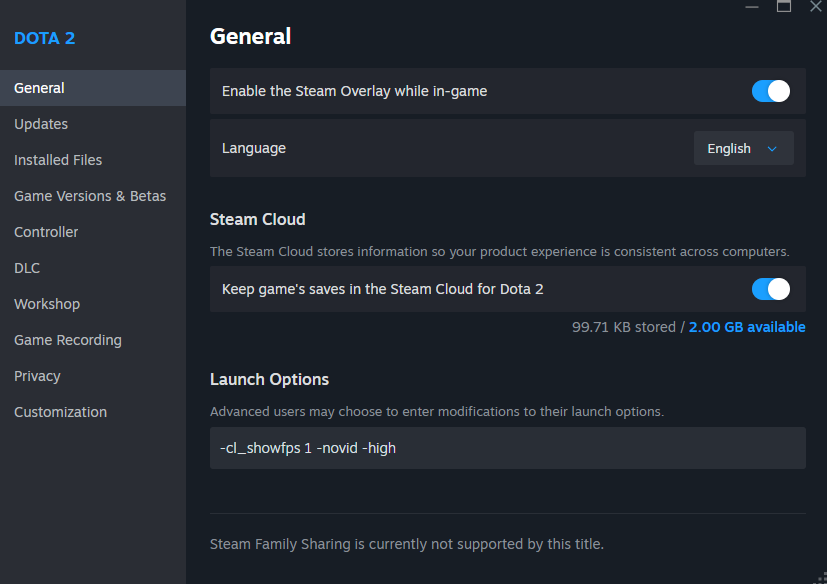
If you have never modified your launch options before, it only takes a few seconds:
Open your Steam Client and go to your Library.
Right-click on Dota 2 and select Properties.
In the General tab, look for the Launch Options text box at the bottom.
Paste your desired commands separated by a single space (e.g., -novid -high -map dota).
Close the window and launch the game.
The Essential Performance Commands
These are the most effective commands in 2026 to ensure your game loads faster, runs smoother, and prioritizes your PC's resources.
| Command | What It Does | Why You Need It |
| -novid | Skips the Valve intro video. | Gets you into the main menu significantly faster. |
| -high | Sets Dota 2 to high priority in your system's CPU task manager. | Improves client responsiveness and prevents background apps from stealing processing power. |
| -map dota | Preloads the Dota 2 map during the initial game startup. | Eliminates the notorious lag spike and stutter that happens when loading into your first match of the day. |
| -nojoy | Disables controller and joystick support. | Frees up a small amount of RAM and prevents potential input conflicts. |
| -vulkan | Forces the game to use the Vulkan Rendering API. | On modern CPUs (6+ cores), Vulkan can dramatically boost FPS and improve 1% lows compared to DX11. Note: If it crashes, switch to -dx11. |
| +fps_max 0 | Removes the in-game framerate cap entirely. | Unlocks your maximum potential FPS. Alternatively, use +fps_max 144 (or your monitor's refresh rate) for maximum stability and reduced GPU heat. |
Don't want to build your own string? Copy and paste one of these optimized setups based on your hardware.
The 2026 High-Performance Setup
For modern gaming rigs, this setup maximizes framerates and leverages the Vulkan API for the smoothest teamfights.
- -vulkan -novid -high -map dota -nojoy -novr -fps_max 0
The Low-End PC Savior
If you are playing on an older laptop or a low-end desktop, this configuration reduces the load on your CPU and limits your FPS to keep the game stable rather than fluctuating wildly during intense moments. DirectX 11 is generally more stable on older graphics cards.
- -dx11 -high -novid -map dota -nojoy -+fps_max 60
Quality of Life & Utility Options
Beyond raw performance, these commands fix minor annoyances and give you deeper control over your client:
-console: Enables the developer console. Essential for tweaking hidden settings or checking combat logs.
-nomicsettings: Stops Dota 2 from automatically adjusting your microphone volume when you launch the game. This is a lifesaver if Dota constantly messes with your Discord or OBS audio levels.
-noborder: Forces the game into a borderless window mode. This is perfect for dual-monitor setups, allowing you to Alt-Tab to Skin.Land seamlessly without minimizing the game.
-autoconfig: Resets all graphics and performance settings to default. Use this as an emergency reset if you accidentally break your game with bad video settings. (Make sure to remove it after your first successful launch!)
Once your client is perfectly tuned and running at high frames, the only thing left to upgrade is your inventory.




Write comment