
How to Launch and Open CS2?
In order to install, launch and open CS2, do the following:
Launch Steam and go to Store tab
Enter “Counter-Strike 2” in the search tab and click the pop-up banner
Once you’re on the game page, scroll down and press “Play Game” next to Free To Play
Once the game is installed, you can launch it directly from Steam by going to Library and double-clicking the game icon. Alternatively, you can launch it by double-clicking a CS2 icon on your desktop.
Why is CS2 Won't Launch and How to Fix It?
When it comes to CS2 not launching at all, it may boil down to a few factors: the game’s integrity is compromised, the graphic driver is outdated or the faulty launch options causing issues. Here are a few tweaks you can apply to fix the CS2 client:
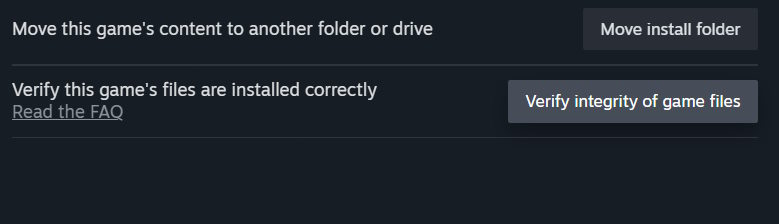
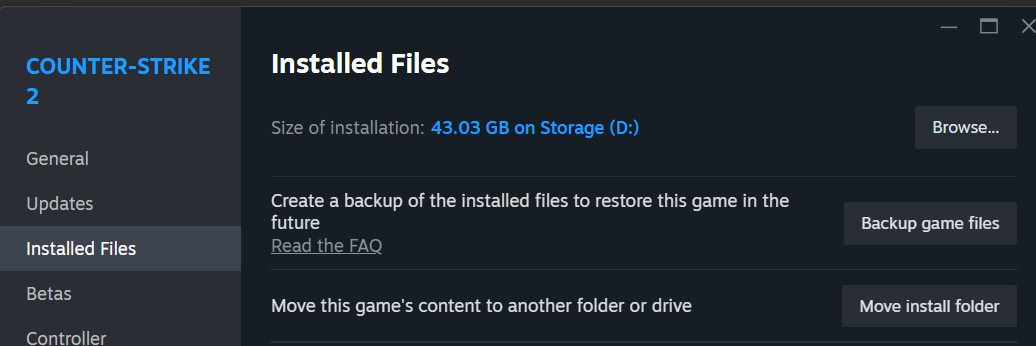
If CS2 not launching after update, the most obvious thing that comes to mind is to check the game’s integrity. Simply go to your Steam Library > find the CS2 in the list > right-click and proceed to Properties > go to the Installed Files tab and click Verify integrity of game files. In some cases, this alone solves the issue.
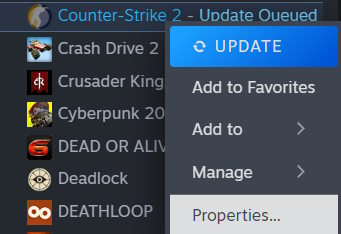
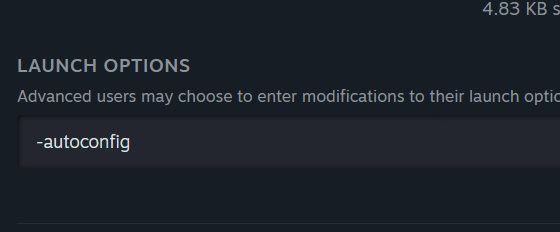
If CS2 is still not working, then go to CS’s Properties in Steam Library, then enter “-autoconfig”, or “-windowed”, or “-vulkan” in the Launch Options tab in Properties and try launching the game again. The -autoconfig is supposed to reset the launch options to default ones, while the -vulkan command switches the game’s rendering API from DirectX to Vulkan. You can read more about the launch options here.
If the issue persists, try updating the graphics card driver by pressing Win+X together, then proceeding to Device Manager where you should find your GPU card in the Display adapters section. Right-click and update the driver if your current driver is outdated. Alternatively, you can go to Nvidia or AMD website where you can download the graphics card manually.
If Counter Strike 2 not responding, you can try to mess with the launcher permissions. Another simple solution is by launching Steam as Administrator, which may circumvent certain restrictions that get in the way of launching the game properly.
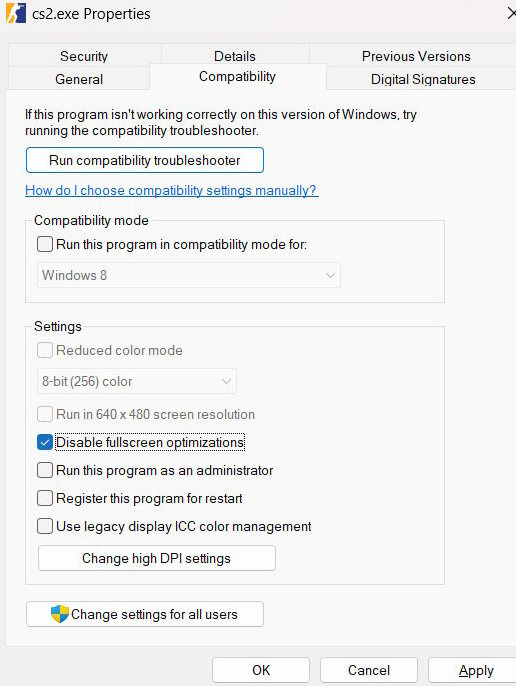
Lastly, you could try disabling fullscreen optimization by going to CS’s Properties, then proceeding to Installed Files and pressing Browse. Go to game > bin > Win64. In that folder, you’ll find a cs2.exe, right-click it and click Properties, then go to Compatibility menu, check the tick near the “Disable fullscreen optimizations” tab and press Apply.
CS2 Not Launching on Linux
If CS2 is not launching on your Linux-operated device, then updating the system is your best course of action. Considering that CS2 runs natively on Linux, we don’t advise using Proton or Wine, as it won’t improve the performance in any way. Plus, using Proton might get you in trouble with VAC. Contrary to the Mac version of the game, Valve decided to keep the Linux support.
CS2 Not Launching on Mac
Well, officially, CS2 is not supported on Mac. Since the end of the run of the CS2 legacy version, it is no longer possible to run CS2 via Steam on Mac without a few magic tricks. Luckily for you, we have an entire guide prepared for that matter, which you can access by this link. This guide will explain in detail how to access Counter-Strike 2 on your Apple computer in a few ways. If you need TL;DR, then simply use CrossOver or Whisky, a Game Porting Toolkit programs that allow to run Windows games/apps on Mac OR use cloud-gaming service like GeForce Now (with a noticeable lag).
Conclusion
Obviously, nobody wants to reinstall and download the game over and over again. Most of the time, the issue of CS2 not loading up can be resolved by simply verifying the integrity of the game files or updating the graphics card driver, but in some cases, it takes a little effort to get the launcher going. Make sure to leave the comments below if a specific method from the list solved the issue. Also, if you’re looking for an inventory upgrade once your game is working, then make sure to visit Skin.Land online marketplace where you can not only buy skins at the best prices, but also sell them for real money fast and without any risks!


PIGzSkin
I've tried all of these steps and they super easy to follow. However my game is still going unresponsive as soon as I see The "valve" message. Any idea what my next steps should be? The game worked a week ago and now it won't even open.
Write comment