
What Does "Server Is Reserved for Game Lobby" Mean?
As the name suggests, this error appears when your CS2 client tries to join a server that's locked to a specific, active lobby or session. Because the server is reserved for those specific players, it rejects your connection attempt.
Most of the time, this happens when you disconnect from an official matchmaking game and the client gets confused when you try to get back in. If it happens on a community server, it usually points to a configuration issue on the server admin's end.
How to Fix the CS2 Reserved Game Lobby Error
If you are stuck on this error, try these solutions in order. We've listed them from the easiest and fastest to the more thorough troubleshooting steps.
1. Reconnect to Your Existing Match
If you were just disconnected from an ongoing Competitive or Premier match, do not abandon it or try to start a brand new queue.

Simply launch CS2 and click the Reconnect button on the main menu. Sometimes, the game just needs a few extra seconds to re-establish your session with the server. Failing to reconnect to an official match is a fast track to a competitive cooldown, so always prioritize getting back into your active game.
2. Leave and Recreate Your Lobby
If you aren't trying to reconnect to an ongoing match and just want to queue with friends, your current lobby might be "stale" or glitched.
Have everyone leave the current lobby. Create a brand new one, invite your friends back, and try queueing again. This simple reset forces the game to establish a fresh connection to the matchmaking servers.
3. Restart CS2 and Steam
If the lobby reset doesn't work, it's time for the classic IT solution. Completely close out of Counter-Strike 2, and then fully exit the Steam client (make sure it isn't just minimized to your system tray).
Restarting Steam clears out temporary connection states and minor bugs. Once Steam is back up, launch CS2 and try joining a server again.
4. Check the CS2 Server Status
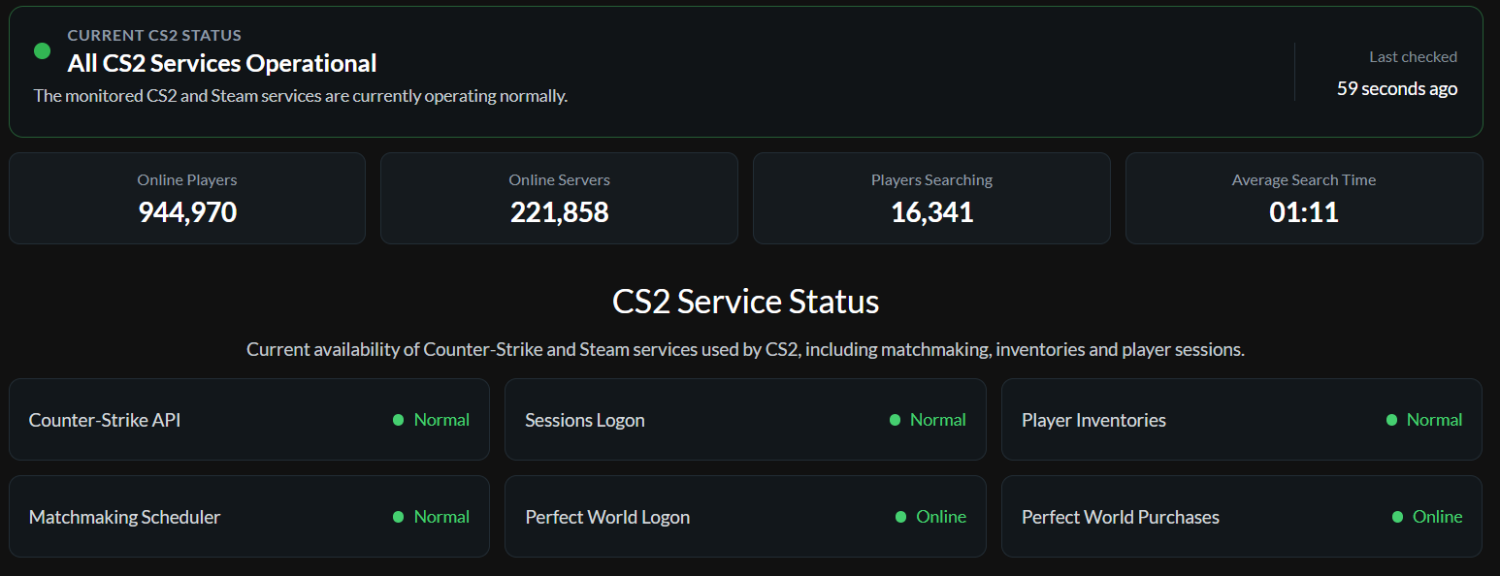
Before you start digging into your computer's network settings, make sure the problem isn't on Valve's end.
If CS2's official servers or Steam's matchmaking services are experiencing an outage, you might get lobby errors simply because the infrastructure is struggling. Check community hubs like DownDetector or Twitter to see if other players are reporting the same issue. If the servers are down, you'll just have to wait it out.
5. Verify the Integrity of Your Game Files
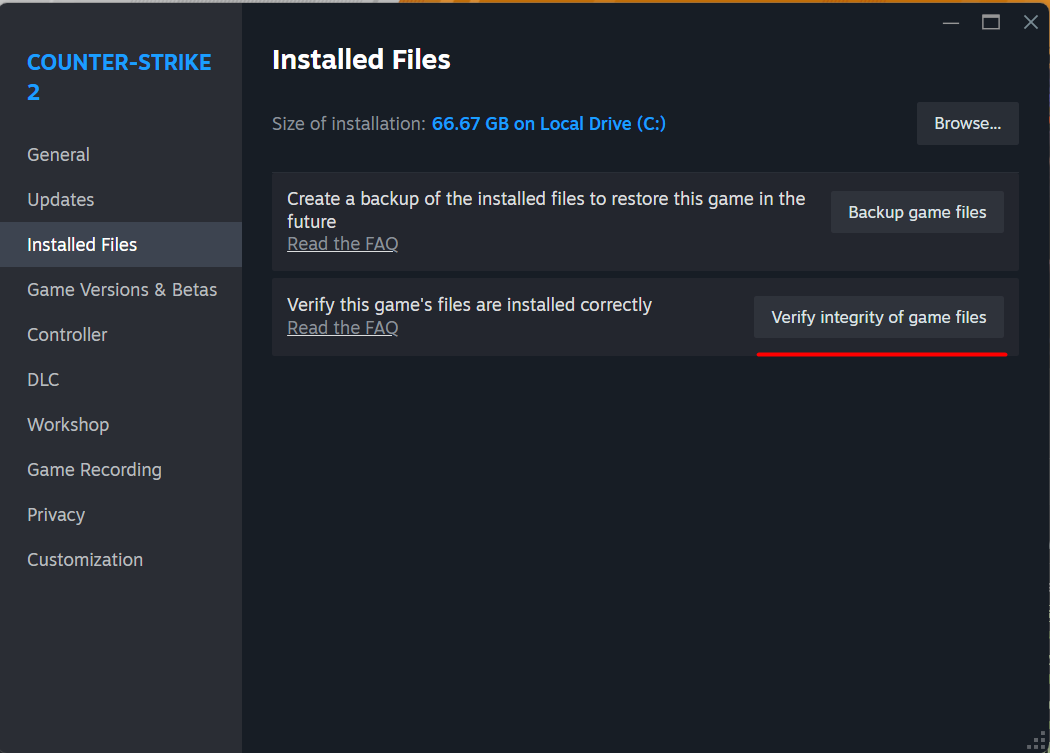
If the servers are up but your client refuses to connect properly, you might have a corrupted or missing game file causing the lobby error. Steam has a built-in tool to fix this automatically.
1. Open Your Steam Library:
Launch the Steam client and navigate to the Library tab at the top.
2.Open CS2 Properties:
Find Counter-Strike 2 in your game list, right-click on it, and select Properties from the drop-down menu.
3.Navigate to Installed Files:
In the new window that appears, click on Installed Files in the left-hand sidebar.
4.Verify Game Files:This may take a few minutes.
Click the Verify integrity of game files button. Steam will scan your installation and automatically download replacement files for anything that is corrupted.
6. Troubleshoot Your Network Connection
If you've tried everything above and you consistently cannot connect to any servers, something on your local network might be blocking the connection.
Disable your VPN: If you route your traffic through a VPN, turn it off. Many game servers reject VPN IP addresses.
Check your Firewall/Antivirus: Ensure that your security software isn't accidentally blocking Steam or CS2 from communicating with the internet.
Restart your Router: Unplug your router, wait 30 seconds, and plug it back in.
What if this happens on a Community Server?
Community servers operate independently of Valve's official matchmaking. If you get the "Reserved for Game Lobby" error while trying to join a private or community server, it usually means the server is currently configured for a private match, requires a password, or is in the middle of a restart.
Instead of joining via a friend's lobby, try connecting directly through the Community Server Browser or by using the connect [IP Address] command in your developer console. If you still can't get in, you'll need to reach out to the server's administrator.
Looking to upgrade your loadout once you're back in the server? Head over to the Skin.Land marketplace to buy, sell, and trade CS2 skins instantly and securely!



Write comment