
What is Mouse Sensitivity and DPI in CS2?
Mouse sensitivity is a metric that measures how quickly a crosshair moves across the screen in correlation with the mouse movement. The concept is pretty easy to understand by learning that a higher sensitivity will trigger a more rapid screen movement, and a lower sensitivity value will make a crosshair movement slower. Higher sensitivity will require less physical movement, but will make it harder to aim precisely due to the crosshair speed. A regular mouse sensitivity can range between 0.5 to 3, depending on a DPI number.
Dots per inch, commonly known as DPI, is a measure that determines your mouse’s sensitivity. It represents the amount of pixels a cursor travels through. Similarly to mouse sensitivity, a higher DPI number means that a cursor will move through a larger distance. Contrary to the in-game Mouse sensitivity value, DPI is set on a hardware level. If you have a gaming mouse, then it should probably have a button that allows you to switch mouse sensitivity directly. Gaming mice often come with software that can be used to tweak the existing DPI profiles for whatever setting you need. However, this is not the case with a large number of generic office mice that don't have a DPI switch and are firmware locked to one-two values.
Even though these two settings are tweaked separately, they both have an impact on how responsive your crosshair will be in the game. Tweaking them is important to have a better feel while aiming and moving, to perform flick shots and have an overall quick responsiveness to a sudden threat and to have a better spray control. You have to find your perfect combination if you want to improve at the game.
How To Find Your Best Mouse Sensitivity?
Changing mouse sensitivity is quite easy, especially considering there are a few ways to go about it. The hard part is to find the right value balance between in-game mouse sensitivity and the DPI value. Just make sure to spend some time in practice while tweaking mouse sensitivity so that you find your personal preference. Here are a few tips to help you find your best sensitivity settings:
Find the optimal sensitivity by reducing the sens value if your cursor is moving too fast or increasing if it’s too slow until you hit the spot
Practice and improve with one value, avoid changing and tweaking sens frequently. Try to rely on muscle memory more
If available, use a big desk and a big mousepad. That combination will give you more room to control the mouse with your entire arm, reducing strain on your wrist
Practice crosshair placement so that you can minimize unnecessary movement, saving precious reaction time and your wrist in a long run
You should be able to do a full 180 degree turn in one swipe across your mousepad in order to be able to react in various situations, especially while holding a position with multiple entries.
How To Change Mouse Sensitivity in CS:GO/CS2?
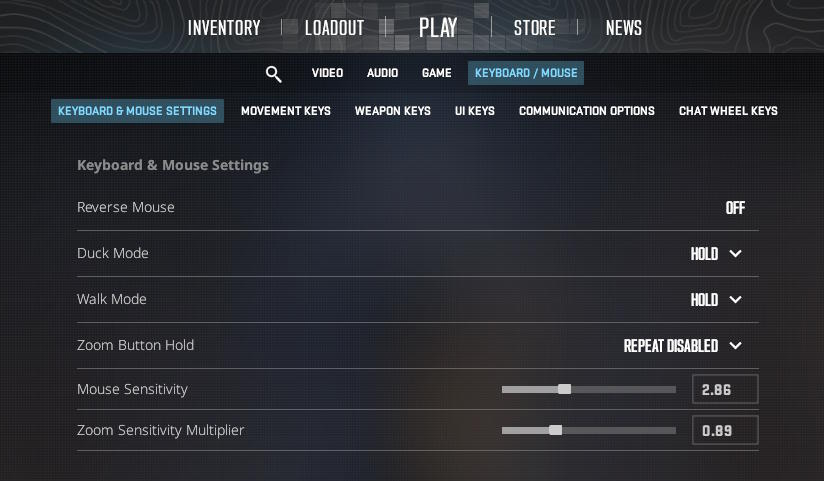
Here are a few ways of changing mouse sensitivity inside CS2:
Settings:
Launch CS2
Go to Settings and proceed to Keyboard/Mouse tab
Navigate under the Keyboard & Mouse Settings
Find the Mouse Sensitivity tab and adjust the slider to set the specific value
Done!
Console:
Enable the developer console in Settings
Open Console by pressing ` (Tilde)
Type sensitivity and enter the desired value next to it
Press Enter
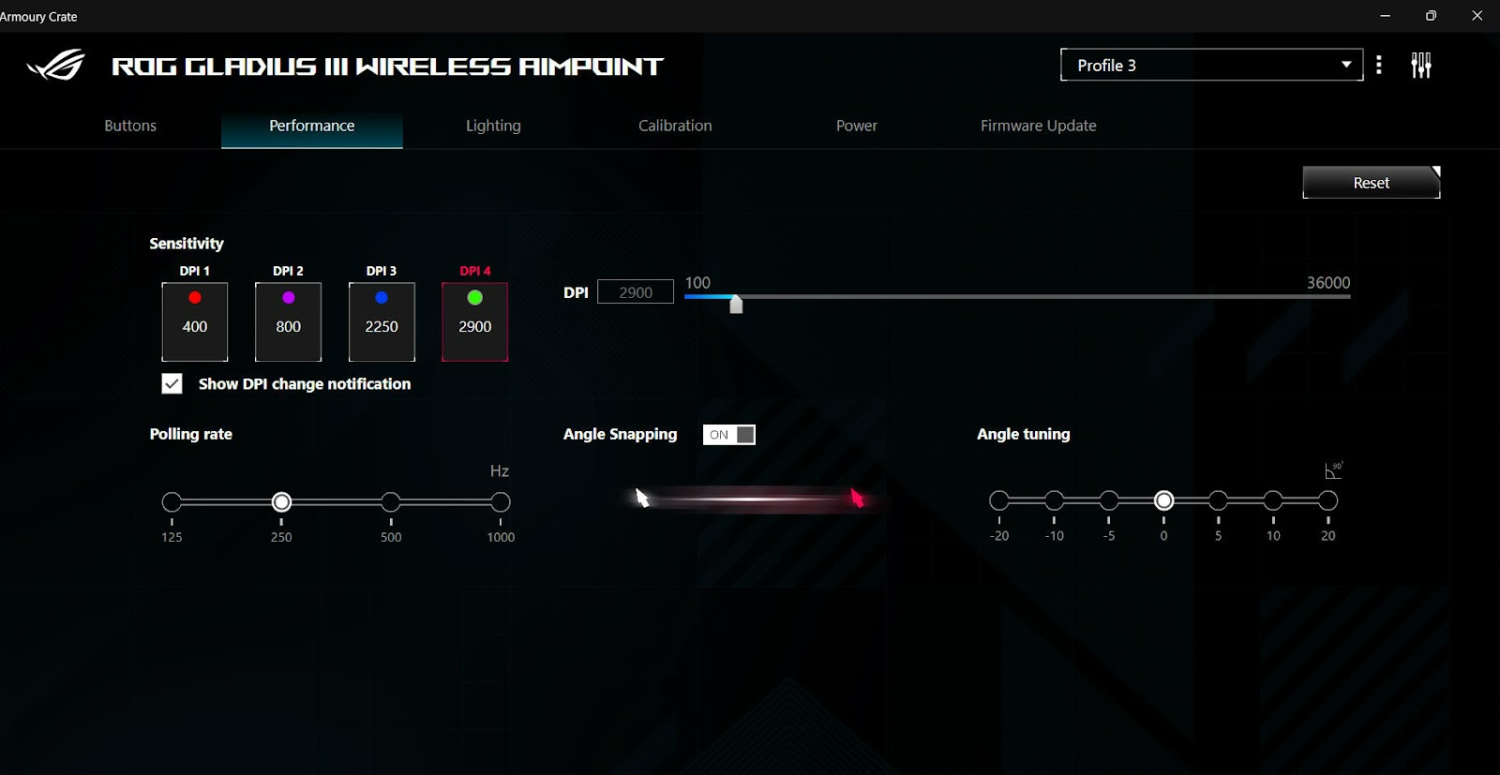
Most gaming mice have a built-in DPI switch with a few presets that you can change. Yours truly operates an ROG gaming mouse, where the DPI value can be adjusted in the proprietary Armoury Crate software. This is just an example, most gaming brands have their own apps that allow to fine-tune DPI. The fact that you can change between a few modes directly on a mouse can assist you in finding the right balance between DPI and in-game Mouse Sensitivity.
CS:GO and CS2 Pro Mouse Sensitivity and Settings
Let's look at some examples of pro player settings to give you an idea of what the best in the world use:
jL (Natus Vincere)
DPI: 800
In-game Sensitivity: 1
eDPI: 800.00
Mouse: Razer Deathadder V3 Hyperspeed
w0nderful (Natus Vincere)
DPI: 400
In-game Sensitivity: 3.09
eDPI: 1236.00
Mouse: Logitech G Pro X Superlight 2
Jimpphat (MOUZ)
DPI: 800
In-game Sensitivity: 1.25
eDPI: 1000.00
Mouse: Logitech G Pro X Superlight 2
NiKo (G2)
DPI: 800
In-game Sensitivity: 0.755
eDPI: 604.00
Mouse: Razer Deathadder V3 Pro Faker Edition
m0NESY (G2)
DPI: 400
In-game Sensitivity: 2.3
eDPI: 920.00
Mouse: Logitech G Pro X Superlight 2
Wicadia (Eternal Fire)
DPI: 800
In-game Sensitivity: 1.85
eDPI: 1480.
Mouse: Logitech G Pro X Superlight 2
ZywOo (Team Vitality)
DPI: 400
In-game Sensitivity: 1.95
eDPI: 780.00
Mouse: Pulsar Xlite V3 ES
donk (Team Spirit)
DPI: 800
In-game Sensitivity: 1.25
eDPI: 1000
Mouse: Logitech G Pro X Superlight
It is very common among pro players to have a lower sensitivity value with approximately 800 DPI set on a mouse. There are some outliers with extreme settings, but to each their own. These pro players have clocked in their 10,000 hours, so now it’s just a matter of personal preference for them. You can try all the settings mentioned in this article, but don’t get disappointed if they don’t work out for you as expected. It is best to find what you really think works for you, and the pro settings can be used as a canvas to find your right combination.
On a final note, if you’re looking for a place to buy or sell skins at the best prices on the market, then make sure to visit Skin.Land and see if you’re interested in our services! Our inventory gets updated constantly, and if you're looking to get some cheddar from all The Armory grinding, then look no further. Have a good one!



Write comment