

Changing the Interface and Voice-Over Language
By default, Dota 2 will adopt the language you have set in your Steam client. If you want to change the language of Dota 2 specifically without altering your entire Steam interface, you will need to adjust the game's properties in your Library.
Here is how to do it step-by-step:
Open Steam and navigate to your Library.
Right-click on Dota 2 in your games list and select Properties.
On the left sidebar, click on the Language tab.
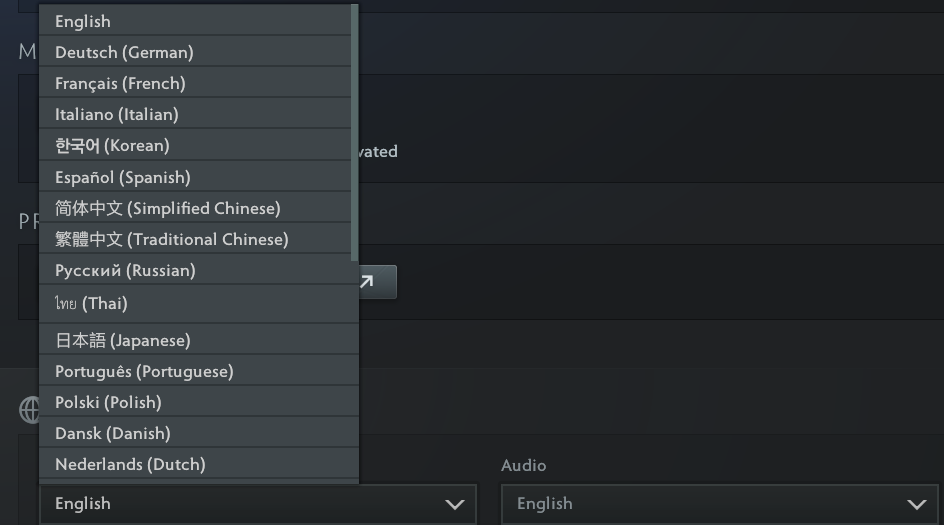
Open the drop-down menu and select your preferred language.
Close the Properties window.
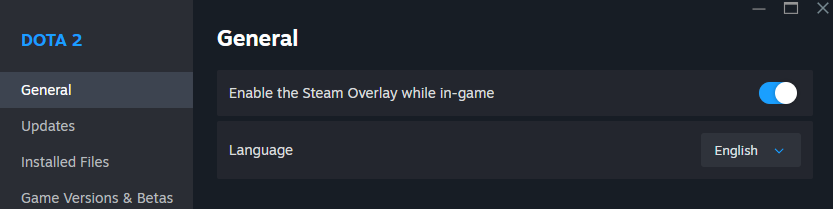
Once you make this selection, Steam will automatically begin downloading the necessary localization files for your chosen language. This download usually takes up around 500 MB, depending on the language. Once the download is complete, launch the game, and both your user interface and the hero voice-overs will be updated.
Voice-Over vs. Subtitles: Creating a Mixed Mode
Some players prefer to read the interface and subtitles in their native language but want to keep the iconic original English voice acting for the heroes.
If you want a mixed experience (e.g., English voices with localized text), follow these steps:
Change your game language to your native language using the Steam Properties method above.
Launch Dota 2 and open the in-game Settings menu.
Navigate to the Audio tab.
Look for the Audio Language or Voice settings and change the spoken language back to English.
Ensure that the option to show subtitles is checked.
This allows you to enjoy the best of both worlds, navigating the shop and reading item descriptions in your preferred language while listening to the original voice lines.
How to Change Your Chat Language
Typing to your teammates (or enemies) is completely independent of your game client's language. Dota 2 supports non-Latin characters in the chat box by default.
To type in a different language:
Simply change your operating system's keyboard layout using your standard shortcuts (usually Alt + Shift or Windows Key + Space on Windows).
If you find that the characters are not registering, ensure that the Steam Overlay shortcut (Shift + Tab) is not conflicting with your keyboard layout shortcut.
You can play with a Korean or Russian client and still type perfectly in English just by swapping your keyboard input.
Customizing Your Experience
Customizing your language is just one way to tailor your Dota 2 experience. Valve has done a remarkable job providing official voice-overs for multiple languages, bringing a whole new flavor to the battlefield.
If you want to take your customization to the next level, upgrading your heroes' aesthetics is the perfect next step. Once your interface is set up exactly how you like it, head over to Skin.Land to browse the best deals on Dota 2 skins, couriers, and announcers. Whether you are looking for an Arcana to match your new voice lines or just want to upgrade your favorite hero's loadout, Skin.Land offers secure, instant, and affordable trades to make your game truly your own.




Write comment