
How to Check Your Match History in CS2
Follow these steps to view your recent games, download demos, and analyze your performance directly within the CS2 interface:
Open the game and ensure you’re on the main menu.
Locate the TV icon on the vertical menu bar on the left side of your screen.
Click the tab labeled "Your Matches" at the top of the screen. This will display a chronological list of your recent Premier, Competitive, and Wingman games.
Click on any specific match to see the full scoreboard, including K/D ratios, ADR (Average Damage per Round), and MVPs.
To watch the replay, click the green download icon in the bottom right corner of the match summary.
Once the download is complete, the icon will change to a "Watch" button. Click it to launch the demo viewer and study your gameplay.
How to See Premier Match History in CS2
To see your Premier match history in Counter-Strike 2, you have two primary options: the in-game dashboard and the official Premier leaderboard.
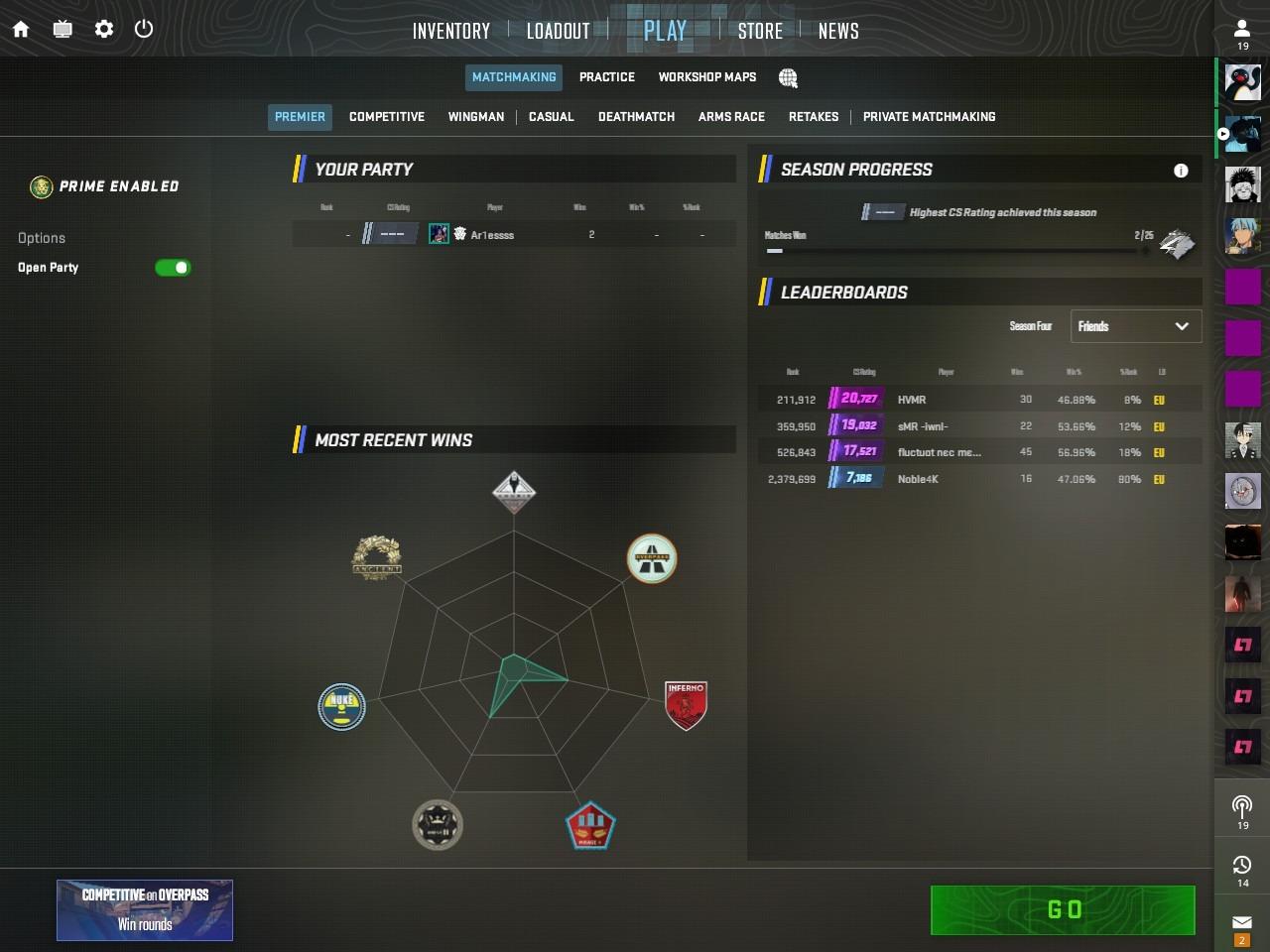
For a quick look at your most recent games, the easiest method is using the in-game menu:
Launch CS2 and click the TV icon (Watch tab) on the left sidebar.
Select the "Your Matches" tab at the top.
Look for matches labeled "Premier" in the list. This section provides a full scoreboard, including your CS Rating changes for each win or loss.
If you want to see how your history compares to the rest of the world or check your standing:
Navigate to the "Play" menu and select "Premier."
Click on the Leaderboard button in the Premier sub-menu.
From here, you can find your own placement and view a summary of your recent performance, including your current world, regional, and friend-list ranking.
If you want to get to know the difference between Premier and Competetive CS2, check out our special article.
In addition to it, read more about ranks in Competitive and Premier modes, it’s so useful for CS2 players.
CS2 Match History Not Showing or Not Updating — How to Fix
If your match history isn't loading or your latest Premier win hasn't appeared, try these troubleshooting steps to force an update:
Toggle the Refresh: Switch between the "Your Matches" and "Saved" tabs. This often forces the UI to pull the latest data from Valve’s servers.
Check Prime Status: If you are playing on a non-Prime account, your matches may not appear in the standard history. Check the "Scrimmage Matches" section in your Steam Personal Game Data instead.
Wait for Server Processing: During high-traffic periods, like during a Major or a large content update, match data can be delayed by several hours. If your match ended recently, give it some time
Verify Game Files: Right-click CS2 in Steam > Properties > Installed Files > Verify integrity of game files. This fixes corrupted UI elements that might prevent data from displaying.
Clear Steam Download Cache: Go to Steam Settings > Downloads > Clear Cache. This logs you out and restarts Steam, which often resolves syncing hangs between your client and the cloud.
Check Third-Party API Status: If you use sites like Leetify or CSStats, check if their "Steam API" status is green. If Valve's API is down, no match history will update anywhere.
Best CS2 Match History Trackers
While the in-game "Watch" tab is great for quick reviews, professional-grade improvement requires deeper data. Here are the top third-party trackers currently dominating the scene:
Leetify
Widely considered the gold standard for performance analysis. It uses AI to analyze your demos, giving you a "Leetify Rating" based on your aim, utility usage, and positioning compared to players at your rank. It’s perfect if you want to know exactly why you’re losing duels.
CSStats.gg
The go-to choice for a clean, simple interface. It provides a permanent archive of your match history, tracks your "HLTV Rating," and offers a great "Map Performance" breakdown so you can see which maps are boosting your rank and which are dragging it down.
Scope.gg
Excellent for tactical breakdowns. It provides a "2D Replay" feature that lets you watch the entire round from a bird's-eye view, making it easier to spot gaps in your team's setups or find where the enemy team consistently breaks through.
Faceit
If you play on Faceit servers, their built-in stats page is essential. It tracks your ELO progress in real-time and provides detailed spreadsheets of your performance across different seasons and tournaments.
CS2 Private Match History: Can You Hide It?
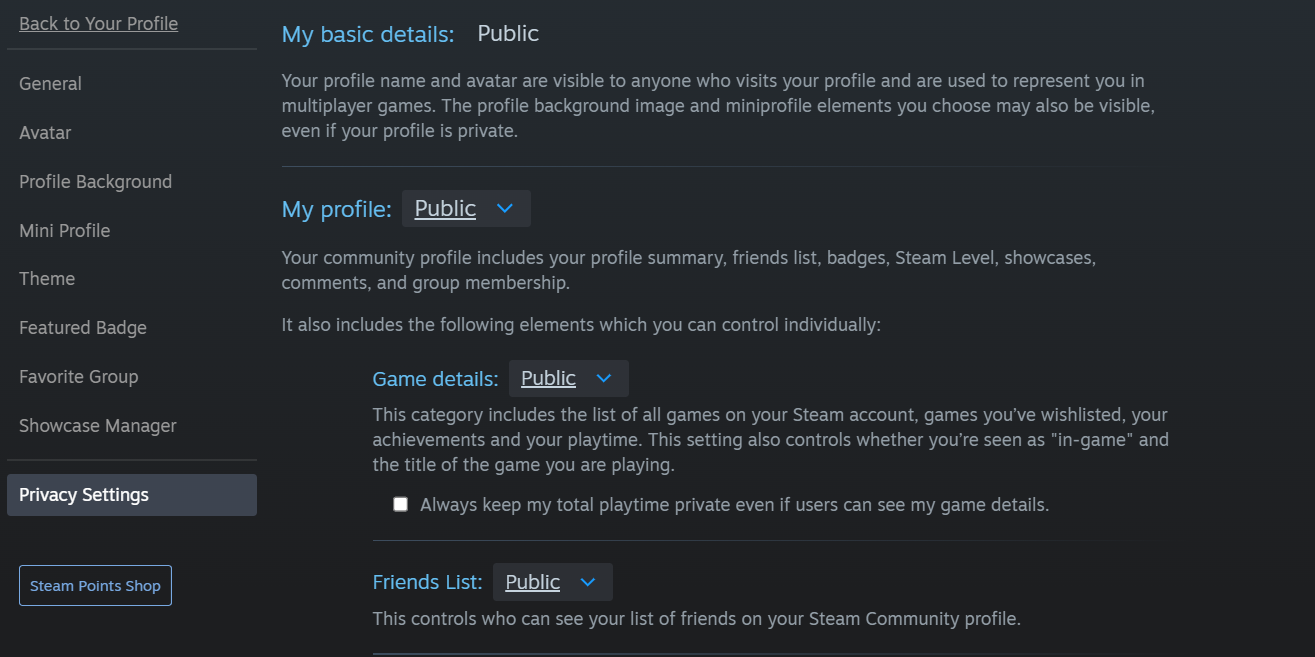
While you cannot selectively hide specific matches within the game UI, you can control the overall visibility of your Counter-Strike 2 history through your Steam privacy settings. If you want to keep your performance data away from prying eyes, follow these steps:
Steam Privacy Settings
Set Game Details to Private: In your Steam Profile, go to Edit Profile > Privacy Settings and set "Game details" to Private. This prevents third-party sites from automatically pulling your new match data and hides your playtime and match history from friends.
Mark CS2 as Private: Since late 2023, Steam allows you to mark specific games as Private in your library. Right-click CS2 in your Steam Library, select Manage, and choose Mark as Private. This ensures the game doesn’t even appear on your profile list.
Managing Third-Party Trackers
Revoke API Access: If you’ve previously linked your account to sites like Leetify or CSStats, you may need to log into those specific platforms and disable match tracking or delete your profile.
Be Mindful of Teammates: Even if your profile is private, a teammate or opponent with a public tracker may still cause the match result to appear on their profile, though your individual stats will typically be anonymized or hidden depending on the site’s policy.





Write comment