
When it May Be Essential To Remove Bots in CS2?
Competitive Matches. In fights where you have to compete, having bots on your team can be an essential cons, which can affect your team coordination and strategy. So what can removing bots give you? It ensures a more level playing field, giving the permission for human players to fully participate in the tactical aspects of the game.
Sessions of Practice. During practice sessions or private matches where gamers want to concentrate on specific strategies, having bots in the game can distract your attention. Removing bots creates a cleaner environment for teams to adjust their tactics without the interference of the artificial characters.
Custom Games. When organizing custom games for fun or community events, gamers may prefer a human-only experience. Removing bots ensures that the game is entirely driven by player skill and teamwork, creating a more enjoyable and competitive atmosphere.
Player Disconnects. If a player disconnects from the match, a bot may automatically occupy their place. While bots can help fill the gap, players may decide to remove the bot and wait for the disconnected player to come back or for a substitute to join for a more balanced team.
Adjusting Difficulty. In certain cases, players may have a wish to adjust the difficulty level of the game. Removing or adding bots allows players to fine-tune the challenge they face, providing a leisure gaming experience that suits their preferences.
Training Aim and Reflexes. For those focusing on individual skill development, such as practicing precise aiming or reflex training, removing bots enables them to concentrate exceptionally on their personal performance without external factors.
By understanding these scenarios, players can better utilize the command to kick all bots in CS:GO/CS2 to tailor their gaming experience to their preferences and objectives.
Commands to Remove Bots in CS:GO/CS2
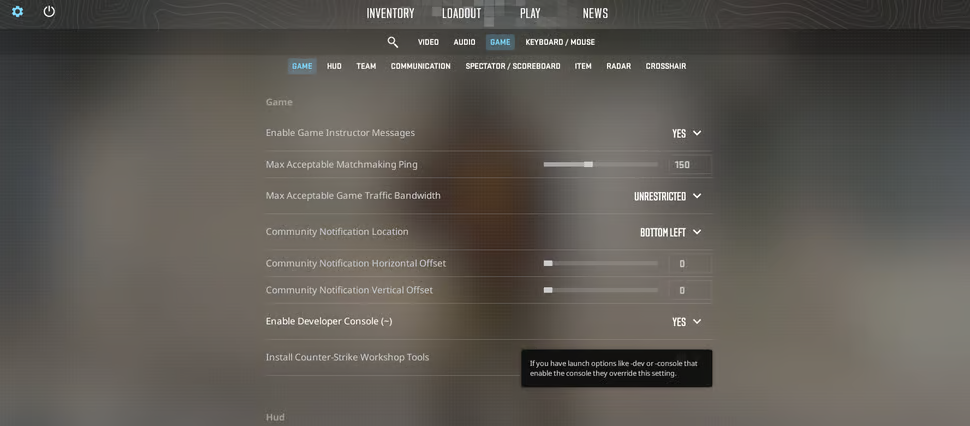
First of all, you start with opening the console:
To open the console in CS:GO/CS2, press the tilde key (~) on your keyboard. This key is usually located in the top-left corner, just below the escape key.
Basic Bot Removal Commands:
Kick All Bots:
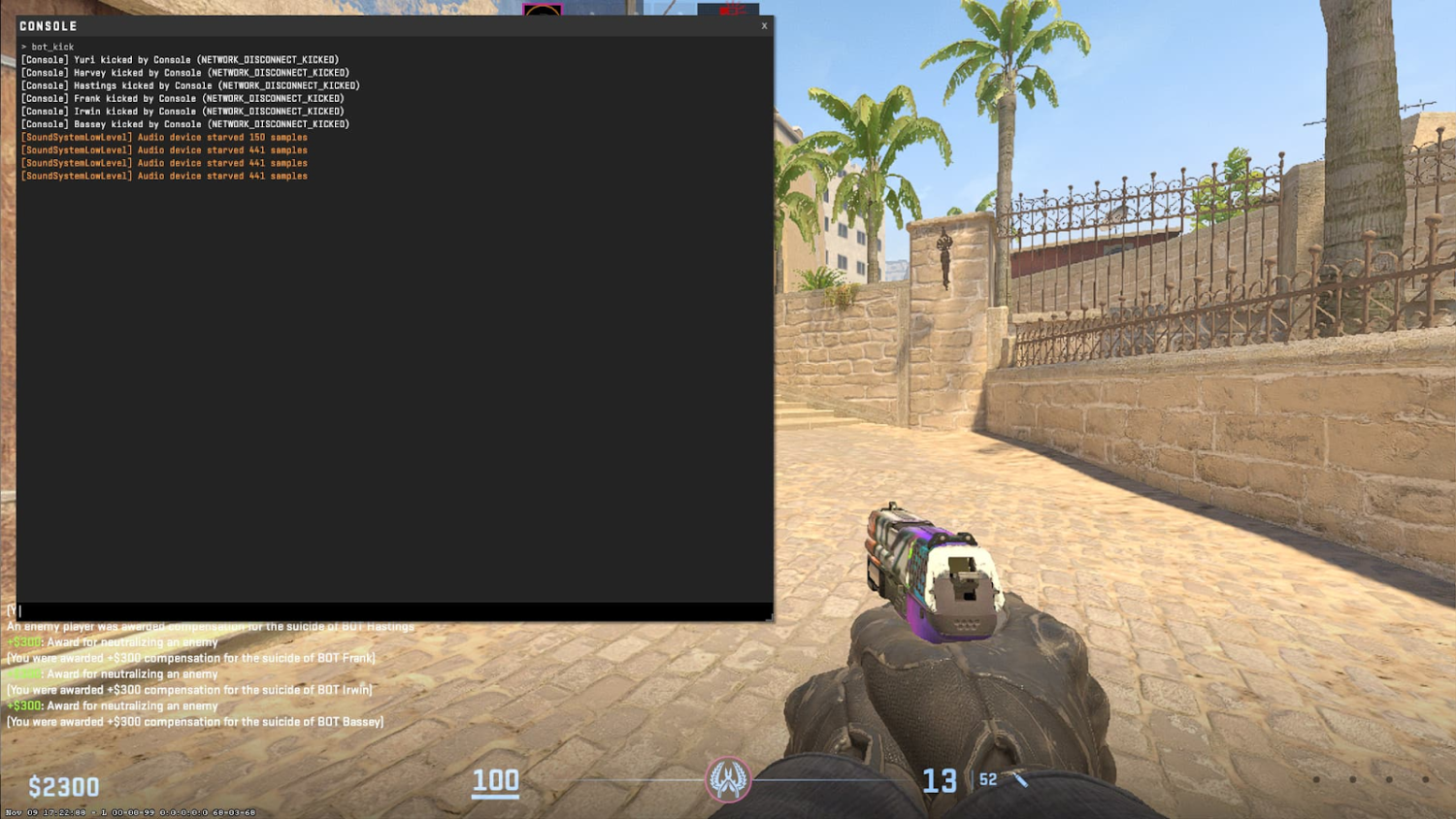
Command: bot_kick all
Description: This command removes all bots from the current game, providing a clean space for human players. Simply type the command in the console and press Enter.
Kick Bots from a Specific Team:
Command: bot_kick T (for Terrorist side) or bot_kick CT (for Counter-Terrorist side)
Description: Tailor your team composition by kicking bots from either the Terrorist or Counter-Terrorist side. Enter the desired command in the console and press Enter.
Remove Individual Bots:
Command: bot_kick <bot_name> (replace <bot_name> with the actual bot's name)
Description: Figure out the bot's name from the scoreboard and target specific bots for removal. Type the command in the console, replacing <bot_name>, and press Enter.
Additional Customization Commands:
Adjust Maximum Bot Limit:
Command: bot_kick followed by mp_limitteams <number> (replace <number> with the desired maximum bot limit)
Description: Customize the number of bots allowed in the match by adjusting the team limit. Type both commands in sequence, then press Enter.
Remove Bots on Round End:
Command: bot_kick followed by mp_autokick 1
Description: Automatically remove bots at the end of each round for a human-centric match. Enter both commands in the console, then press Enter.
In a nutshell, we can recommend playing with these commands to understand your preferences and shape your CS:GO/CS2 matches according to your wish. Keep in mind, that the console is your tool for fine-tuning the gaming experience and ensuring an environment that enhances both enjoyment and skill development.
How to Know That Bots are Kicked
It is great to know different pieces of advice on how to kick bots out of the game, but how to know for sure you removed them? Here are several things that can help you to affirm that bots are successfully kicked out in CS:GO/CS2:
Check the Player List:
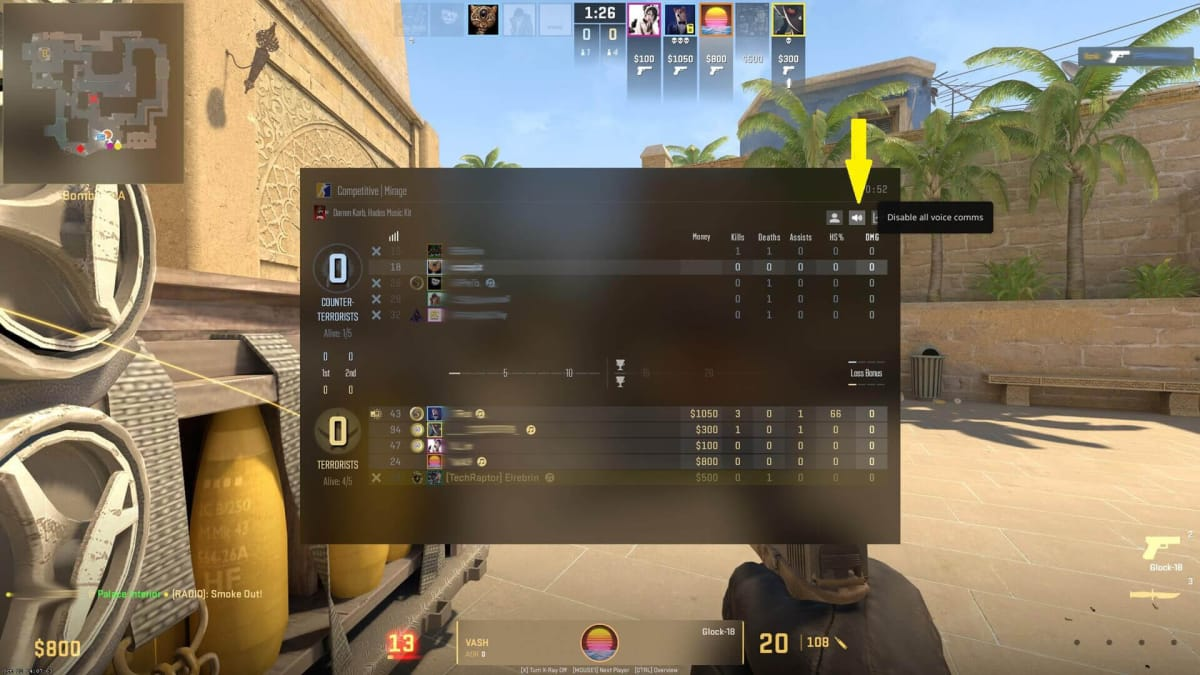
Press the "Tab" key to bring up the scoreboard.
Confirm that the list only displays human players and does not show any bots.
A bot-free game will only feature human players on both the Terrorist and Counter-Terrorist sides.
Observe the In-Game Environment:
Look around the map and watch the characters.
With successful bot removal, the only thing you should see are human-controlled characters in the game.
Bots are typically replaced by new players or are not present in the match.
Review the Console Messages:
Follow the console for any messages related to bot removal.
Successful bot kicks will generate messages pinpointing that bots have been removed.
Look for messages like "Bot <bot_name> has been kicked" in the console.
Count the Players:
Manually count the players on each team.
After kicking bots, the total number of players on each team should only include human players.
Check whether there are no AI-controlled characters influencing the game.
Monitor for Bot Rebirths:
Pay attention to the game dynamics after using bot removal commands.
Successful removal will prevent bots from respawning in subsequent rounds.
If you consistently observe human players in the match it means that the bot removal has been valid.
Check the Kill Feed:
Monitor the kill feed for player actions.
Successful bot removal will result in a kill feed that only displays actions performed by human players.
Verify that the kill feed aligns with the presence of human participants.
How to Turn the CS:GO/CS2 Bots Back On? Other Useful Bots Commands
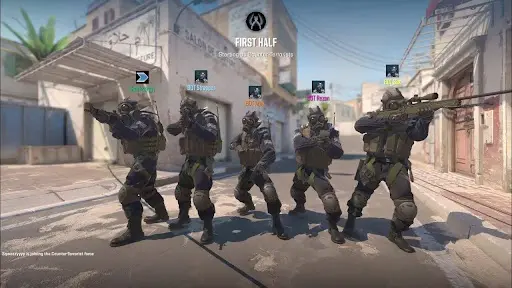
After experiencing bot-free matches, you might decide that you are up for a dynamic challenge that bots bring to the game. Do not be afraid, as re-introducing bots is a simple process, which makes it possible for you to strike the perfect balance between human and AI competition.
Straightforward Steps to Turn On Bots:
Access the Console:
Press the tilde key (~) to open the console, located on the top-left corner of your keyboard, just below the escape key.
Enable Bots:
Type the command bot_add in the console and press Enter.
This command adds a bot to the game, reintroducing AI adversaries for an enhanced gaming experience.
Adjust Bot Difficulty:
Tailor the challenge by setting the bot difficulty level. Use the command bot_difficulty <difficulty_level> (replace <difficulty_level> with 0, 1, 2, or 3 for easy, normal, hard, or expert difficulty, respectively).
Balancing Teams:
Maintain fairness by ensuring an equal number of bots on both the Terrorist and Counter-Terrorist sides. Use commands like bot_add_t and bot_add_ct to add bots to specific teams.
Customize Bot Weapons:
Enhance the variety by equipping bots with specific weapons. Use commands like bot_give_weapon <bot_name> <weapon> to customize individual bot loadouts.
The variety of commands we introduced in the article offer you the flexibility to regulate the gaming experience, ensuring that each match is a unique and engaging adventure.




GERGER
JE TROUVE QU IL MANQUE UNE COMMANDEPOUR RETIRER UNE EQUIPE EN PARTICULIER
Write comment