
Why do Steam Games Open on Wrong Monitor?
To establish which screen to launch your title on, the launcher examines your PC configuration and the application's own preferences, as most titles don't posses a dedicated settings panel to specify it explicitly. Consequently, there may be several reasons for a Steam game opening on the wrong monitor:
Your configuration got reset after a Windows update.
You have recently plugged in or removed a second display, so the system doesn't know which one is primary.
You were launching the title with different parameters the previous time, and it remembers its position.
Your graphics card configuration has been changed, manually or after an update.
How to Move a Steam Game to Another Monitor
As you can observe, there are several places to verify when Steam opens games on the wrong monitor: Windows system configuration, launching preferences and your graphics card options. Begin with the Windows configuration, as it is usually the easiest fix.
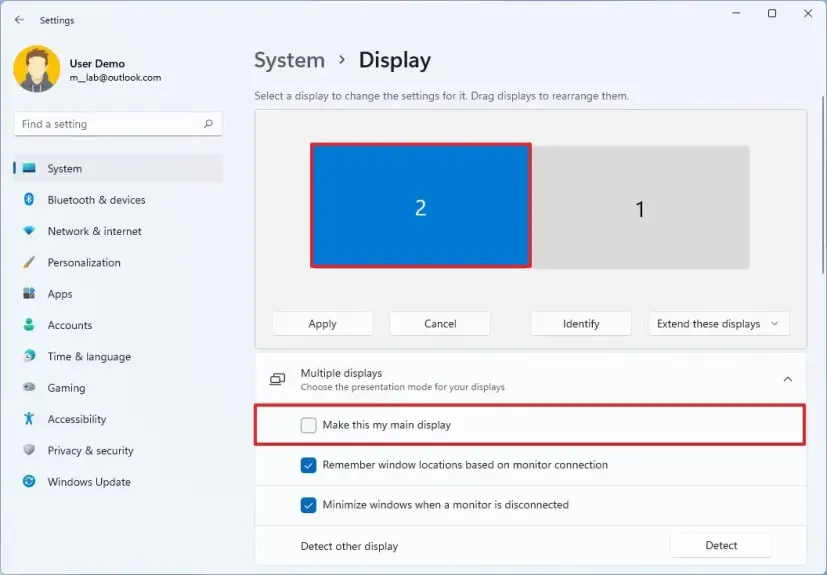
Select Display Settings in the context menu of your Desktop.
Click "Identify" to be certain which screen is which, as the placement may not always correspond to their real positions.
Click the one you want to start your titles on.
Select the "Make this my primary display" box and confirm
In addition, attempt to enable Borderless Windowed Mode through the preferences of the title you are playing. Not all titles, especially older ones, have such an option, but it usually resides in Display, Video or Graphics menus. Try to perform the following steps:
Switch the graphics mode to borderless windowed.
This permits you to drag the window to the desired positioning.
Use ALT+ENTER to switch to full mode again.
The app should remember its position, so you won't encounter a problem with the Steam title launching on the wrong display next time. You can also use this method to open it on a second monitor, if you need this for some reason.
How to Move Steam Games to Another Monitor in Windows 11
In Windows 11, the interface may look a bit differently, but the principle remains the same. To choose which monitor a game opens on, go to System Settings, access the Display section, and rearrange monitors according to your preferences. Select the desired screen and enable the "Make it my primary display" option. For the configuration to be applied, you will need to restart your PC. Additionally, Windows 11 has an option of auto-arranging, which may prove useful if the issue persists.
If Steam Games Still Open on Wrong Monitor?
If the primary method described above doesn't work and the problem persists, here are some other things you can try:
Access title Properties via Steam Library, locate Launch parameters and try to alter the display number, putting "2" instead of "1".
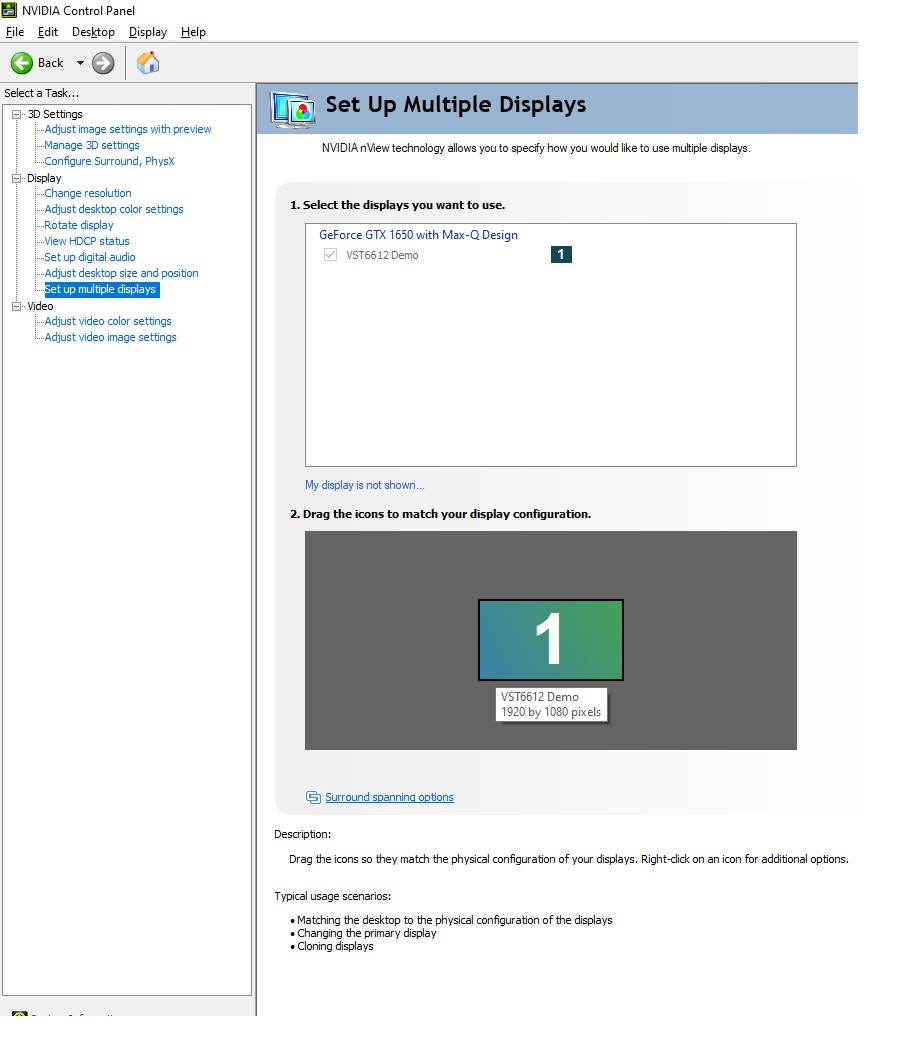
If you use NVIDIA, open your NVIDIA Control panel (normally it can be accessed through a tray icon), go to Display options and verify the correct positioning has been chosen as primary in the "Set up multiple displays" section.
If you use AMD, you can define your primary screen in the Display settings of the AMD Radeon Software panel.
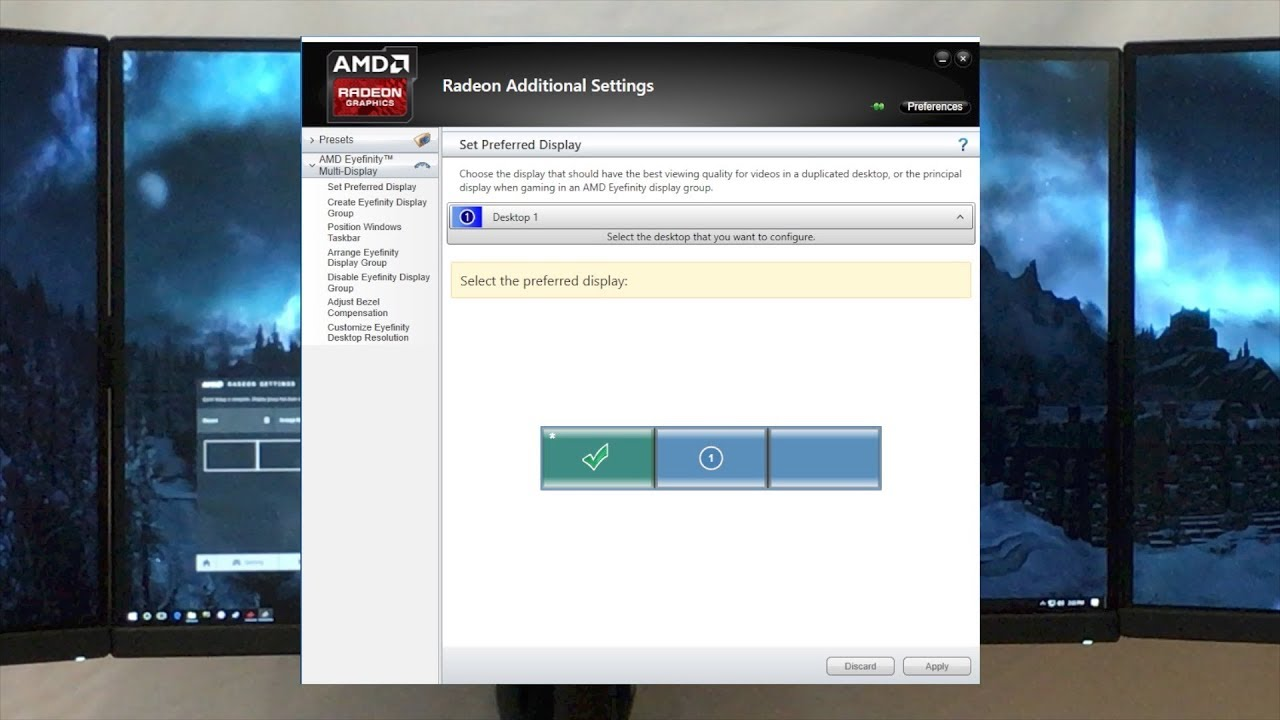
If nothing works, you can temporarily disable the unwanted device. This is accomplished via the Device Manager. This will force the title to start on the remaining one, and then you can enable it again to check if the problem still exists.
How to Full Screen a Steam Game?
To fullscreen a Steam game, it is usually sufficient to use the title's built-in options. For example, in CS2 you can go to the Display tab in the Options menu and select the Fullscreen mode.
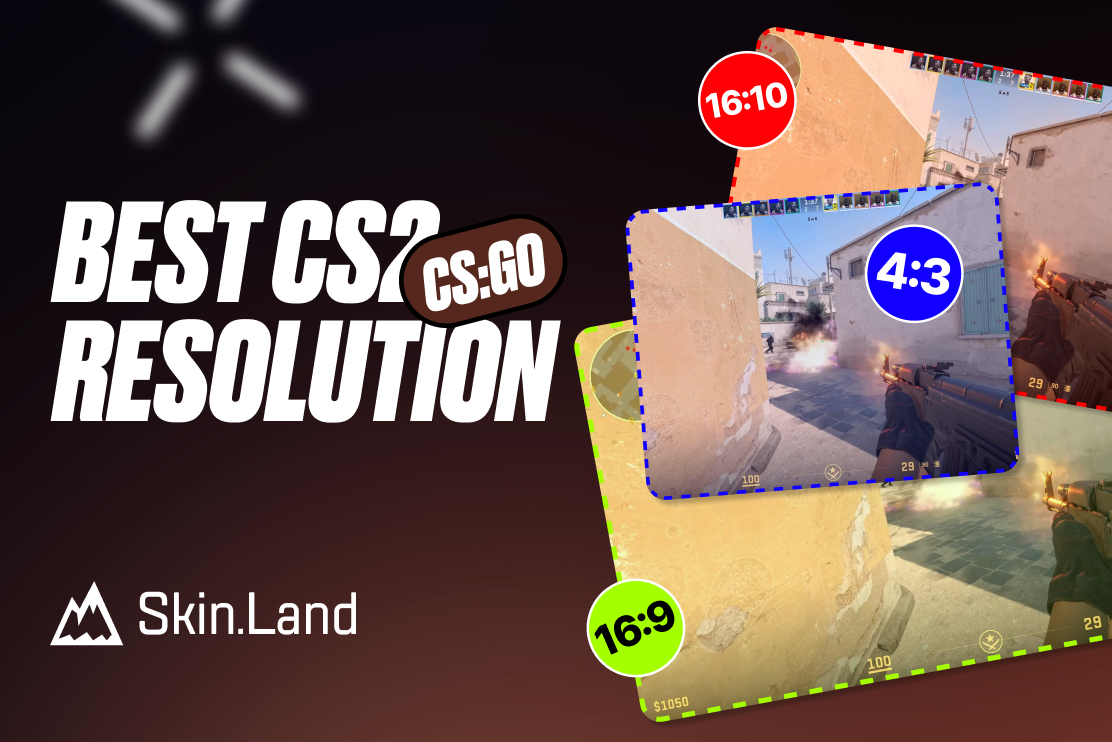
As an alternative, you can ensure the title is always launched in Fullscreen mode through starting parameters. Access title properties via Library, as it was described above, locate the "Launch Options" section and type "-fullscreen" or "-full" there. You can also specify the resolution like this: "-w 1920 -h 1080". Read more about other resolution parameters for CS2 here.



Write comment