

The In-Game Settings
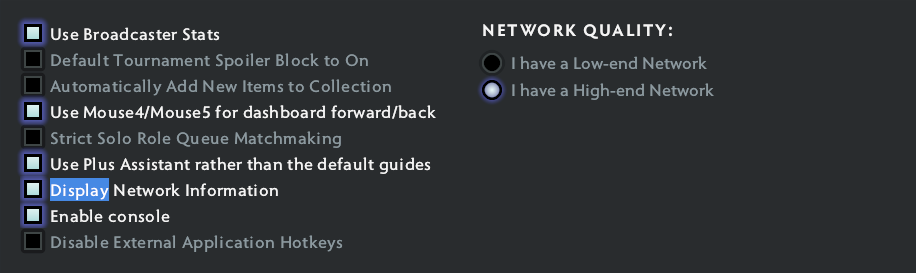
The easiest and most comprehensive way to monitor your performance is through Dota 2's built-in settings. This method doesn't require any third-party software and displays your FPS, ping, and packet loss simultaneously in the top-right corner of your screen.
Here is how to enable it:
Launch Dota 2 and click on the Gear icon (Settings) in the top-left corner.
Navigate to the Options tab.
Click on To Advanced Options at the bottom of the screen.
Look at the right side under the Miscellaneous column.
Check the box for Display Network Information.
You can also use the search bar in the settings menu. Just type "Display Network Information" to find the checkbox instantly.
Console Commands and Launch Options
If you prefer using the developer console or want your FPS counter to be active the moment the game launches, you can use specific commands.
Using the Console
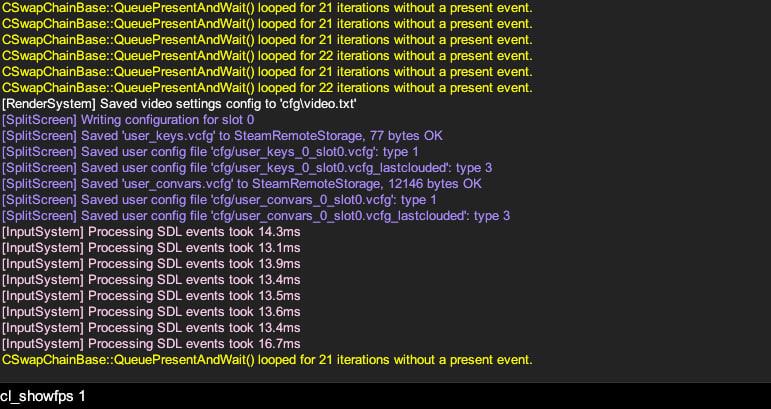
Ensure the console is enabled in your settings (under Options > Advanced Options > Enable console).
Open the console by pressing your designated hotkey (usually ~ or \).
Type cl_showfps 1 and press Enter to display a simple FPS counter.
To turn it off, open the console again and type cl_showfps 0.
Using Steam Launch Options
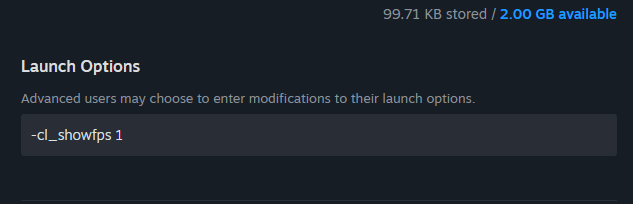
If you want the FPS counter to appear automatically every time you start Dota 2 without having to manually open the console, you can use launch options:
Open your Steam Client and go to your Library.
Right-click on Dota 2 and select Properties.
In the General tab, scroll down to the Launch Options field.
Type +cl_showfps 1 into the text box.
Close the window and launch the game.
The Steam Overlay
If you only care about your framerate and want a uniform FPS counter across all your Steam games, you can use Steam's built-in overlay monitor. Note that this method will only show your FPS, not your ping or packet loss.
Open the Steam Client.
Click on Steam in the top-left corner and select Settings.
Go to the In Game tab.
Find the In-game FPS counter dropdown (sometimes labeled "Performance Monitor").
Select which corner of the screen you want the counter to appear in.
(Optional) Check the "High contrast color" box to make the numbers stand out and easier to read.
What is a "Good" FPS and Ping in Dota 2?
Now that you have your network information displayed, how do you know if your numbers are actually good?
FPS: Dota 2 is highly optimized, but you should aim for at least 60 FPS for a smooth, casual experience. If you want a competitive edge, especially during chaotic 5v5 teamfights, aiming for 100 to 120 FPS is ideal. Anything below 30 FPS will look like a slideshow and make the game virtually unplayable.
Ping: Your ping measures how long it takes for data to travel from your computer to the Dota 2 server and back, measured in milliseconds (ms). A ping of under 50 ms is excellent and will feel instantaneous. A ping between 50 ms and 100 ms is very playable. Once your ping creeps past 120 ms, you will start noticing a slight delay when issuing commands, and anything above 150 ms puts you at a severe disadvantage.
Packet Loss: This value should always be at 0%. Even a 1% or 2% packet loss means data is being dropped on its way to the server, which causes severe stuttering and "teleporting" characters regardless of how high your FPS is.
Upgrade Your Game with Skin.Land
Once you have optimized your hardware and fixed your network lag, there's only one thing left to upgrade: your style. While high FPS and low ping help you secure the rampage, doing it with the best cosmetics makes it twice as satisfying.
Head over to Skin.Land to buy, sell, or trade Dota 2 skins instantly and securely. Whether you are looking for an Arcana, an Immortal treasure, or a complete set for your favorite hero, Skin.Land offers the safest platform and the best prices on the market.





Write comment