
NiKo CS2 Mouse Settings - Sensitivity and DPI
Recently, NiKo became the exclusive ambassador of Razer, the famous company that produces a lot of stuff for gaming: mouses, keyboards, headsets, mousepads, etc. Now NiKo and more other players use the Razer DeathAdder V4. It will be a new flagman in the gaming mouse world.
Overall, NiKo has quiet unique settings - high DPI (1600), which is not popular among FPS pro players.
Here are the NiKo mouse settings he usually applies:
Mouse: Razer DeathAdder V4 Pro White
DPI: 1600
Sensitivity: 0.42
eDPI: 672
Zoom Sensitivity: 0.9
Hz: 2000
Windows Sensitivity: 6
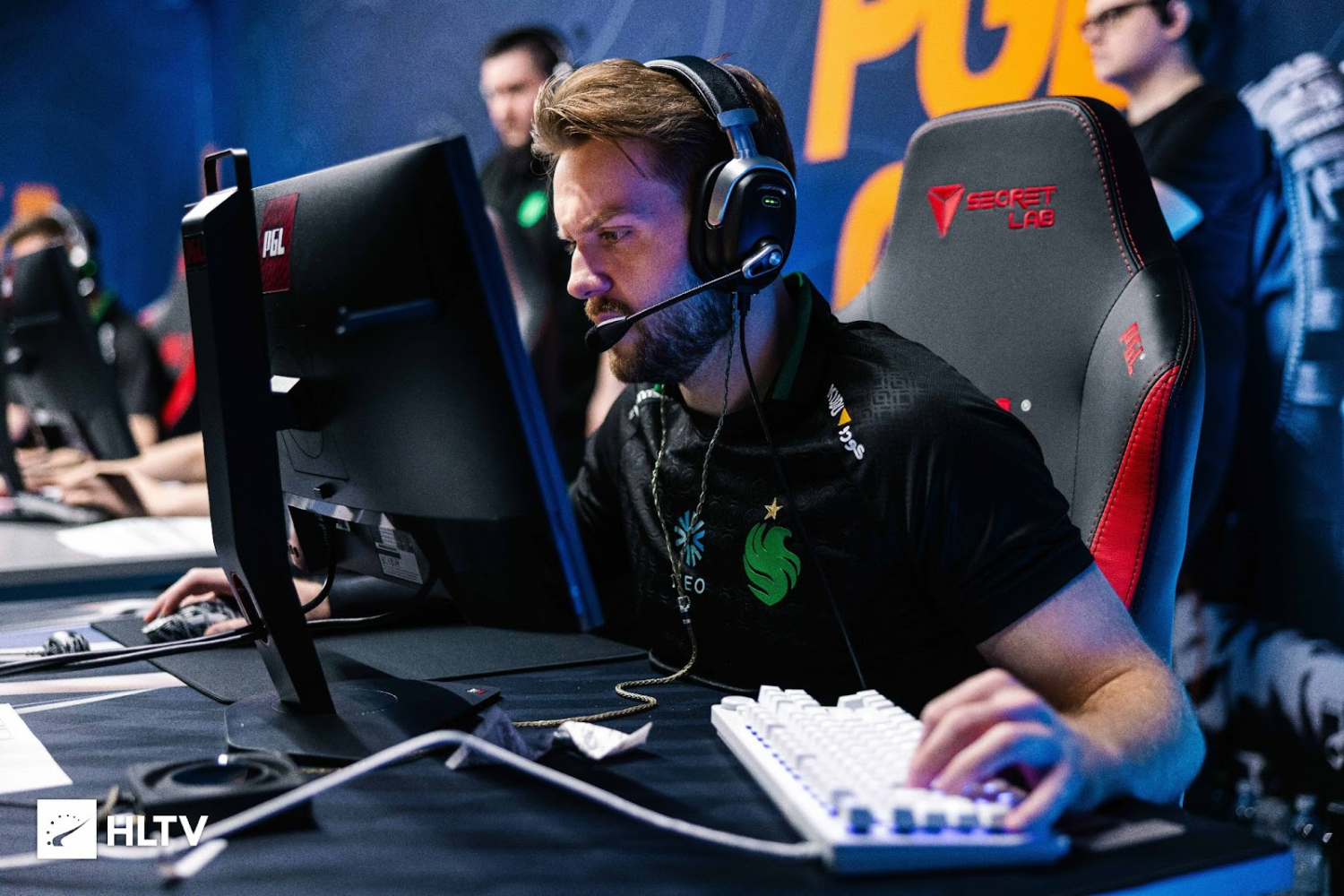
The NiKo mouse settings will not fit to average CS2 player. But if you have enough enthusiasm and are not afraid of trying something new, these settings can become your regular ones.
NiKo Crosshair Settings for CS2
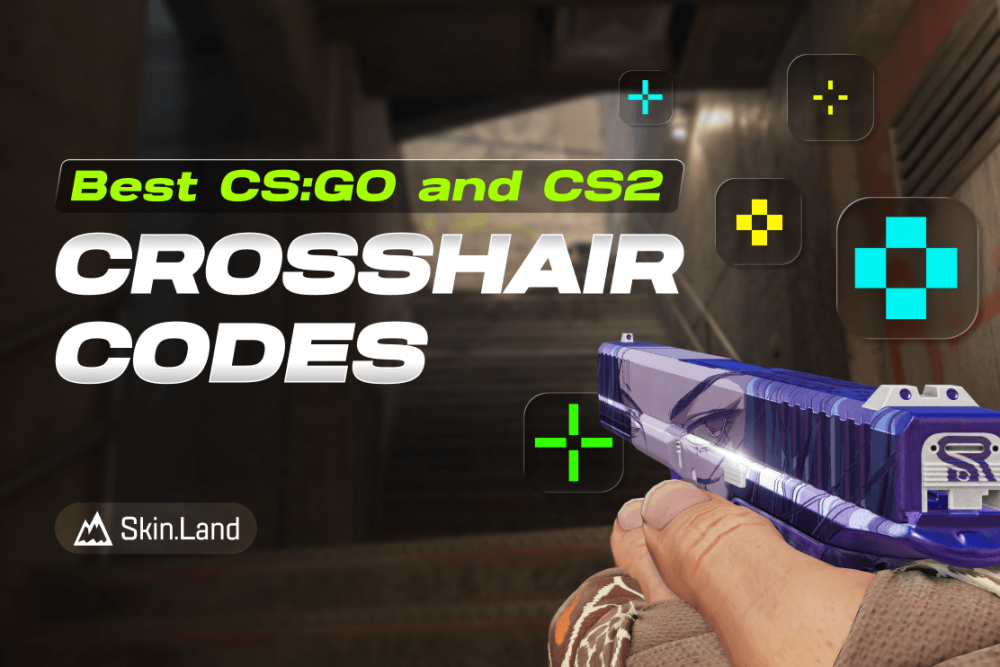
NiKo crosshair is static and colored green. You can enable it by entering a NiKo crosshair code CSGO-MDNOE-ZiGOk-ia7EX-evBaL-HOkTL, or by copying the following parameters manually:
Style: Classic static
Follow Recoil: No
Dot: No
Length: 1
Thickness: 1
Gap: -4
Outline: No
Color (RGB): Red 0; Green 255; Blue 145;
Alpha: Yes
Alpha Value: 255
T Style: No
Deployed Weapon Gap: No
Sniper Width: 0
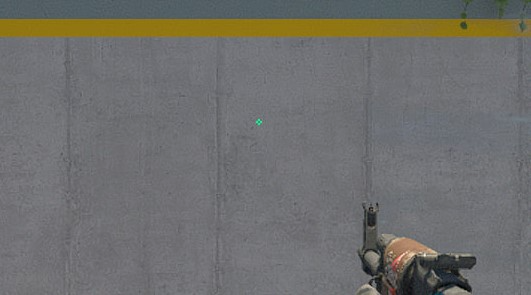
NiKo CS2 light green crosshair suits those players who like to play on bright screen settings. But in general, it is quite versatile, so you can safely try it in any setting. If you want to explore other options, check out our guide for the best CS2 crosshair codes here.
NiKo Video Settings for CS2
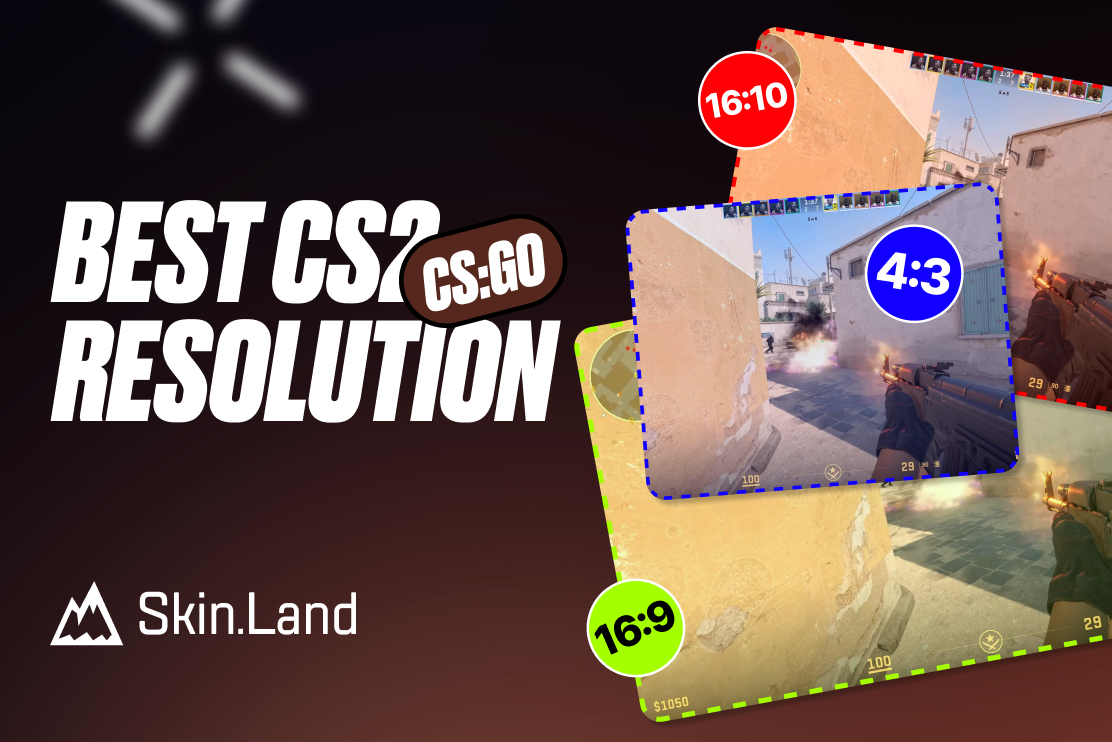
NiKo is currently using some special resolution - 16:10 ratio and 1280x800. It’s not quiet popular among other pro players, but as we can see, it doesn’t stop NiKo from being one of the best in the world. Overall, most of his settings are disabled and put on “Low”.
Boost Players Contrast: Disabled
Model/Texture Detail: Low
Shader Detail: Low
Particle Detail: Low
Texture Filtering: Anisotropic 8x
Anti-Aliasing: 8x MSAA
Shadow Quality: High
Dynamic Shadows: All
Ambient Occlusion: Disabled
High Dynamic Range: Quality
FidelityFX Super Resolution: Disabled (Highest Quality)
V-Sync: Disabled
NVIDIA Reflex Low Latency: Disabled
NVIDIA G-Sync: Disabled
Resolution: 1280*800
Aspect Ratio: 16:10 stretched
Mode: Fullscreen
Scaling Mode: Stretched
Brightness: 95%
NiKo Monitor Settings for CS2
NiKo currently uses a BenQ Zowie XL2566K monitor. It’s a brand new 360hz monitor with DyAc+ technology. The NiKo video settings will fit a lot of players, so don’t hesitate to try it.
Here you can find NiKo monitor settings:
DyAc: Premium
Black eQualizer: 20
Color Vibrance: 9
Low Blue Light: 0
Picture Mode: Gamer 2
Brightness: 63
Contrast: 50
Sharpness: 7
Gamma: Gamma 3
Color Temperature: User Define
Red: 89
Green: 90
Blue: 100
AMA: Premium
NiKo Viewmodel Settings for CS2
Are you already used to NiKo using unusual settings? This applies to his viewmodel as well. At first glance, you might think he's crazy. But even this weapon arrangement doesn't stop him from being one of the best.
NiKo Viewmodel Settings:
viewmodel_fov 65
viewmodel_offset_x -0.5
viewmodel_offset_y 1
viewmodel_offset_z -2
viewmodel_presetpos 1
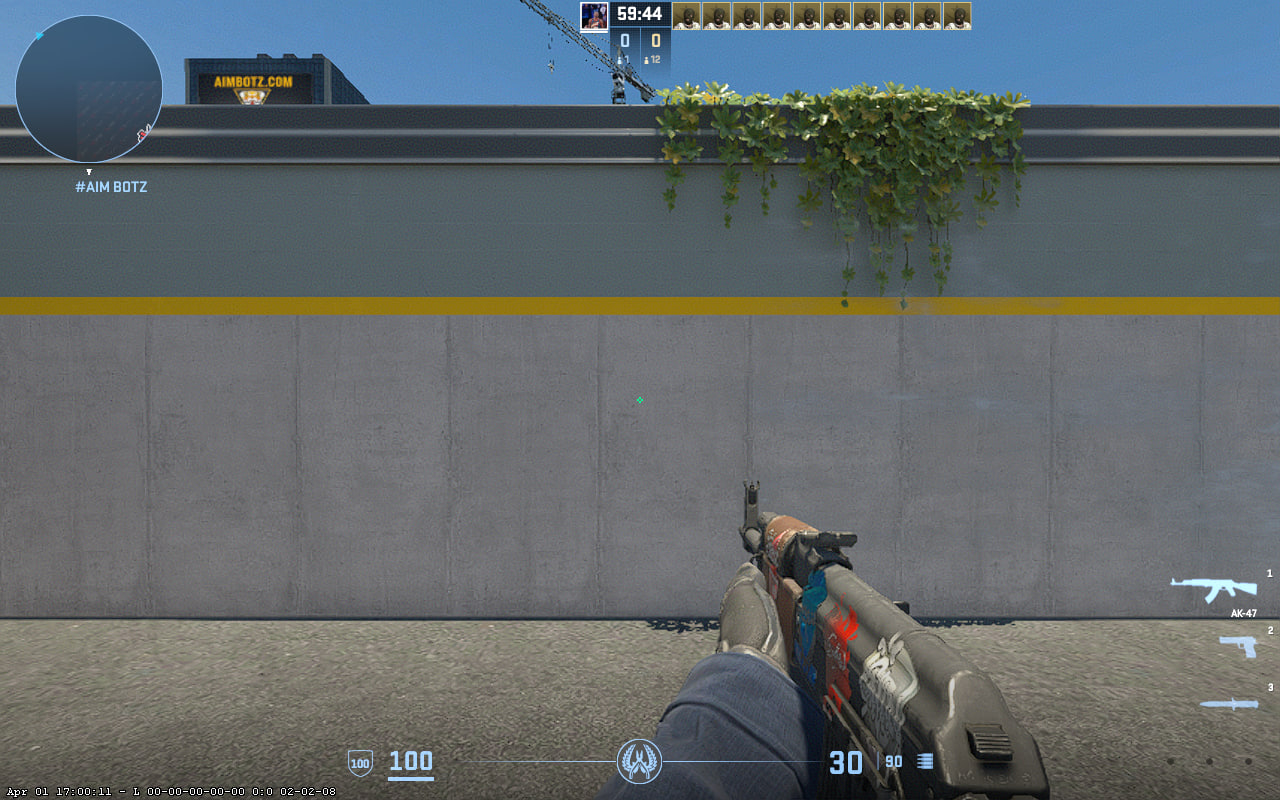
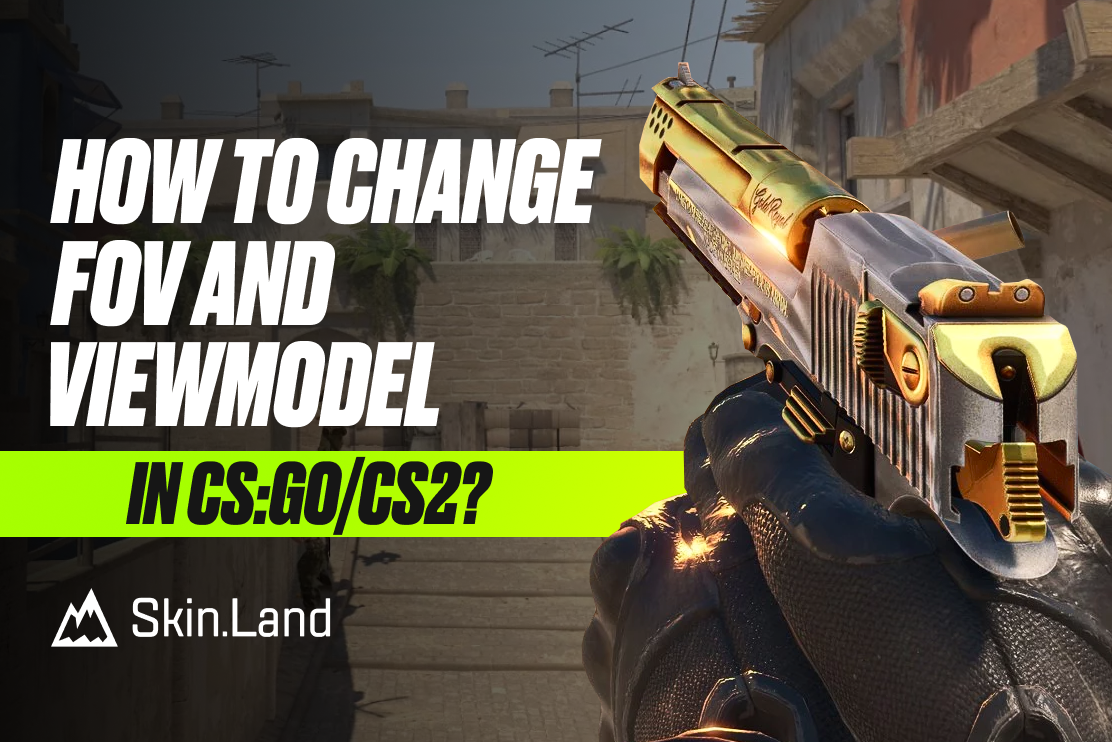
It’s also useful to learn how viewmodel settings work to adjust it to your preference.
NiKo Launch Options for CS2
Despite being a representative of the generation of gamers who likes to use different settings for increasing performance, NiKo doesn’t use any kind of common launch options for CS2.
If you’re looking for the best CS2 launch options, check out our guide.
NiKo Radar Settings for CS2
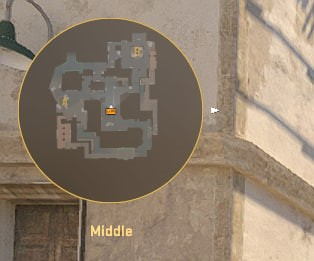
The NiKo’s radar centers the player and rotates at the same time. Use the following settings to try out for yourself what playing with the NiKo radar settings feels like.
Radar Centers The Player: Yes
Radar is Rotating: Yes
Toggle Shape With Scoreboard: Yes
Radar Hud Size: 1
Map Zoom: 0.35
NiKo Audio Settings for CS2
NiKo's audio settings in CS2 are fine-tuned for maximum clarity and positional awareness. He likely uses stereo headphones with low reverb and boosted high frequencies to hear footsteps and gunshots.
Master Volume: 100%
Audio Device: Default
EQ Profile: Natural
L/R Isolation: 0%
Perspective Correction: Yes
Play Audio When Game in Background: No
Main Menu Volume: 20%
Round Start Volume: 0%
Round Action Volume: 0%
Round End Volume: 40%
MVP Volume: 40%
Bomb/Hostage Volume: 20%
Ten Second Warning Volume: 20%
Death Camera Volume: 40%
Mute MVP Music when players on both teams are alive: No
NiKo CS2 Skins
Like many top pro players, NiKo has an incredible inventory. Among the most expensive items are Butterfly Knife | Doppler Ruby (Factory New), AWP | Gungnir (Factory New), Specialist Gloves | Crimson Web (Minimal Wear). Among other great skins:
- StatTrak AK-47 | Redline (Minimal Wear)
- M4A1-S | Printstream (Minimal Wear)
- Glock-18 | Fade (Factory New)
- StatTrak USP-S | Printstream (Minimal Wear)
- Desert Eagle | Blaze (Factory New)
Use NiKo’s collection as inspiration or pick other skins to your taste at Skin.Land. Here, you will find a wide selection of skins from pro players' collections, available for you to buy quickly, securely, and for an affordable price.



Write comment