
CS2 NVIDIA Control Panel Settings
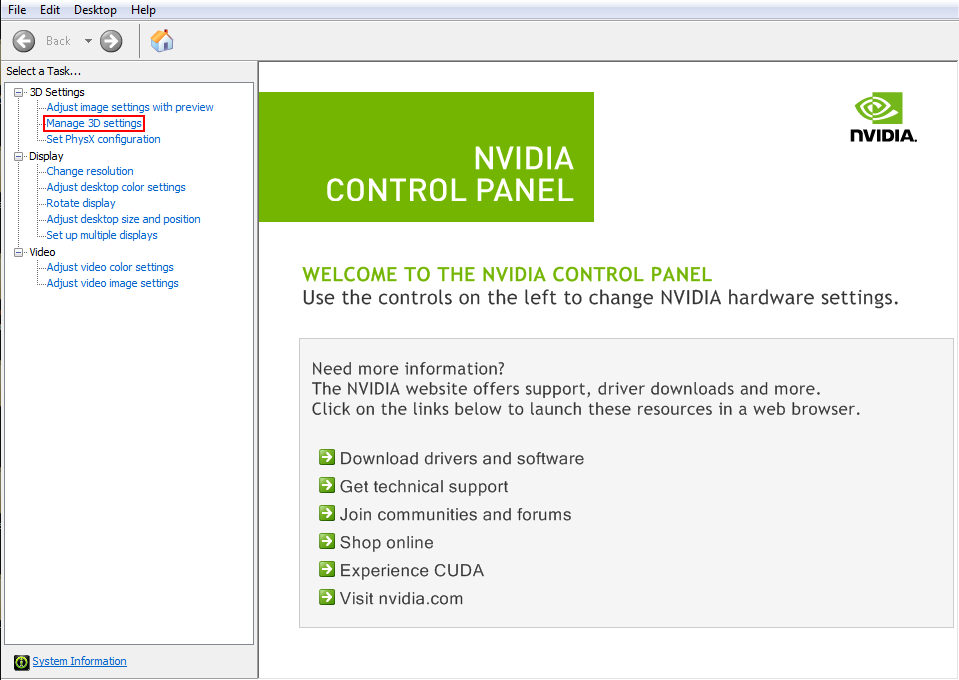
To change graphics settings NVIDIA provides a special app called a Control Panel. Usually, it is installed automatically. So, if you possess a graphics card from this manufacturer, you probably have it. Here are several methods to check, if it is installed:
Look for the control panel icon near the clock in the taskbar. It may sit in the “Display hidden icons” menu.
Use the Start button and its search bar.
Open the desktop context menu with a right click. Look for the specific black and green icon.
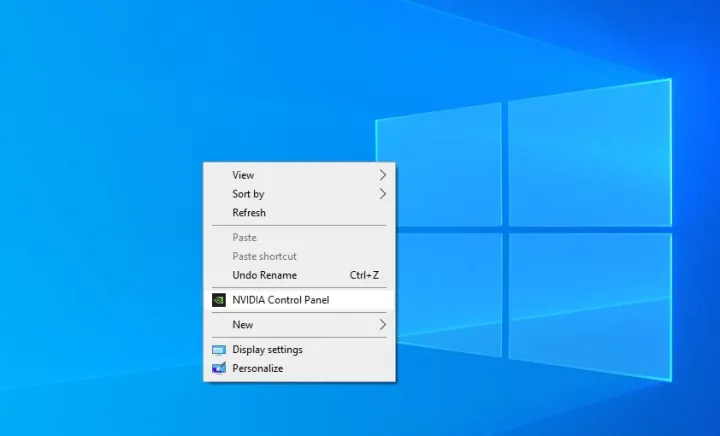
Otherwise, install it manually, for example, through the Microsoft Store. After locating the Control Panel or installing it if needed, adjust video settings for the best CS2 performance.
Best NVIDIA Graphics Settings for CS2
What are the best settings for CS2, is related to your goals and the specifications of your PC. Achieve the best performance with an older setup, improve colors or maximize resolution. Here are several approaches to consider.
NVIDIA Settings to Boost FPS in CS2
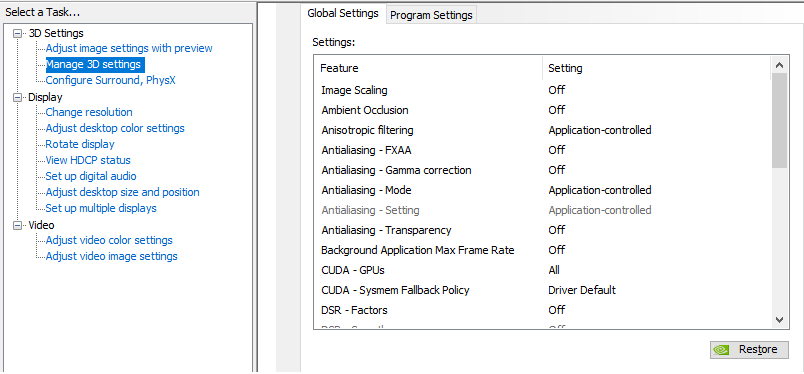
To enhance FPS, choose maximum performance where possible. For example, set Power Management mode to “Prefer Maximum Performance”, Texture Filtering Mode to “Bilinear”, and “Texture Filtering Quality” to “High Performance”. There are some other resource-consuming options, that need to be off:
Anti-aliasing – FXAA
Anti-aliasing – Transparency
Vertical Sync.
NVIDIA Color Settings for CS2
Transition to CS2 brought the game visuals to the new level. You can enhance them further by doing the following:
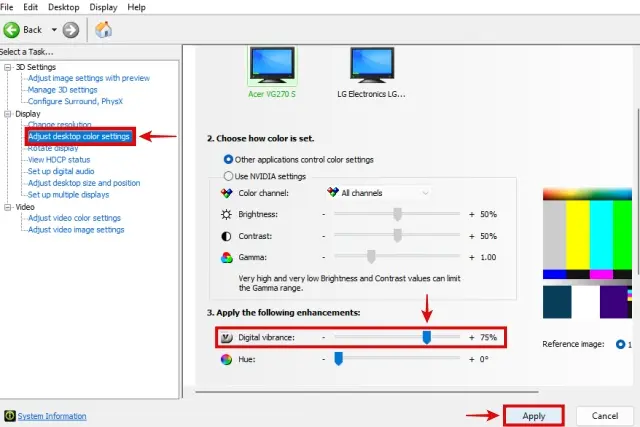
Click “Adjust desktop color settings” in the left panel
Move the “Digital Vibrance” slider to the right.
Click “Apply”
In addition, it is also possible to experiment with Gamma and Brightness parameters.
You can change your CS2 settings without affecting your graphics and performance in other games, because the Control Panel has a distinction between global settings and parameters for each game.
Best CS2 Nvidia Performance Settings for Low-End PC
Choosing optimal NVIDIA settings for an old PC is another topic. In this case, you will want to remove all non-essential additions to maximize FPS and prevent FPS drops, delays, or freezes. Currently, the minimal requirements for CS2 include 8GB RAM, at least 1GB of video memory, and the support of DirectX 11. As you can see, you do not need the latest PC to run CS2, however, tsome optimizations exist that help to fully enjoy the game.
The main setting to adjust is the Performance/Quality slider in the “Adjust image settings with preview” tab. Move it to the side to give preference to performance over quality.
In “Manage 3D Settings” set “Ambient Occlusion” to “Off” or choose the “Performance” option.
“Anisotropic filtering” - “Off”.
“Antialiasing – Mode” - “Off”.
“Power Management Mode” - “Prefer Maximum Performance”.
“Texture Filtering Quality” - “High Performance”.
Do not forget to click “Apply” at the end.
In addition, go to the Advanced Video Settings tab within CS2 itself, and perform necessary adjustments there as well. Decrease the resolution and the detail level.
Best Pro NVIDIA Settings
Pro player's NVIDIA settings for CS2 usually focus on enhancing performance by the cost of lowering graphics quality. Each of the pro players has their own preferences that correspond to their play style. Consequently, although copying their parameters may become a good starting point, you will also need to tweak them around and experiment on your own, to find what suits you the best. It is also worth noting that many pro players find game and monitor settings no less important, so you may want to explore their options as well or look into pro crosshair codes.
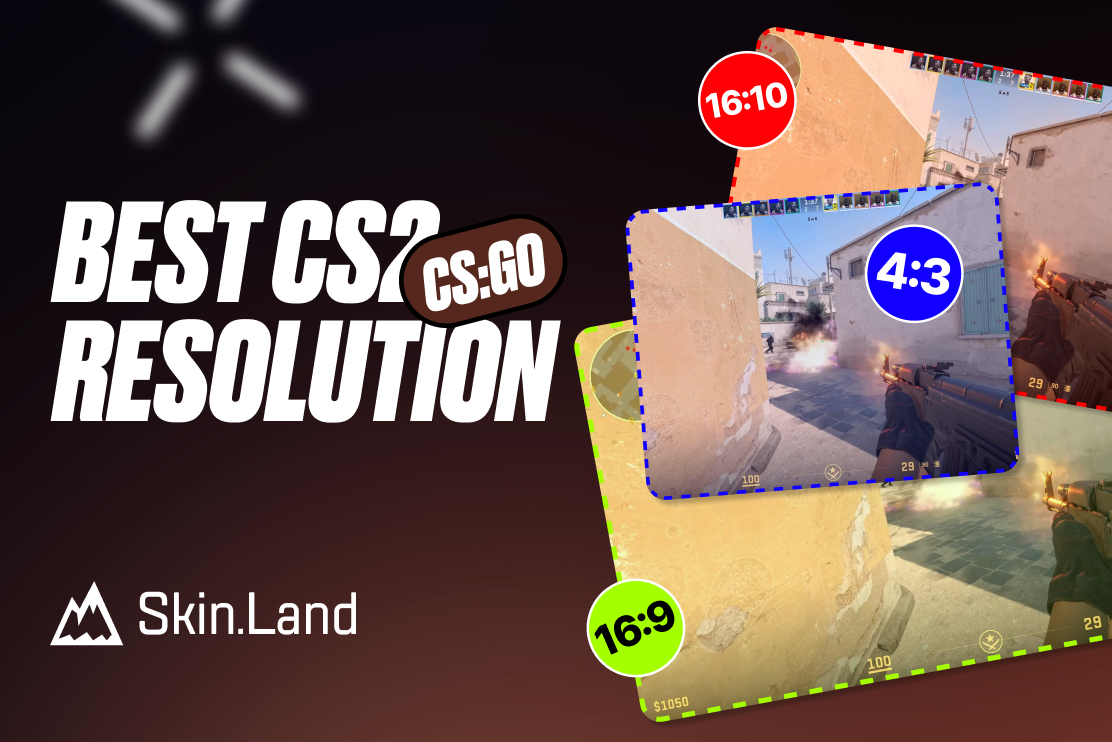
For example, donk graphics settings for CS2 include a resolution of 1280 x 960, looking like a nice compromise between performance and image quality. He uses an aspect ratio of 4:3 with a stretched scaling mode, brightness set to 110%, and 360 Hz refresh rate. These preferences allow him to instantly detect opponent players and react to their actions. S1mple NVIDIA setting looks pretty similar, with the sole distinction that he uses 100% Brightness, preferring not to boost it too much. For comparison, let’s explore NiKo video settings. He prefers to play with a larger resolution (1600 x 1024) and a different aspect ratio (16:10), and he also sets brightness a bit lower (95%).
As you can see, different pro players have varied preferences that can change with time. As they focus on maximizing performance, copying their options may be a good start for finding the optimal parameters for your setup. After you find an optimal version, you save it in CS2 launch options to avoid setting it up repeatedly.
Is CS2 Better on NVIDIA?
The main competitor of NVIDIA in the graphics card market is AMD. The architecture of the chips differs so that they can provide slightly different levels of performance with the same technical specifications. Currently, the former is considered preferable, as the game supports NVIDIA Reflex, the high-end feature that reduces input latency. If you want to lower your cost and are interested in casual gameplay only, an AMD graphics card can be more than enough. However, if you aim for maximum performance, choose NVIDIA, as it has better support in CS2, including options specifically suitable to the preferences of the pro players.


Write comment