
What Is 1080x1080 in CS2?
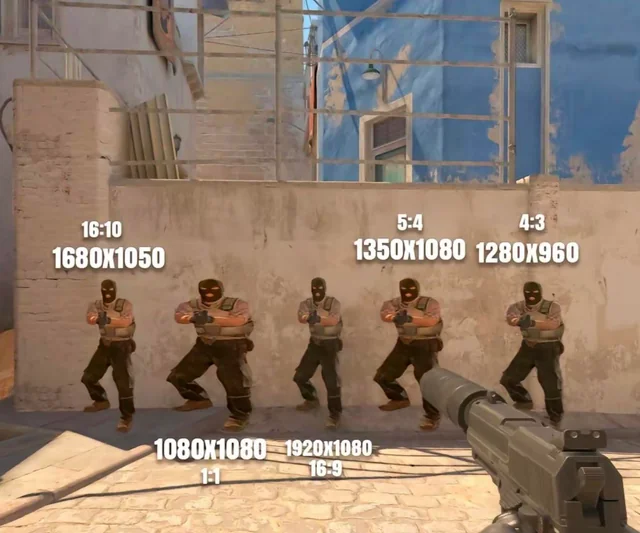
The best 1080x1080 resolution in CS2 – that's relative. Before diving into settings, you need to understand what's actually happening with the image.
1080x1080 is a square resolution with a 1:1 aspect ratio. No standard exists for this format: neither Windows nor CS2 itself offers it out of the box. You need to create it manually through your GPU manufacturer's utility.
The main difference from standard 1920x1080 is field of view (FOV). On a standard 16:9 monitor, horizontal FOV is wider – you see more. On 1080x1080, FOV narrows. But enemy models in the screen center look larger and "thicker" horizontally – exactly because of the stretch. For players who keep their crosshair strictly centered and barely move their mouse to the edges, this can be more comfortable.
Another point – GPU load. Fewer pixels per frame = less work for your graphics card = more FPS. On weak hardware this can noticeably impact game smoothness.
How to Get and Play 1080x1080 in CS2
Before figuring out how to get 1080x1080 in CS2, you need to do one thing – create the resolution itself in your graphics driver. It's not in the game settings by default, so looking there is pointless.
Step 1 – Create Custom Resolution
For NVIDIA:
Before moving to the next steps, make sure DSR (Dynamic Super Resolution) is disabled in NVIDIA settings – it sometimes blocks custom resolution creation.
Here's the process. Open NVIDIA Control Panel → Display section → Change Resolution → Customize button → check "Enable resolutions not exposed by the display" → "Create Custom Resolution." Enter 1080 horizontal and 1080 vertical, then hit Test. If the screen didn't go black – success, the resolution will appear in the list.
Full parameter list for creation:
Horizontal pixels: 1080.
Vertical pixels: 1080.
Refresh rate: matches your monitor (60/144/240 Hz).
Timing mode: GTF or CVT.
After creating it, hit Test – the monitor will switch for 3 seconds. If the image appeared – confirm. If you get a black screen – try a different timing mode or refresh rate.
For AMD:
How to make 1080x1080 in CS2 with AMD gets solved through AMD Adrenalin. Open the software → press Alt+R → gear icon top right → Display tab → Custom Resolution section → Create. Enter 1080x1080, save and apply.
Step 2 – Configure Game
Now about how to play 1080x1080 in CS2 directly inside the game.
After creating the resolution in your driver, launch CS2 → Settings → Video. In the aspect ratio section, choose 16:10 or 4:3 (depends on your stretch preference). In the resolution list, find 1080x1080 and select it. Screen mode – Fullscreen.
If the resolution didn't appear in the list – restart the game. Sometimes CS2 doesn't pick up new resolutions without a restart.
Step 3 – Launch Options
How to set 1080x1080 in CS2 through launch parameters – a backup option if the game resets resolution every startup:
-w 1080 -h 1080
Add in Steam → Right-click CS2 → Properties → Launch Options. This command forces the game to launch with the needed resolution.
Best Settings for 1080x1080 in CS2
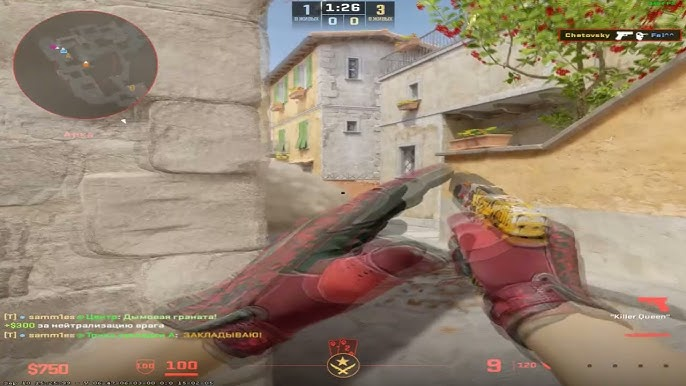
The best 1080x1080 settings in CS2 aren't magic numbers. It's a balance between aiming comfort and performance. Below are the settings actually worth tweaking when switching to 1080x1080.
Each parameter affects something specific. It's better to understand the logic than just copy someone else's config.
Graphics:
Parameter | Recommendation |
Texture Quality | High |
Shader Detail | High |
Shadows | Low |
Multicore Rendering | Enabled |
FXAA / MSAA | Disable |
V-Sync | Disable |
At 1080x1080 your GPU works with fewer pixels, so you can push textures and shaders without losing FPS. Shadows are better left at minimum – they give almost no visual advantage but eat resources noticeably.
Crosshair:
The best crosshair for 1080x1080 in CS2 topic gets discussed actively. Because of the stretched image, circular crosshairs can look distorted – elongated horizontally. That's why most players on 1080x1080 prefer dot or small cross-style without gap.
Popular variants look roughly like this:
Style: 4 (Classic Static).
Size: 1-2.
Thickness: 0.5-1.
Color: green or yellow – they contrast well on stretched image.
Gap: -2 or -3 (tight crosshair).
After changing resolution, it's worth jumping into the workshop or training to check how your crosshair looks specifically – it varies slightly for everyone.
Viewmodel:
The best viewmodel for 1080x1080 in CS2 is personal taste, but there's a nuance. At 1:1 aspect ratio, weapons in hands slightly "spread" horizontally. So the viewmodel should be moved right and further from center to not block the crosshair.
Working values through console:
viewmodel_offset_x 2.5
viewmodel_offset_y 2
viewmodel_offset_z -2
viewmodel_fov 68
Sensitivity:
The best sens for 1080x1080 in CS2 – technically stays the same as on other resolutions because mouse DPI doesn't change. However, due to compressed FOV, horizontal movement feels slightly faster. If after the resolution change your mouse feels like it's "flying" – you can slightly lower in-game sensitivity by 3-5%.
Common Problems With 1080x1080 in CS2
Non-standard resolution means non-standard problems. Most are solvable, but you need to know what to do.
1080x1080 black screen in CS2
A black screen on startup is the most common complaint. Several possible causes: monitor doesn't support the created resolution, DSR is enabled in NVIDIA, or the game simply couldn't switch to the needed mode.
Ways to fix:
First – add to launch options -windowed -w 1920 -h 1080. This launches CS2 in windowed mode at native resolution. Inside the game you can switch to 1080x1080 through settings.
Second – in NVIDIA Control Panel → Adjust Desktop Size and Position → select Full Screen. This removes black bars and helps the monitor correctly accept the signal.
Third – recreate the custom resolution with different timing parameters (CVT instead of GTF or vice versa).
1080x1080 black bars in CS2
Black bars on the sides appear if scaling is configured incorrectly.
In NVIDIA settings: Adjust Desktop Size and Position section → select Full Screen → check "Override the scaling mode" → apply.
For AMD: in Adrenalin → Display → GPU Scaling → enable → scaling mode "Full Panel."
1080x1080 not working in CS2
If the resolution disappeared from the list or won't apply – most likely your graphics driver updated and reset custom settings. Just recreate the resolution in NVIDIA Control Panel or AMD Adrenalin.
Do Pros Play 1080x1080 in CS2?
No official Valve data exists on what non-standard resolutions professional players use. So any conclusions about 1080x1080 popularity among pros can only come from third-party trackers, not official sources.
Among the top 600 professional CS2 players, the picture looks roughly like this:
Resolution | Player Share | Examples |
1280x960 | ~45% | NiKo, s1mple, b1t |
1024x768 | ~16% | device, sh1ro, FalleN |
1920x1080 | ~10% | ZywOo, ropz, jabbi |
1152x864 | ~8% | XANTARES, Brehze |
1280x1024 | ~5% | various players |
All popular professional resolutions are either 4:3 stretched or native 16:9. Does any pro use 1080x1080 in CS2? Not a single one. The reason's simple: 1:1 aspect ratio gives too uncomfortable FOV at the professional level where positioning and peripheral vision are critical.
How to use 1080x1080 in CS2 in a competitive context is a purely personal decision, not backed by professional practice. If you want something from the pros – better look toward 1280x960 stretched or 1440x1080.
Is 1080x1080 Good in CS2?
This resolution isn't bad or good by itself. It just solves specific problems for specific players. Let's break down the pros and cons.
The advantages of 1080x1080 are plenty, and they're quite real. Main ones:
More FPS – fewer pixels means your GPU gets noticeably unburdened.
Enemy models wider in center – easier to aim for those who don't sweep their mouse to the edges.
Larger HUD in screen center.
Less system load than native 1080p.
But limitations exist too, and some are serious. Here they are:
Narrowed FOV – you see less of the flanks.
Constant radar bug without a permanent fix.
Possible black screen issues on every launch.
No support from the professional community.
Some monitors flat-out won't accept 1:1 signal.
If the main goal is squeezing FPS from weak hardware, and it's more comfortable keeping the crosshair centered – 1080x1080 makes sense to try. Especially if your monitor supports this resolution without jumping through hoops.
For most players who don't have a specific reason to leave native resolution, it's better to stick with 1920x1080 or try the classic – 1280x960 stretched. That's a proven option with clear advantages and no technical workarounds.
If you're interested in diving deeper into skins and inventory – check out the CS2 skins catalog on Skin.Land. Settings are settings, but a good skin hasn't been cancelled either.
Start With Testing – Then Decide
1080x1080 in CS2 isn't a cure-all or a cheat trick. It's a niche tool that works for a certain playstyle. Before committing fully, it's worth spending an hour in practice or deathmatch – and honestly compare how aiming feels. If the difference is noticeable and positive – go for it. If not – don't bother dealing with radar bugs every session just for this.

Write comment