
What is Mouse Acceleration in CS:GO and CS2?
Mouse acceleration is a setting that changes how far your cursor or crosshair moves based on the speed of your physical mouse movement, not just the distance. In simple terms, the faster you move your mouse, the farther your crosshair will travel on screen — even if you move the mouse the same physical distance each time.
Overall, in any shooters, especially in CS2, it can have a negative effect on your performance. Mouse acceleration can lead to inconsistent aim because your muscle memory relies on consistent movement-to-aim ratios. With this setting on, quick flicks and slow movements produce different results, making it harder to develop precise and repeatable aim. That’s why most competitive players turn it off to maintain consistent accuracy.
How to Turn Off Mouse Acceleration in CS2?
To turn off the mouse acceleration, you just need to open the Windows settings. CS2 uses the Raw Mouse input by default, but you can always turn it on by typing m_rawinput 1 in the console.
To Turn Off Mouse Acceleration, follow the next steps:
Hold down the Windows Key and press "R".
Type "main.cpl" and hit enter in the command box that appears.
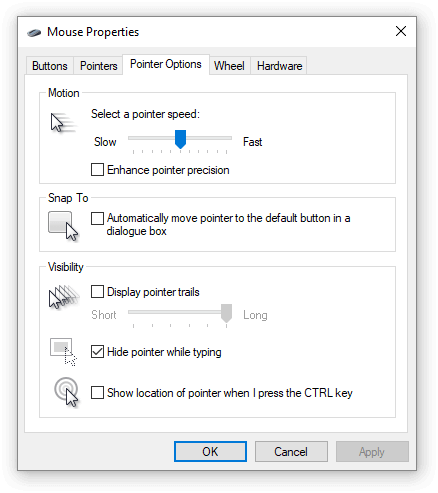
In the Mouse Properties window, select the "Pointer Options" tab.
Untick the "Enhance pointer precision" box and then click "Apply".
How to Enable Mouse Acceleration in CS2?
In case you want to try to play with mouse acceleration, follow the same guide, but the "Enhance pointer precision" box, and then click "Apply".
Hold down the Windows Key and press "R".
Type "main.cpl" and hit enter in the command box that appears.
In the Mouse Properties window, select the "Pointer Options" tab.
Tick the "Enhance pointer precision" box and then click "Apply".
Mouse Acceleration in CS:GO and CS2 FAQ
Is mouse acceleration good for CS2?
No. Mouse acceleration is generally not recommended for CS2. It’s not good because it brings inconsistent aim and it’s harder to train it. Some casual players may prefer how it feels, especially if they’re used to it from older games or general PC use. But for serious aim training and competitive play, it’s best turned off.
Do any pros use mouse acceleration in CS2?
Almost no professional CS2 players use mouse acceleration—and that’s by design. Competitive CS players rely heavily on muscle memory and precise aim, both of which are negatively affected by mouse acceleration.\
How do I know if I have mouse acceleration on?
To check if you have mouse acceleration on, check both Windows and CS2 settings. In CS2, if you type the command “m_customaccel” and it returns with 1, it means that acceleration is on. You can also check “m_rawinput”; set this to 1 to bypass Windows settings and get direct mouse input.
How to change the mouse acceleration amount in CS2?
To change the mouse acceleration amount in CS2, you'll need to use the developer console and adjust specific commands. If you don’t know how the console works, check out this article.
To enable mouse acceleration, you need to put “m_customaccel 1” in the console. To change the acceleration, use the command “m_customaccel_exponent [value]”. The common “value”: 1.05 to 2.
Example of the setup of mouse acceleration:
m_customaccel 1
m_customaccel_exponent 1.5
m_customaccel_scale 0.04
m_customaccel_max 0
To turn off the mouse acceleration:
m_customaccel 0
Mouse acceleration is generally not recommended for competitive CS2, as it can negatively affect consistency. But if you're experimenting or prefer it, these settings let you fine-tune it.




Write comment