
What is Net Graph in CS2?
Net Graph is an on-screen tool in CS2 that shows live data on frame rate (FPS), ping, and network status. By enabling the Net Graph, players can monitor their connection quality and optimize settings for smoother gameplay.
But in CS2 is no more net_graph command. Valve removed the ability to use many console commands, including this one. But the CS2 has some alternatives, such as direct analogs of net_graph from CS2.
How to Enable and See Net Graph in CS2?
Firstly, to use any console commands, you need to enable the console.
Enable console: Open Settings - Game - Launch Developer Console (Press “Yes”).
Open Console: Press ~ on your keyboard to open it (or any other button bind).

Because it’s no more net_graph in CS2, you can use the next command to see your FPS:
cl_showfps 1 - it shows your fps under the radar.
cl_showfps 2 - it shows fps; frame 60, 240, and 1000.
cl_showfps 3 - it shows server ms; 60, 240, and 100 server ticks. Learn about tick rate in our guide.
cl_showfps 4 - it shows average fps, average frame ms, and average server ms.
There is another analog of the net graph in CS2. These settings allow you to see your ping and fps in CS2:
Open Settings - Game - Telemetry
Put “Yes” on “Show frame time and FPS” and “Show ping”.
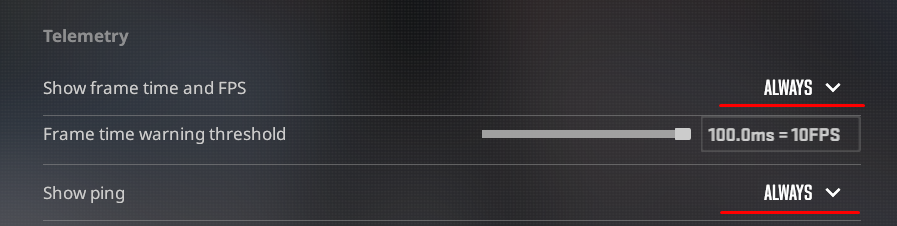
The game will show you these parameters in the top-right angle of your screen:
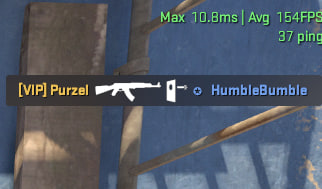
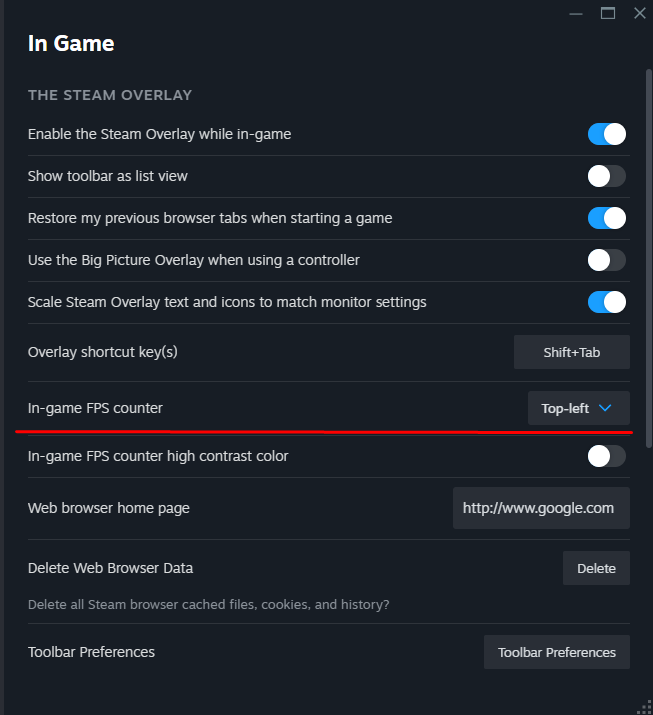
Alternatively, you can enable the FPS counter through Steam:
Open Steam.
Click on the Steam icon in the top-left corner and select Settings.
Go to the In-Game tab.
Activate In-Game FPS Counter.
How to Turn Off Net Graph in CS2
If you use the “cl_showfps” command, to turn out it, you need to put the value “0”. It looks like “cl_showfps 0”.
In the case of Telemetry settings, you need to choose “Never” in front of “Show frame time and FPS” and “Show ping”.
If you check the FPS through Steam, just again open settings, press “In-Game”, and choose “No” in front of “In-game FPS counter”.
What to Do if CS2 Net Graph Not Working?
There is no more net_graph command in CS2, so you’re not able to use it. If you can’t open the console, check if you launched it on settings. If yes, set the bind for opening the console. By default, it binds on the “~” button.
How To Read CS2 Net Graph
These commands and tools will help you to understand how many FPS and what ping you have during CS2 matches.
FPS (Frames Per Second): Measures game performance.
Ping (Latency): Shows the delay between your PC and the game server.
Packet Loss: Indicates lost data packets that can cause lag.
In the case of FPS, the higher value is better, because it enhances your gameplay. It’s vice versa with the ping - lower significance means less delay between the server and your pc. The same with packet loss. By default, it must have 0%, but if you have any problems with the internet connection, your packet loss will be at least 10%.






psycko
Merci :)
Write comment