
How to Download and Watch Faceit Demo?
Before watching, you need to download demos. It’s necessary in order you can do whatever you need with a demo through Steam or special video editing programs.
Downloading Faceit Demo CS2
Please, strictly follow the instructions:
Go to Faceit (faceit.com). Log in to your account if necessary.
Click on the outermost icon in the upper-right corner. Then click on View Profile.
You see the tabs Games, Friends, Videos appear. Switch to Games. The new list of tabs is Totals, Match History, and others. You need to select Statistics from these tabs.
A list of the matches you have played will appear. Keep in mind that demos are only available for matches played in the last 30 days. Therefore, do not delay with game analysis or content-making. Select the match you need.
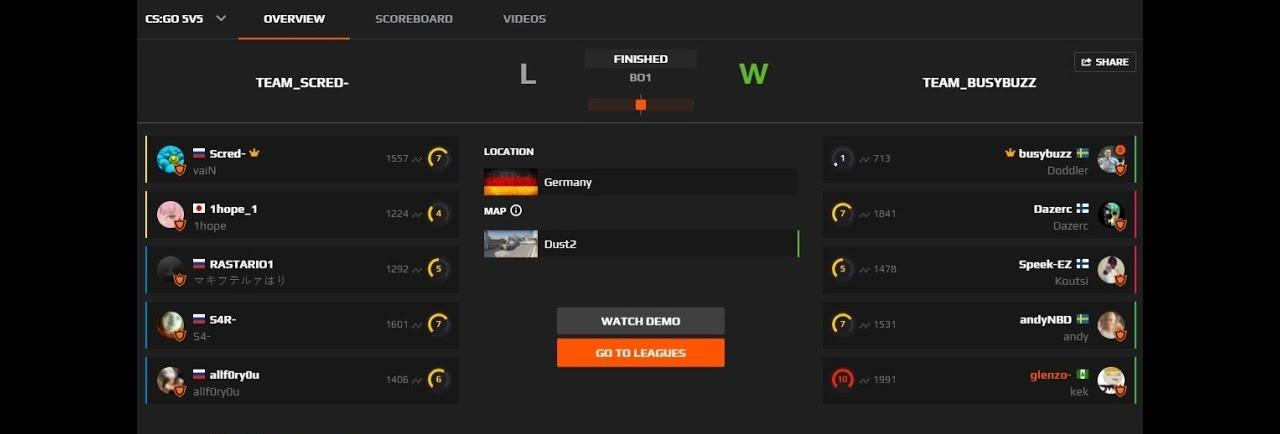
You will be taken to the individual match page. Find the Overview and click on it. Then click on Watch Demo and wait for the video to fully download to your computer.
While you're waiting for the demo to download, we suggest you visit Skin.Land, buy yourself a couple of new skins to make future demos look even cooler than they are now!
Working with Demo Faceit CS2 on Your PC
You know how to download a demo from Faceit. In the next step, you need to perform several actions in order for Steam to work with your demos. We'll also tell you about a small life hack that will help you structure a demo on your PC:
The downloaded demo is saved as an archived file with the format dem.gz, sometimes .zst. Check the Download folder, as all files usually end up in it by default.
If you haven't an archiver program, such as WinRAR, download it and then unpack a demo.
After an unzipping is completed, a folder will be saved to Downloads. Make sure that it contains a file with the .dem extension.
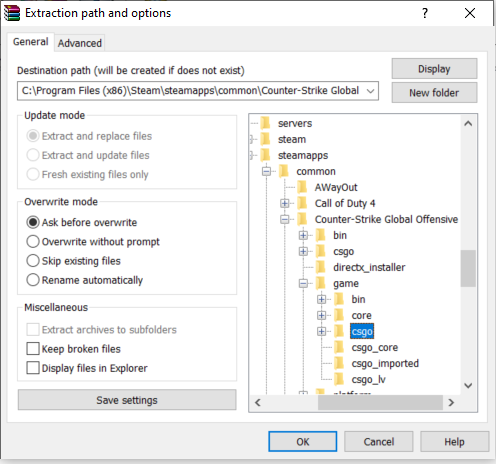
Now the most important thing. Not everyone knows where to put Faceit demos. The demo folder should be completely moved to the folder with installed CS2. Please note that the entire folder is copied. You can’t copy the .dem file separately. Moving a demo folder here: C:\Program Files (x86)\Steam\steamapps\common\Counter-Strike Global Offensive\game\csgo. This is how the path looks in most cases, you may have a slightly different one. The main thing is to make sure that there is a \game before \csgo.
Now a promised life hack. When you plan to download Faceit CS2 demo frequently, we advise you to immediately come up with a system of folders and file names so as not to get confused. For example, you create folders with the rival teams’ names. We recommend specifying the played card and the date of a game in file names (Dust2_06252025.dem). If there were several games on the map on the same day, then additionally write the time (Dust2_06252025_18.32.dem). If there is not much demo, then name the files as you want, for example, abc.dem.
Launching Faceit Demo CS2 on Steam
We're almost done, and now is the final stage 3. The principal difficulties are already over. Now you'll learn how to watch demo from Faceit:
Launch your CS2 via Steam.
Open the console, for example, in the main menu. If your console is not activated, then this article will facilitate you resolve an issue.
Remember, we talked about how important it is to rename the demo yourself. You need to type the file name in a console via the command: playdemo “file name”. For example, a command might look like this: playdemo abc. Remember that the extension .dem does not need to be specified.
Press Enter and watch the recording.
Faceit Demo Not Downloading and Working – What to Do?
Let's take turns looking at the problems with loading and running the demo and look at the solutions.
Faceit Demo Not Downloading
The most common causes of download problems are incorrect browser settings or the vagaries of antivirus software. The solution with the browser is this: go to the settings, perhaps there is a block on downloading from sites. Try to remove the block. If it doesn't help, then you should try incognito mode, or reset the browser to factory settings. When it turns out to be useless, install another browser and download again.
For solving the troubles with an antivirus, look at its settings, it is possible downloading is blocked there. Add faceit.com to the list of white sites for your antivirus optionally.
The next most common problem is low Internet speed. There are special connection speed measurement services, use one of them. When you have a slow Internet connection according to a tariff plan, there are 2 ways out: buying a subscription for faster connection or going to cyber club regularly, downloading the demo to a USB flash drive and then downloading it to your PC. When you have fast Internet according to a tariff plan, but it works slowly, the trouble may be because the Wi-Fi router is on the fritz. Try restarting a router.
Sometimes demos do not load because Faceit is being updated or has technical issues. It would be advisable to subscribe to Faceit social networks to know about upcoming updates and technical issues.
Finally, the most unpleasant cause is a ban on your account or an imposition of hidden restrictions on it. When you have checked everything and are absolutely sure you have no problems with browser, antivirus, or Internet, then we recommend you write to Faceit support and ask about your account or its restrictions.
Faceit Demo Not Working
Now we will talk about the difficulties that arise after you have downloaded the demo to your computer.
A typical problem is the difficulty unpacking the archive. Either an error appears that the files are corrupted when opened using WinRAR, or an archive with the extension .zst is downloaded instead of dem.gz. In this case, the 7-ZIP program is the cure. This is an archiver like WinRAR, but it works with a larger number of formats.
Further, some players forget the demo is pasted to the game folder, and as a result, they unsuccessfully launch it. We described what to do in this situation in a section Working with Demo Faceit CS2 on Your PC.
Another reason why recording is not working is an attempt to view without logging in on Faceit. A treatment is simple – log in to your account.




Write comment