
How To Get an Inspect Link in CS2
Generating an inspect link is the first step to seeing a skin's true look in the Counter-Strike 2 engine. Whether the item is in your inventory, on the Steam Market, or someone else's profile, the process is straightforward.
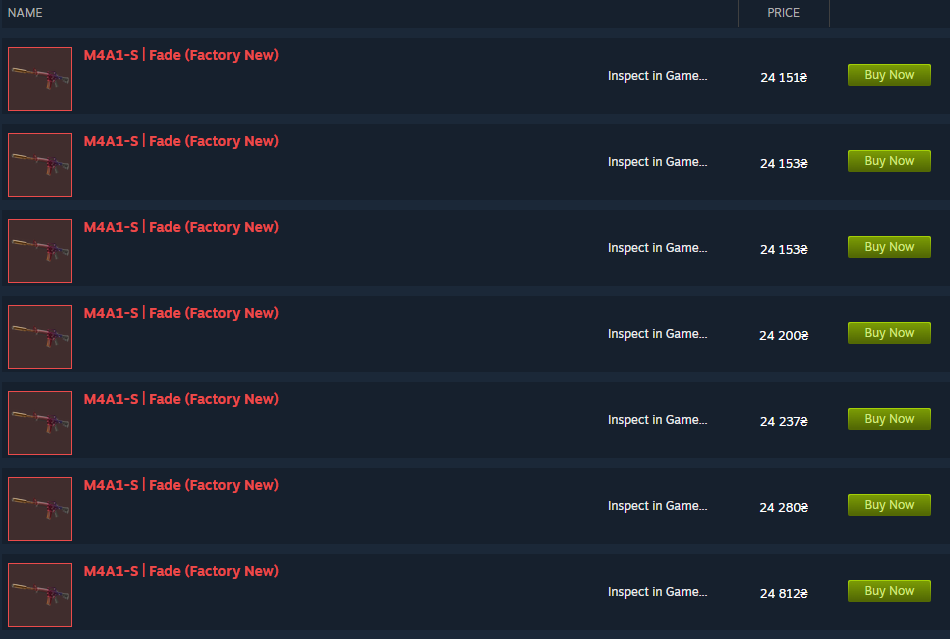
The most common way to check the float and the wear of skin before buying is from Steam Market:
Navigate to the listing of the item you want to see.
Find the "Inspect in Game..." button.
Right-click that button.
Select "Copy Link Address." This URL is your "Inspect Link."
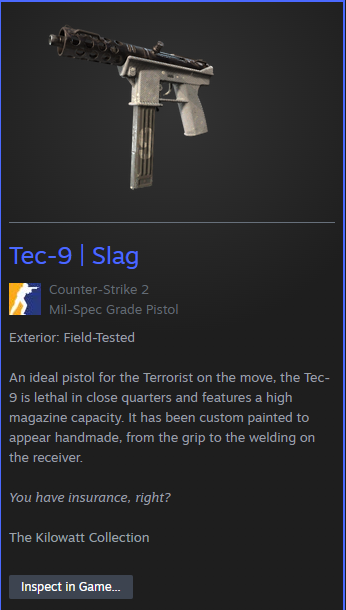
You can even do this from your own inventory. You should follow next steps:
Open your Steam Profile or the CS2 Inventory tab in-game.
Right-click the item you want to share or inspect.
Select "Inspect in Game."
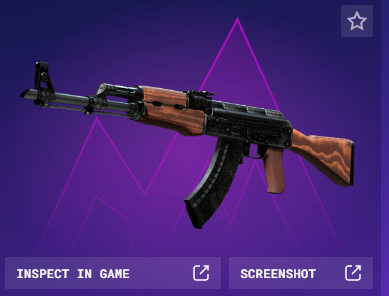
If you’re buying skins on our website, Skin.Land, there is also an “Inspect in Game” button.
How To Inspect CS2 Skins In Game?
This is the standard way to view an item currently listed on the Steam Market or sitting in an inventory.
Go to the Steam Market or a player's inventory and find the skin.
Then, copy the link by right-clicking the "Inspect in Game..." button and select "Copy Link Address."
Launch the Game. Pasting this link into your browser (Chrome, Safari, etc.) will trigger a prompt.
Confirm click "Open Steam" in the pop-up. The game will automatically bring up the inspect UI, allowing you to rotate the weapon and see the wear (float) and stickers.
If you want a more streamlined experience without jumping between Steam tabs, Skin.Land offers a built-in inspection feature for every item in its catalog.
Direct Browser Access: While browsing the marketplace on Skin.Land, every skin has a dedicated "Inspect" button.
One-Click View: Clicking this button generates the necessary code and communicates directly with your Steam client to open the skin in-game instantly.
Verify Before You Buy: This is particularly useful for checking "Phase" patterns on Doppler knives or specific wear patterns on Case Hardened skins before committing to a trade.
Why I Can't Inspect CS2 Skins in Game?
Here are the most common reasons why you might be having trouble. Let’s start with Steam Overlay being disabled. This is the number one culprit. For the "Inspect in Game" function to trigger from a browser or a third-party site like Skin.Land, the Steam Overlay must be active. To fix it, go to Steam Settings > In-Game and ensure "Enable the Steam Overlay while in-game" is toggled ON.
While Steam usually launches the game for you when you click an inspect link, it can fail if: the game is still updating or CS2 is in “hung”.
Sometimes the issue isn't on your end. If the Steam Coordinator is down or under heavy load (common during Major tournaments or new Operation releases), inspect links may time out or fail to load the skin data. Check a site like SteamStat.us to see if the CS2 Services are "Normal."




Write comment