
How to Inspect Any CS2 Knife in Game?
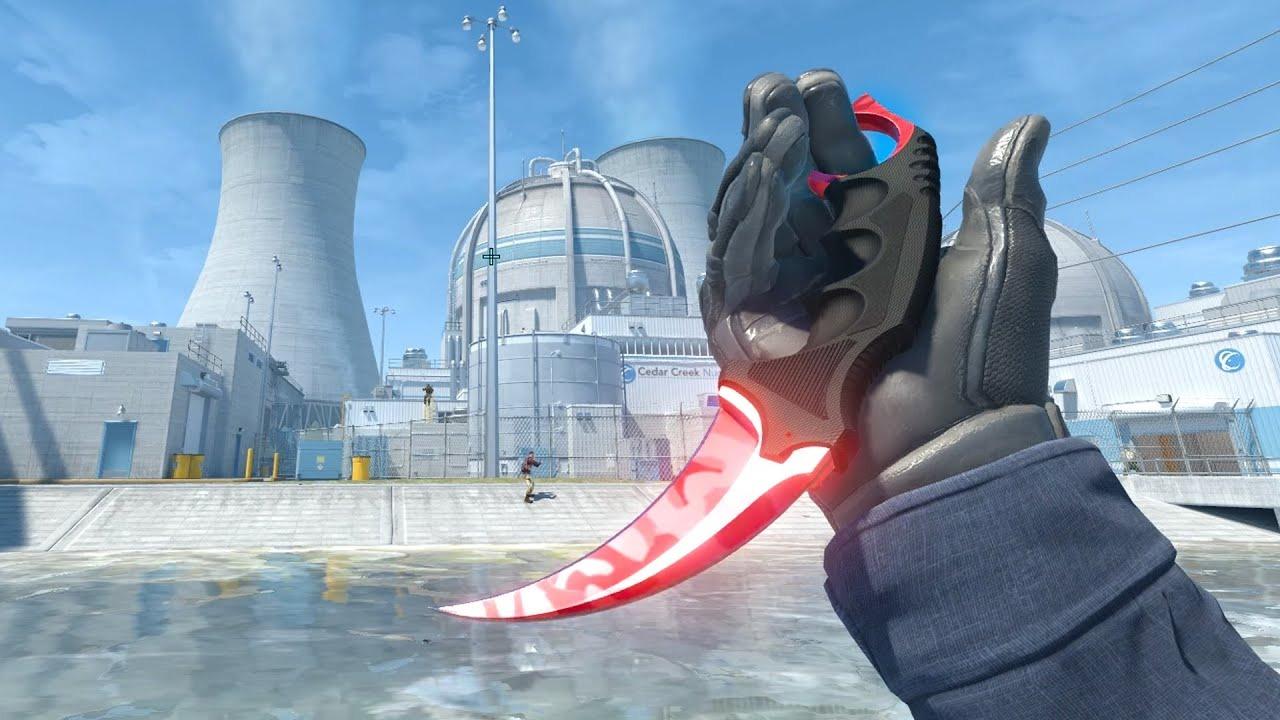
If you want to quickly assess the appearance of the knife, then the game provides for the appointment of a special key for inspection. As a rule, this is the F key.
If you wish, you can change it through the game settings. To do this, follow these steps:
During the round, press Esc to access the menu.
Look for the Settings and click on them.
There will be section names at the top, you need to use the Keyboard/Mouse.
Look for the Inspect Weapon option. Assign the desired key. Save the changes.
CS2 Knife Inspect Command and Bind Settings
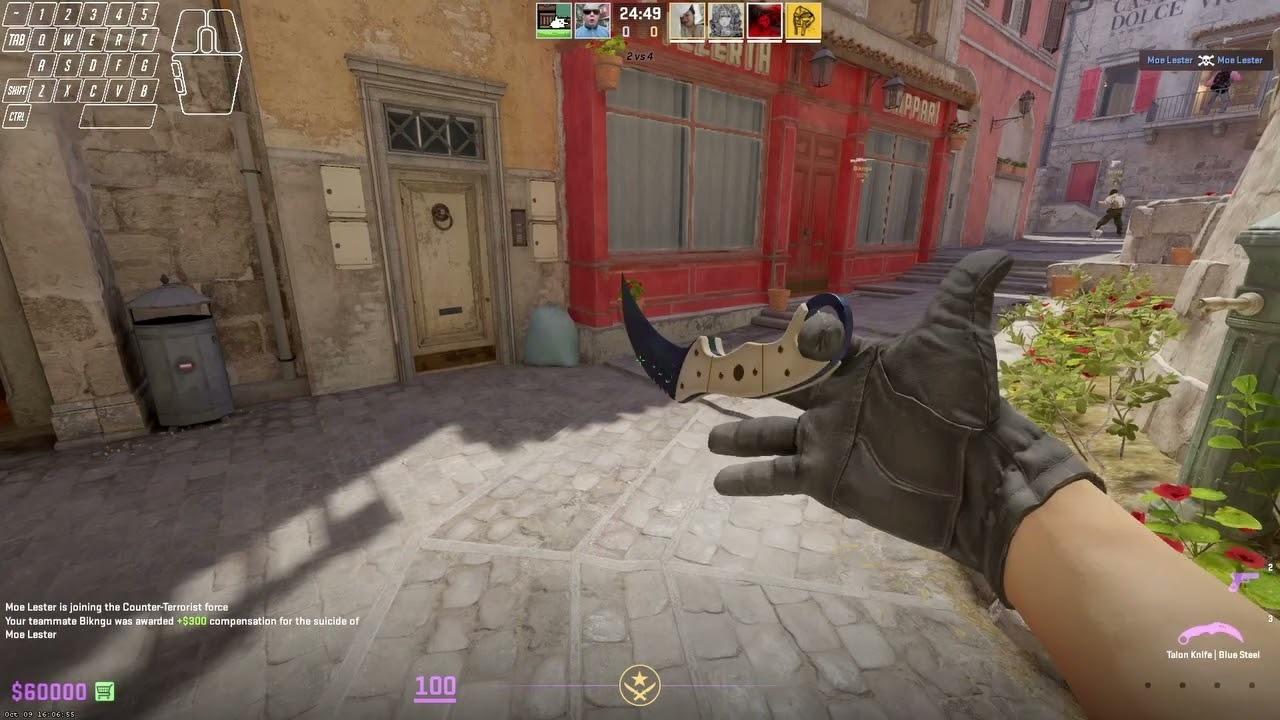
Here we will talk about the second way you can inspect gloves and knife CS2 is to register the desired key via the console.
There is an article on our blog where we talk about how to turn on the console if it is deactivated.
Next, you press ~ or another key to open the console.
Now, in the line for introducing the CS2 knife inspect command, write bind KEY “+lookatweapon". To make it clearer, let's give an example. You want to put K on inspection, then you need to write bind K “+lookatweapon".
Confirm the command by pressing Enter. Then try a new key to see if it will work or not.
And more. If you want to have fun and make the inspection endless, then write this: bind KEY “+lookatweapon;+lookatweapon". If you want to put K on infinite inspection, then write like this: bind K “+lookatweapon;+lookatweapon”.
To disable the endless animation, write binddefaults.
Can't Inspect Knife CS2 – How to Fix?
If you have troubles with CS2 inspect knife gloves combo, then there are 4 ways to solve this problem.
Method 1: checking from the inventory.
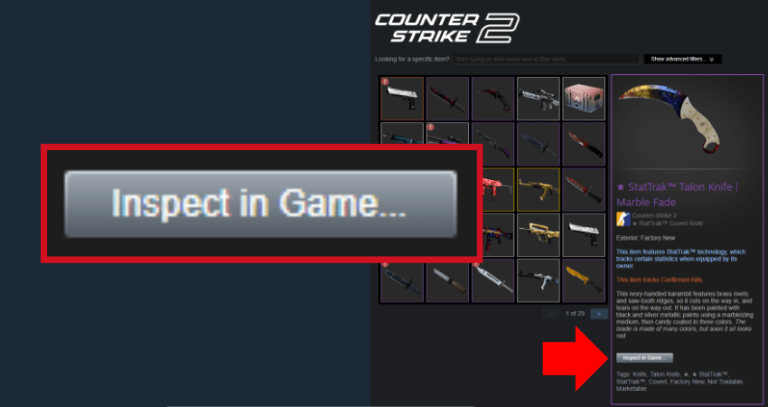
In this case, you will need a Steam Overlay, which is launched by pressing Shift + Tab. This can be done right during the game. Next, you need to go to the Inventory, find the necessary skin for the knife there and click on Inspect in Game.
Method 2: checking from the Steam Market.
Opening the Overlay again. As you may remember, it is activated by Shift + Tab. At this step, we go to the Community Market instead of the inventory. There we are looking for the skin of the knife you need and click Inspect in Game.
Method 3: checking game files.
Sometimes the problem arises due to the fact that individual files may be broken or contain bugs. Go to the Library through the Steam homepage, right-click on CS2. Now go to the following path: Properties > Installed Files. Look for the Check the integrity of the game files button and click on it. You'll have to wait a few minutes here.
And so that the wait won't be so boring, we suggest you take a look at Skin.Land and buy yourself a pair of great and cool skins for weapons, gloves or knives. We have some of the most pleasant prices on the market and fast deals that take place in no more than 5 minutes. Most likely, you will have a new skin before Steam finishes checking the files.
Method 4: clearing the cache and resetting the Overlay.
There will be detailed and lengthy instructions here. Be careful and follow all the steps from start to finish.
So, be sure to exit CS2, i.e. you can not do this during the match. From the main page, go to Settings, go to the In-game section. There, look for the option To Enable Steam Overlay during the game, you need to uncheck it. Confirm your actions by clicking OK.
At the next stage, close Steam, and then restart it. Go to Settings again, and then to the Downloads section. There you will see the Clear Download Cache button. Click on it, let's get all the necessary confirmations. After the end of the process, close the Steam again, and then restart it.
Open the game on any map and click on the inspection button. Make sure everything is working.
If none of the above helps you, we recommend reinstalling Steam again. Maybe the problem lies with the client itself.
If this also did not solve your problem, we advise you to write to Steam support and ask them, since your problem is absolutely atypical.


Write comment