
How to Speak in CS2
To enable voice chat in CS2, proceed with the following actions:
Open the Audio tab in the Settings.
Choose the correct device in the Audio Device dropdown menu.
Choose the Press to Use Mic option.
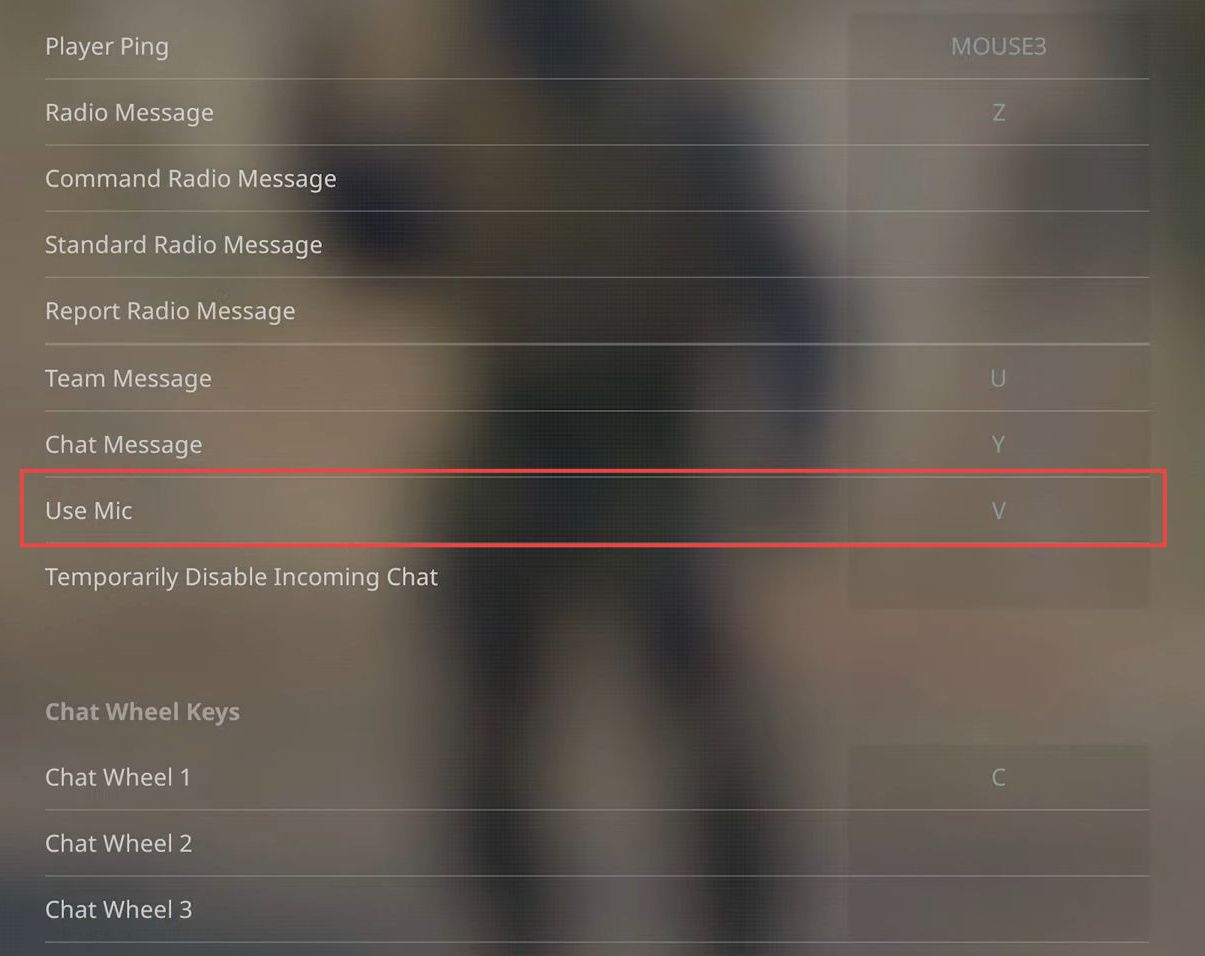
Open the Communication section in the Keyboard/Mouse tab.
Set the key you want to use for microphone activation.
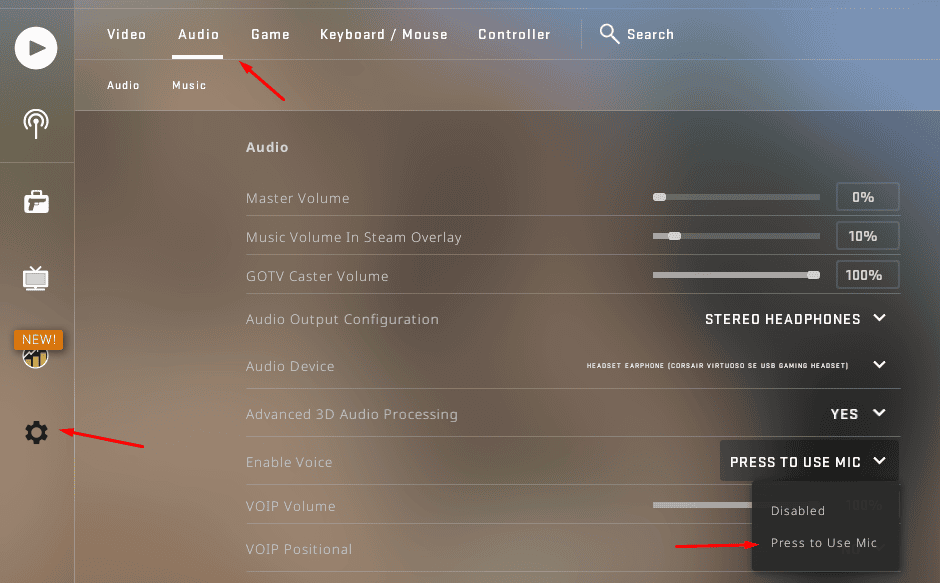
You’re now ready to use push-to-talk in CS2. The voice is only broadcasted while the button is held down.
How to Change Mic Input in CS2?
If several microphones are present, you may choose what device to use for best quality. To accomplish this, go to the Audio settings as outlined, and choose the desired one from the Audio Device menu.
What Button is Used for Push to Talk in CS2?
The default button for push to talk in CSGO is K. Most players end up changing it to something else for their convenience, as K may seem too far away from other keys, so reaching it can take additional time, and in some situations a fraction of a second is important. Some players prefer switching it to another key that will not require stretching their hand that much, for example, to V key. Another popular option is assigning a side button of your mouse for this purpose. Then you can enable push to talk in CS2 instantly and without any distraction.
To set the key for push to talk, proceed to the Keyboard and Mouse section.
How to Increase Voice Chat Volume in CS2?
To make your voice louder, use settings outside of CS2 itself. While the game is launched, press Shift+Tab and open Settings in the Steam Overlay. Check if the right input device is chosen in the Voice settings section. Increase input volume, to make your own voice louder. Increase Output volume to make other players sound louder.
If this is not enough, open Audio Setting in Windows. Assess audio settings ih the Windows Control Panel and check the properties of your input device. You may need to increase your volume here.
How to Talk in a Party in CS2?
Now you have all you need for convenient voice chat communication. In addition, keep in mind these console commands. (Read about enabling the console here).
voice_modenable 0 disables voice,
voice_modenable 1 enables it back,
snd_voipvolume X with X taking values from 0 to 1 adjusts the volume.
How to Chat in CS2?
Besides voice communication, text chat is also available to maintain contact. It may seem slower, but some players find it more convenient, and there are many situations where enabling text chat in CSGO turns out to be highly beneficial. Just use these keyst:
T enables the team chat,
Y enables the all chat,
/ opens the chat window, so you can see previous messages.
Besides that, here are some more commands that can be typed after /:
/mute + player name mutes the specific player. /unmute does the opposite. /ignore and /unignore have similar effects.
/o + player name allows to send a message visible for one player only.
/r creates a reply to the last message you received.
Do not mix up T and Y, or you will give away your plans to the enemy team by accident! We recommend using callouts for each map, so you can explain your plan to the teammates in a few words.
How to Enable Chat in CS2?
As you can see, to enable and open text chat in CS2 you just need to press one key. Press / to view previous messages. Use T and Y accordingly to message your team or all players.
How to Bind Chat in CS2
To make communication even faster, you can bind pre-made messages to unused keys. To do so, open the console through pressing ~, and then enter the following:
bind [key] “say_team [message text]”.
During the match it will be enough to press the key to send out the message to your teammates. In a similar fashion, use “say [message team]” instead, to send out the message to all players.
How to Disable and Mute Text Chat in CS2
If you do not want to see messages from a particular player, apply /mute and /ignore, as it was mentioned above. It is also possible to disable the chat in CS2 entirely. It can be done through the Communication tab. There are many possible options, such as muting the enemy team or muting all but friends. Here are some more console options to mute text chat in CS2 and get rid of annoying messages:
voice_enable 0 entirely disables voice chat.
cl_mute_enemy_team 1 disables audio and text messages from the enemy team.
ignoremsg blocks all incoming messages for you.
With this understanding, you’ll be able to configure voice and text chat in CS2 for an optimal experience, supporting good teamwork and boosting your performance.




nikushaaa
good
Marcus
7 days cool down for leaving a wingman why
Write comment