
Best CS2 Audio and Sound Settings
To open audio settings in CS2, click the gear icon in the top left corner to open settings. Then open the Audio tab and explore the options it provides. There are several parameters you need to consider if you want to get the best out of your audio settings in CS2.
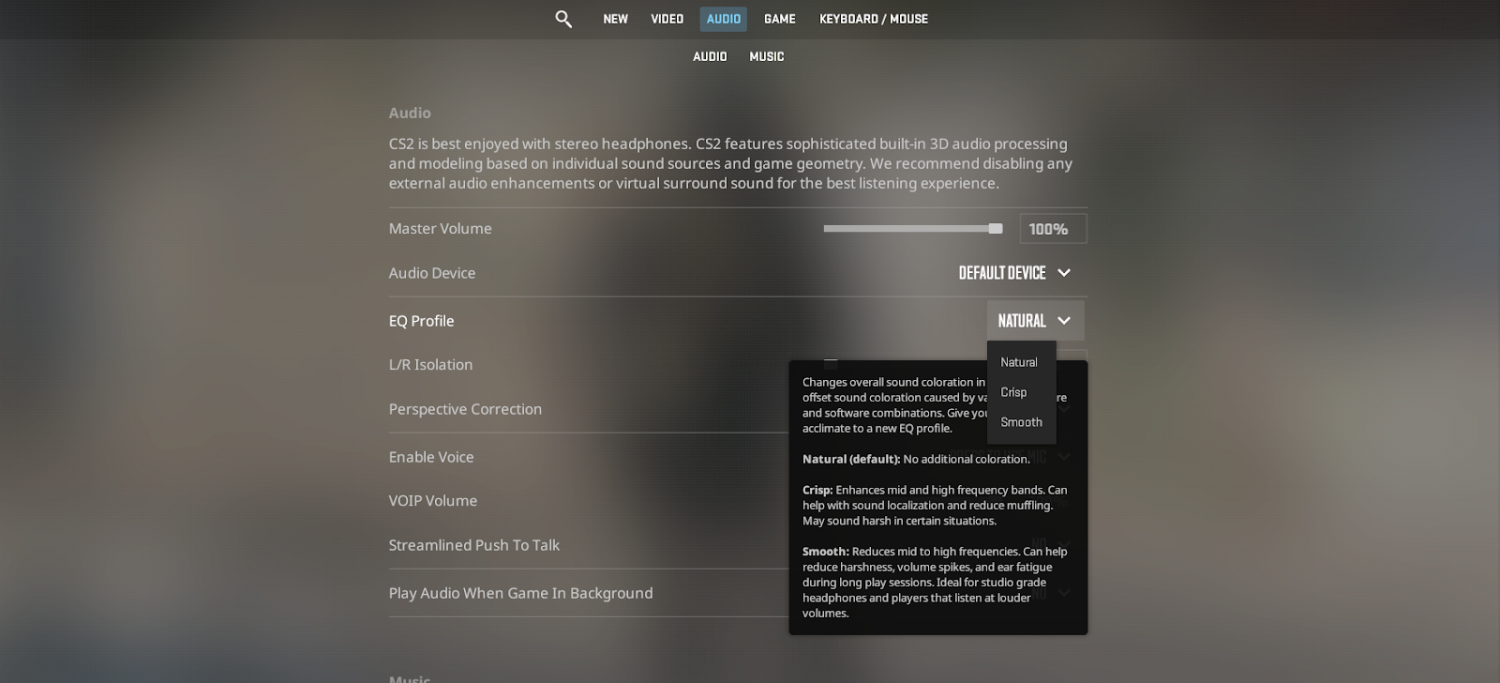
An Equalizer offers several presets that change the overall sound of the game. Crisp highlights the midrange frequencies, helping you to distinguish footsteps and shots. However, it might sound too hard in some situations. Using Smooth isn’t recommended, because it is the opposite of Crisp. It smoothes out different sounds, making it difficult to recognize their directions.
Next, you need to determine how the game will process the sound from left and right audio channels. To achieve the style most similar to Counter-Strike: Global Offensive, set this setting to 50-70%. If you set this parameter close to 0%, however, it will become easier to distinguish the direction of the sound. However, you may need some time to get used to this setting, as it is new for CS2.
Perspective correction works in a similar way. If you want the sound settings in CS2 to be closer to CS2, leave it off. However, turning it on makes the audio sound different depending on the source position relative to the player’s point of view. Consequently, it helps to pinpoint sound directions quickly.

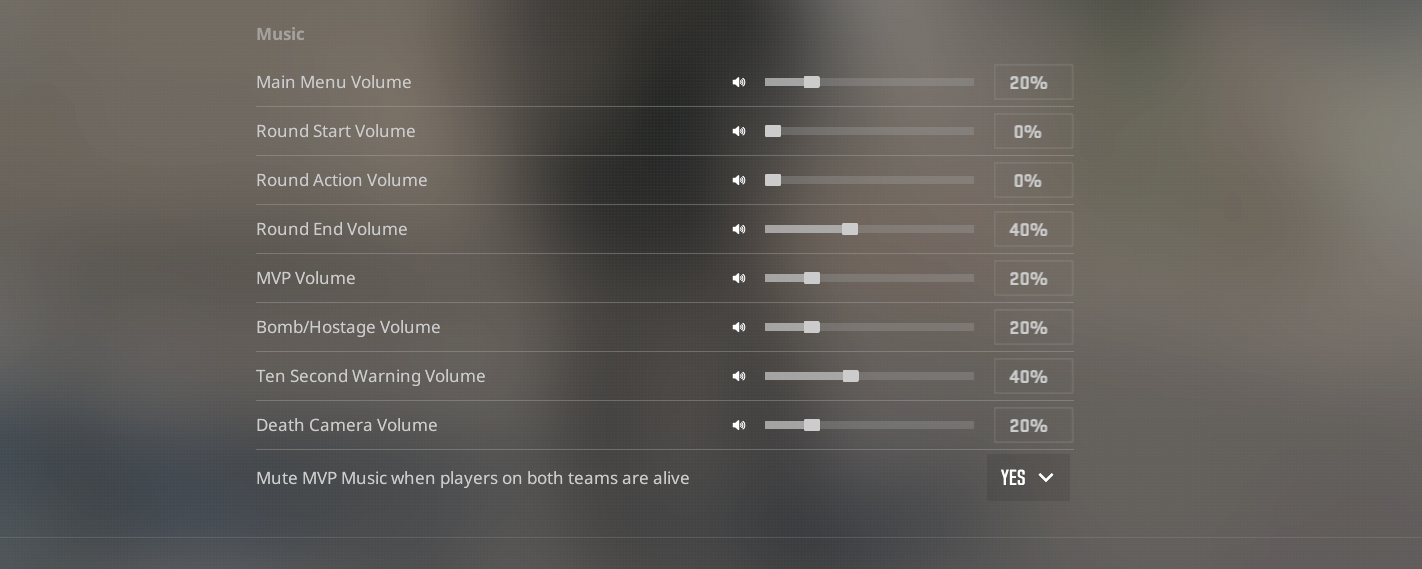
In addition, you can adjust the volume of different in-game sound channels separately. For example, some players prefer to set Ten Second Warning at a higher volume, as it is an important audio clue while leaving Round Start and Round action close to zero.
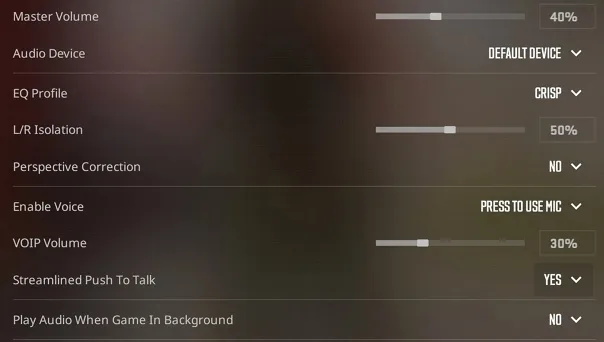
Do not forget about microphone settings as well. Most players prefer the Press To Use Mic option with the Streamlined Push to Talk enabled, as it provides the most convenient microphone usage without the risk of disturbing other players. For more in-depth microphone settings, look at the guide on how to play music through it, and if some problems with your mic arise, this guide will help you to troubleshoot them.
Best Pro CS2 Audio Settings
Similar to other settings in CS2, audio setup is a matter of personal preference. However, learning what settings are used by pro players can be useful, as you can try to copy them as a starting point and see how it works for you. However, instead of exploring ropz or money audio settings, here we offer you a result of analysis of data on over 60 pro players. According to the recent statistics regarding pro players' audio setting in CS2 collected by @ThourCS2 on X (former Twitter), several trends can be pointed out:
62% of pros prefer using the Natural EQ profile over Crisp, and nobody uses Smooth.
62% set Left/Right isolation at 0% to get the most directionally distinctive sound, with the rest distributed among other options. The other most popular settings are 100% (used by 12% of players) and 50% (used by another 10%).
75% of pro players prefer to keep Perspective Correction on.
If you are in doubts about your audio settings, just follow the footsteps of the pros. You can also explore other pro settings here.
Best CS2 Audio Sound Settings for Footsteps
To make footsteps sound louder in CS2 you can take several steps that go besides CS2 settings themselves. Setting Equalizer to Crisp and Left/Right Isolation to Zero, as it was described above, will help for sure, but here are several other things you can do:
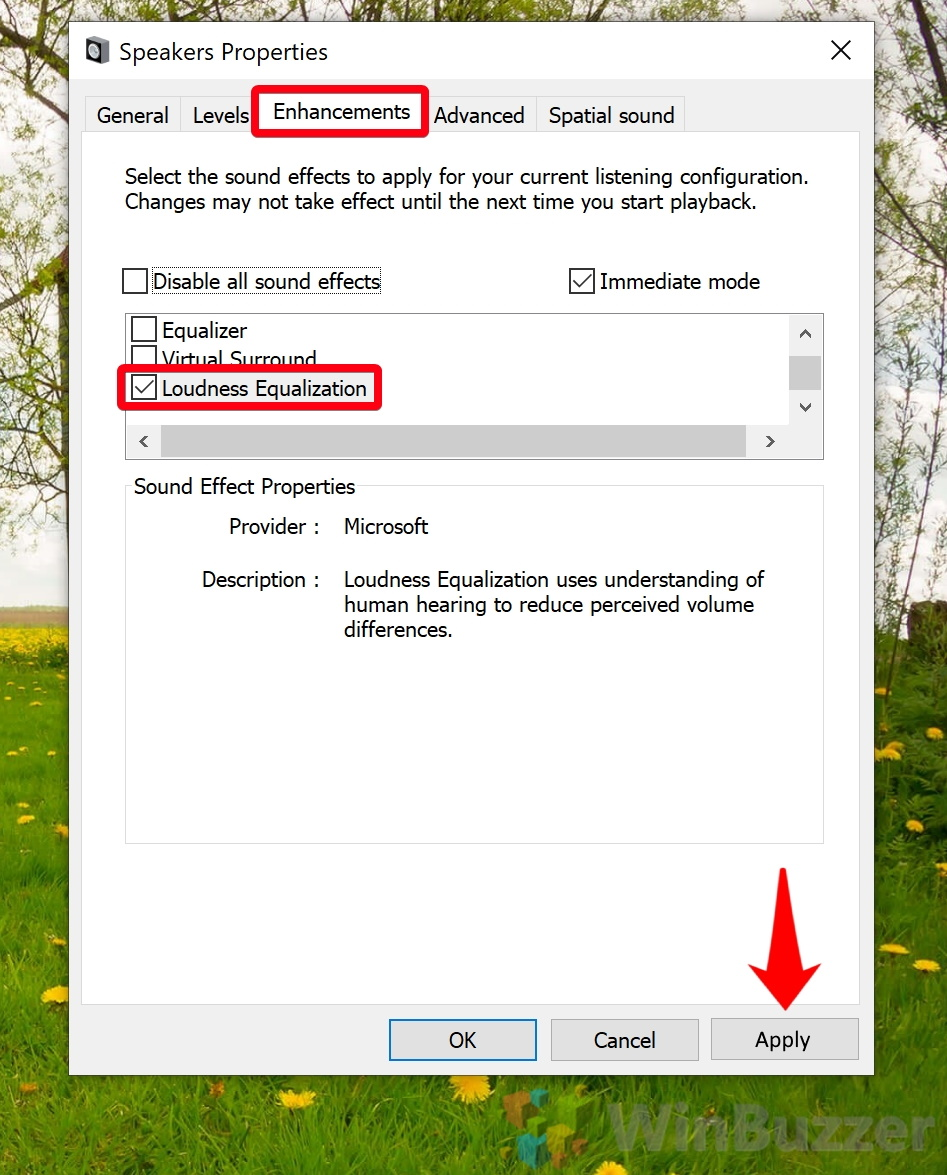
Open Sound Control Panel in Windows.
Open the Properties of your sound device.
Open Enhancements.
Find Loudness Equalization among the parameters and turn it on.
If possible, invest in quality headphones. Often they are accompanied with the specialized software that will further help to improve sound distinction. However, the question of 7.1 surround sound being good for CS2 still remains up to debate, as the game is optimized for using stereo output. Consequently, the better option will be to invest into high-quality stereo headphones and disable virtual 7.1 surround sound options, if there are any.
After getting the best out of your sound settings, do not forget to improve the visual aspect of your game as well! Explore the vast collection of skins and stickers at Skin.Land and buy whatever of them you like for very appealing prices!



Write comment